
How to Clear Cache on a WordPress Website (Beginners Guide)
When you make changes to your WordPress website, have you ever noticed that they…
401
Have you ever tried to visit a website only to be blocked by a frustrating message? Something like: 401 Unauthorized. Yeah, it’s annoying, right? But don’t worry, I’ve got you covered! In this blog, I’ll walk you through what the 401 error code is, why it happens, and how you can fix it — whether you’re just learning about WordPress or already running your own website.
So, let’s dive right in and fix this together!
Imagine you’re trying to get into a party, but the bouncer says you’re not on the guest list. The 401 error is just like that. It means the website doesn’t recognize you, so it won’t let you in.
More technically, the 401 error occurs when your browser doesn’t have the right permission (or authentication) to access a web page. It’s like trying to get backstage without a pass.
The 401 error can pop up for a bunch of reasons. Some common ones are:
If you’ve got a website, the 401 error code can be a nightmare for your visitors. Imagine someone trying to view your awesome blog or product page, and they can’t because of this error! Not only will this frustrate your visitors, but it can also hurt your website’s reputation and engagement.
Plus, the 401 error may be a signal of deeper issues, like a security problem. This makes fixing it right away super important.
While browsing, you might encounter different versions of the 401 error code. Although they all point to the same underlying issue, these variations may appear slightly different depending on the website or server setup. Here are some of the most frequent 401 error code messages you might see:
Each of these messages means the same thing — you’re blocked from accessing the page without the correct authentication. Recognizing these variations helps you troubleshoot the 401 error code faster.
Now, let’s get to the good part — fixing the 401 error! Don’t worry, you don’t have to be a tech wizard to do this.
First things first: double-check that you’re using the right login credentials. Trust me, it happens to me too! Try logging in again and see if the error goes away.
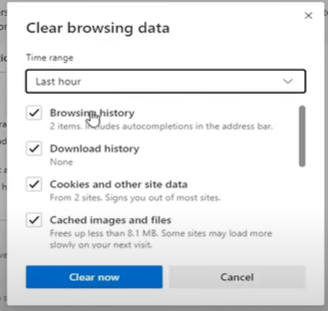
The 401 error might be caused by an expired or corrupted cache. Your browser stores bits of data to help websites load faster, but sometimes that data gets outdated or corrupted. Here’s how you can clear your cache:
This is an easy fix and often solves the issue with the 401 error code.
Sometimes, the 401 error code appears because your WordPress site’s admin directory is password-protected. While this extra layer of security is important, it can also trigger a 401 error if there’s an issue with the password protection settings, or if the server configuration has changed. In such cases, temporarily disabling this password protection can help resolve the error.
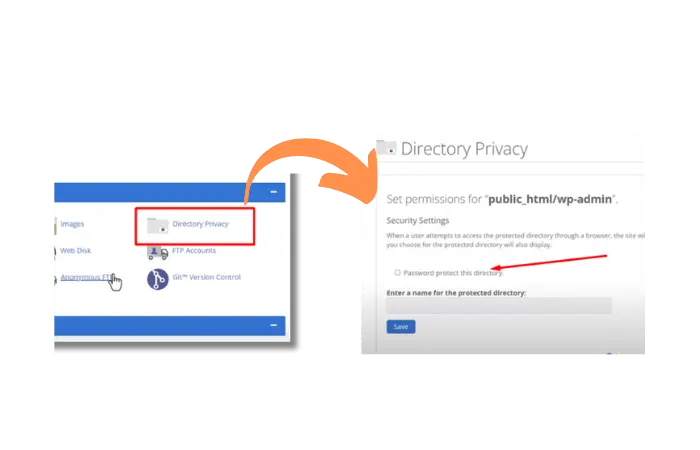
To do this, you’ll need to access your hosting control panel. Different hosting providers, like Bluehost, GoDaddy, or SiteGround, may have slightly different interfaces, but the general process remains the same. First, log in to your hosting account and locate a setting that mentions Directory Privacy or Password-Protected Directories. This is where your website’s folder and file protection settings are managed.
Once inside this section, you’ll see a list of the directories on your hosting account. Browse through the list and locate the folder labeled wp-admin. This is your WordPress admin directory, and if it’s password-protected, that’s likely the reason for the 401 error you’re seeing. To fix this, select the wp-admin folder and review its current settings.
You should see an option that says something like Password protect this directory. If this box is checked, uncheck it and save the settings. By doing so, you’ll be temporarily disabling the password protection on your WordPress admin area.
Once the protection is disabled, try accessing your WordPress site again. If the 401 error no longer appears and you can successfully log in, then you’ve identified the issue. But don’t forget — leaving your admin directory unprotected could expose your site to security risks. So after confirming that the 401 error code is resolved, you’ll want to re-enable password protection.
To do this, simply return to the same directory privacy settings and set up a new user and password for the wp-admin directory. This will give your site the security it needs while ensuring that the error doesn’t reappear. This method is a quick fix, but make sure to double-check your password and ensure everything is set up correctly to avoid future login issues.
If you’re comfortable with a bit of tech, this one’s for you. The .htaccess file is a configuration file used by your server, and sometimes, modifying it can solve the issue. Here’s what you can do:
Always remember to back up your file before making any changes!
If none of these work, you could try using a plugin like BetterLinks to manage redirections. Sometimes the 401 error happens because the page URL is broken, and setting up proper redirection might solve it.
Here’s what you do:
It’s quick and easy, and it can save you a lot of trouble when fixing the 401 error code.
If you’ve tried everything above and are still getting the 401 error code, don’t panic. Here are a few more things to check:
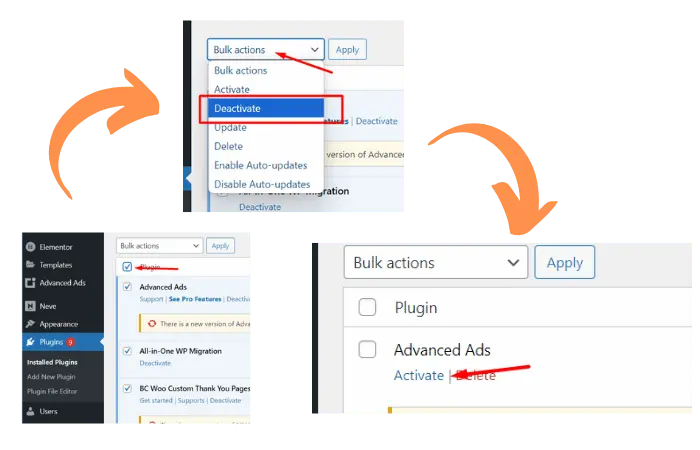
Sometimes, certain WordPress plugins don’t play nice with each other. To see if this is causing the 401 error code, try deactivating all your plugins. And activate your plugins one by one. Checking the website after each. Once you find the culprit, you can either update it or replace it with a better alternative.
If a file or folder on your website doesn’t have the right permissions, your visitors might see the 401 error code. You’ll need to access your website’s files and check the permissions. Make sure files have a permission level of 644 and folders are set to 755.
Some security measures like firewalls might be blocking access by mistake. Try temporarily disabling any firewalls or security software to see if that resolves the issue with the 401 error code.
The 401 error can seem like a big deal, but with the steps I’ve shown you, fixing it doesn’t have to be hard. Just take it step by step, and before you know it, your WordPress site will be back to normal, ready for visitors without any frustrating roadblocks.
Remember, website problems happen, but they’re always fixable with a bit of patience and know-how. Now that you know how to handle a 401 error code, you’re ready to tackle the next tech challenge that comes your way! Keep learning and growing — you got this!
Get free WordPress & AI tips
Join 500+ readers. No spam, unsubscribe anytime.
