
How to Fix Linux Permission Denied When Running Script
- Error
Linux Permission Denied When Running Script- Affects
- Linux / Bash Errors
What Is This Error?
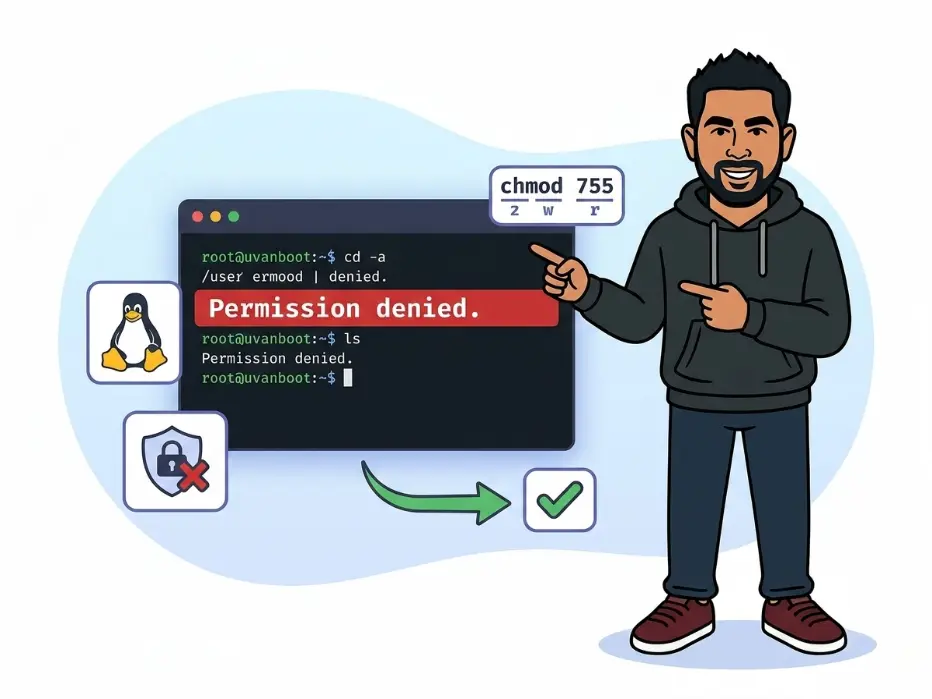
When you type ./myscript.sh and Linux throws back bash: ./myscript.sh: Permission denied, it means the file is missing its execute permission flag. Linux controls every file with three permission types — read, write, and execute — applied separately to the file owner, the group, and everyone else. None of these are assumed automatically.
Unlike Windows, Linux does not treat a file as runnable just because it ends in .sh or .py. You have to explicitly tell the system this file is allowed to be executed. Until that flag is set, Linux will block it every single time, by design.
The good news is this is one of the easiest errors to fix on Linux. In the vast majority of cases, a single command resolves it in under five seconds.
Why Does This Happen?
- File was created without the execute bit: When you create a new file with a text editor,
touch, or by downloading it from the web, Linux applies default permissions that deliberately exclude the execute flag. - File was transferred over SCP, FTP, or extracted from a zip: Many transfer methods and archive tools strip or simply don’t preserve execute permissions, so your script arrives without them even if it had them originally.
- The filesystem is mounted with the
noexecflag: USB drives, certain network shares, and some external volumes are configured to disallow execution of any file, regardless of what permissions are set on the file itself. - You are running as the wrong user: The script may be executable by its owner but your current account is a different user who falls under the “others” permission category, which may not include execute access.
- The script lives in a restricted system directory: Certain directories enforce policies that prevent arbitrary script execution as a security measure, so even a correctly permissioned script can be blocked by its location.
How to Fix It — Step by Step
- Check the file’s current permissions so you know exactly what is missing:
ls -l myscript.shYou should see: A line like
-rw-r--r-- 1 user group 512 Jun 8 10:00 myscript.sh. Notice there is noxanywhere in the permission string — that is the problem. - Add the execute permission using
chmod:chmod +x myscript.shYou should see: No output at all — that is completely normal. Silence means the command succeeded.
- Verify the permission was applied correctly:
ls -l myscript.shYou should see:
-rwxr-xr-xor similar — thexcharacters are now present in the string. - Run your script:
./myscript.shYou should see: Your script executes normally with no permission error.
- Alternative — run without modifying permissions: If you cannot or do not want to chmod the file, call the interpreter directly and pass the script as an argument:
bash myscript.shYou should see: The script runs as expected. This works because you are executing
bash, which is already executable — not the script file directly. - If you still get denied after chmod, the filesystem itself may block execution. Check for the
noexecmount flag:mount | grep noexecYou should see: If your script’s partition appears in the output tagged with
noexec, copy the script to your home directory withcp myscript.sh ~/and run it from there instead.
Common Mistakes When Fixing This
- Reaching for
chmod 777by default: This grants read, write, and execute to every single user on the system. It is a significant security risk on shared machines. Usechmod +xfor a safe default, orchmod 755if you need a specific numeric value — that keeps write access locked to the owner only. - Forgetting the
./prefix when running the script: Typing justmyscript.shwithout./tells the shell to search your system$PATHdirectories, not the current folder. You will get a “command not found” error instead of running your file. Always prefix with./when running scripts from the current directory. - Adding
sudoto the chmod command unnecessarily: If you own the file, plainchmod +xworks perfectly. Usingsudo chmod +xon a file you own is unnecessary and can introduce confusing ownership side-effects further down the line. - Assuming every “Permission denied” error is an execute issue: The same error appears when you try to write to a directory you don’t own, or read a root-owned config file. Always run
ls -lfirst to confirm which specific permission bit is actually missing before applying a fix blindly.
Get free WordPress & AI tips
Join 500+ readers. No spam, unsubscribe anytime.
Frequently Asked Questions
What exactly does chmod +x do?
chmod stands for “change mode” and controls the permission bits on a file. The +x flag adds the execute bit for the owner, group, and others all at once. If you only want the file owner to be able to execute it, use chmod u+x instead — the u targets only the owning user, leaving group and others unchanged.
Why do I have to type ./ before the script name?
Linux only searches for executables in the directories listed in your $PATH environment variable — places like /usr/bin and /usr/local/bin. Your current working directory is intentionally excluded from PATH by default as a security measure. The ./ prefix explicitly tells the shell: look right here, in this directory, for the file to run.
Can I run a script without setting the execute permission at all?
Yes — invoke the interpreter directly with the script as an argument and the execute bit on the script itself is irrelevant. For example: bash myscript.sh, python3 script.py, or sh script.sh. You are running the interpreter binary, which already has execute permission, and simply feeding it your script as a text input.
What if I’m still getting Permission denied after running chmod +x?
Check three things in order: (1) Run mount | grep noexec — if the partition your script sits on is mounted with noexec, move the script to your home directory and retry. (2) Run whoami and compare it with the file owner in ls -l — if they differ, you may need sudo to execute a root-owned script. (3) Check the shebang line at the very top of your script such as #!/bin/bash — if the interpreter path is wrong or doesn’t exist on your system, you will still receive a permission-style error even with the execute bit set.