WordPress Errors

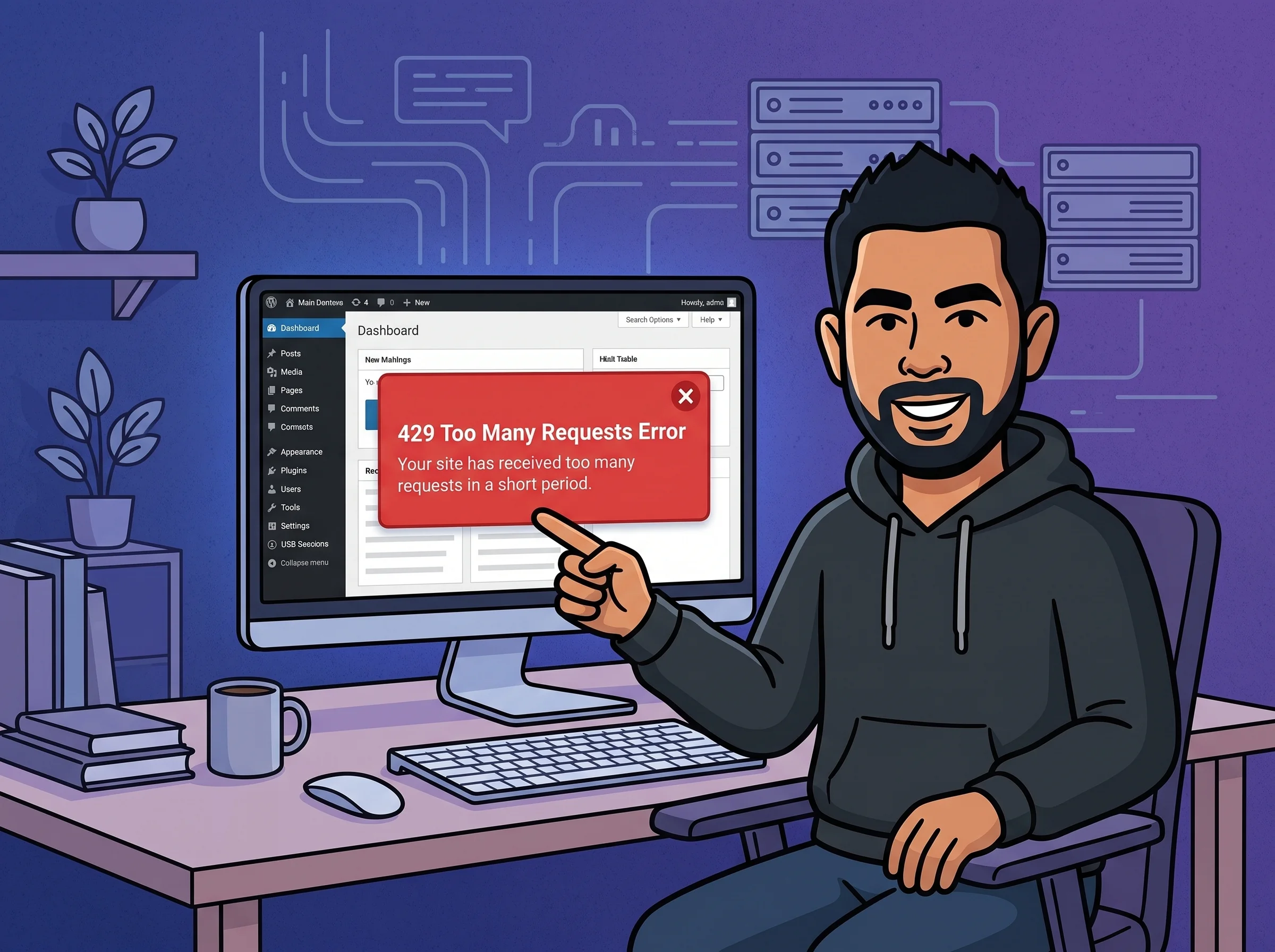
WordPress 429 Too Many Requests Error

Warning Updated: June 16, 2026

What Is This Error?

A 429 Too Many Requests error means something — your browser, a plugin, or a bot — sent too many HTTP requests to your server in a short time window. Once a set threshold is crossed, the server stops processing new requests and starts rejecting them with a 429 response instead.

In WordPress, this error usually shows up in one of two ways: visitors see a 429 page when browsing your site, or you spot it in your browser’s DevTools Network tab when a plugin or REST API call gets throttled. Either way, the underlying mechanism is rate limiting — a traffic control system designed to protect your server from being overwhelmed.

The tricky part is that the 429 can originate from several different layers: your hosting provider, Cloudflare, a security plugin, or even a third-party API your plugins connect to. Identifying the exact source is your first job before touching anything else.

Why Does This Happen?

  • Hosting provider rate limits: Shared and managed hosts cap PHP requests per minute to prevent one site from starving others on the same server.
  • Security plugin throttling: Tools like Wordfence or iThemes Security rate-limit login attempts and REST API calls, which can accidentally flag legitimate admin activity as suspicious.
  • Cloudflare rate limiting rules: If your site sits behind Cloudflare, a WAF rule may be matching on specific URL patterns and blocking requests that exceed its threshold.
  • Runaway WP-Cron jobs: Misconfigured or stuck scheduled tasks can fire in rapid bursts, flooding your server with internal PHP processes all at once.
  • Plugin API overuse: WooCommerce extensions, payment gateways, or marketing tools that poll external APIs too aggressively can exhaust per-minute quotas on those third-party services.

How to Fix It — Step by Step

  1. Identify where the 429 is coming from. Open your browser’s DevTools (F12), go to the Network tab, reproduce the error, and click the 429 response. Check the Response Headers for a X-RateLimit-*, cf-ray (Cloudflare), or any server-specific header that names the rate-limiting party.

    You should see: A response header that points to your host, Cloudflare, or a specific plugin as the source of the throttle.

  2. Check Cloudflare if it is the source. Log in to your Cloudflare dashboard, go to Security > WAF > Rate Limiting Rules, and look for any rule matching your site’s URL pattern. Raise the request threshold or add a bypass rule for your own IP address.

    You should see: The offending rule listed with its trigger count and the matched path, making it clear which URLs are being blocked.

  3. Adjust your security plugin’s rate limit settings. In Wordfence, navigate to Wordfence > Firewall > All Firewall Options and scroll to the Rate Limiting section. Raise the requests-per-minute values for humans and crawlers, or whitelist your IP under Wordfence > Tools > Whitelist IPs.

    You should see: The 429 responses stop appearing for your IP immediately after saving settings and clearing your site cache.

  4. Disable WP-Cron and replace it with a real server cron job. Add this line to your wp-config.php to stop WordPress from triggering cron tasks on every page load:
    define('DISABLE_WP_CRON', true);

    Then add a proper server-side cron via cPanel or SSH that calls wp-cron.php on a set schedule:

    */1 * * * * wget -q -O - https://yoursite.com/wp-cron.php?doing_wp_cron >/dev/null 2>&1

    You should see: Fewer simultaneous PHP processes in your server stats and a noticeable drop in 429 frequency.

  5. Isolate any plugin making excessive API calls. Deactivate plugins one at a time — start with WooCommerce extensions, analytics tools, and marketing integrations — and watch the Network tab after each deactivation. Once the culprit is found, re-enable it and configure its request caching or batching settings.

    You should see: The flood of 429 responses in DevTools disappear when the offending plugin is deactivated.

  6. Contact your host if the limit is set at the server level. If the 429 header points to your hosting provider, reach out to their support team and ask them to raise your PHP request limit or create an exception for your admin IP. Managed hosts like Kinsta or WP Engine often let you do this directly from their dashboard.

    You should see: Written confirmation from support that the limit was raised, followed by the error no longer appearing.

Common Mistakes When Fixing This

  • Turning off your security plugin entirely: Disabling Wordfence or a similar plugin removes your brute force protection along with the rate limit. The correct move is to raise the thresholds or whitelist trusted IPs — not delete the shield entirely.
  • Skipping the source identification step: Jumping to fixes before knowing where the 429 originated means you may be adjusting the wrong system. Tune Cloudflare when the problem is actually your host, and the error keeps returning no matter what you change.
  • Assuming a cache clear will reset the rate counter: Clearing your WordPress or CDN cache does not reset rate limit counters on the server side. You need to wait for the time window to expire or explicitly unblock your IP in the relevant dashboard.
  • Ignoring server error logs: Your hosting control panel’s error log will often show exactly which endpoint is being hammered and how often. Skipping the logs means guessing — checking them gives you a direct path to the offending plugin or script.

Frequently Asked Questions

Does a 429 error mean my site is being attacked?

Not necessarily. While a spike of 429s on the login page can signal a brute force attempt, most cases are caused by your own plugins or cron jobs making too many internal requests. Check your server logs before assuming malicious intent — the source is usually something you installed yourself.

Will the error go away on its own without doing anything?

Yes, temporarily. Rate limits are time-based, so the 429 typically clears once the current request window resets — usually within a minute to an hour depending on the rule. But without fixing the root cause, the same threshold will be hit again and the error will keep returning.

Can a 429 error hurt my SEO rankings?

It can if Googlebot is getting rate-limited while crawling your site. Check Google Search Console under Coverage for crawl errors and consider adding Google’s crawl IP ranges to your whitelist in Cloudflare or your security plugin so the bot is never blocked.

How do I pinpoint which plugin is making too many requests?

Open DevTools, switch to the Network tab, and filter by Fetch or XHR while your site loads with the plugin active. You can also install Query Monitor — it surfaces REST API calls and labels them by the plugin that triggered each one, making the culprit obvious in seconds.