
Not a Valid JSON Response in WordPress: How to Fixing the Error
Hey there! If you’re diving into the exciting world of WordPress, you might come…
WordPress Memory Exhausted Error Allowed Memory Size Exhausted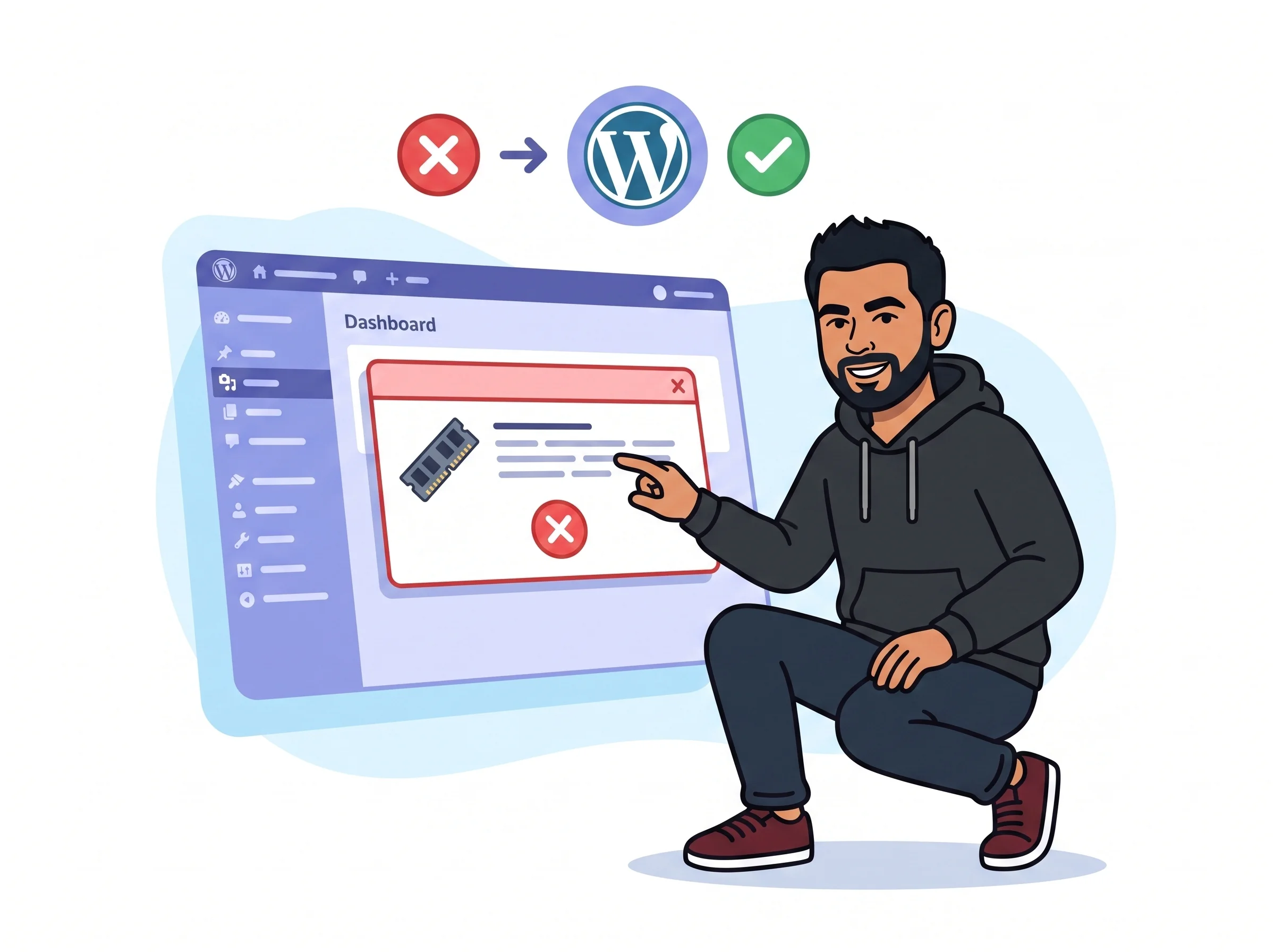
When WordPress hits this error, you’ll typically see a message like “Fatal error: Allowed memory size of 67108864 bytes exhausted.” What this means is that PHP — the language WordPress runs on — has a memory ceiling, and something on your site pushed past it during a single page request.
Think of PHP memory like a work desk. Every plugin, theme, and database query needs some desk space to operate. When too many things pile on at once, there’s no room left, and PHP halts execution rather than crashing silently. That’s the error you’re seeing.
The good news: this is one of the most straightforward WordPress errors to resolve. In most cases, a single line of code fixes it immediately.
Open wp-config.php in your WordPress root directory and add this line just before the comment that reads /* That's all, stop editing! */:
define('WP_MEMORY_LIMIT', '256M');You should see: The error disappears and your site loads normally. If it persists, your server-level limit is overriding this setting — continue to Step 2.
Create or edit a file named php.ini in your WordPress root directory and add the following line:
memory_limit = 256MYou should see: The site loads without errors. On some shared hosts, php.ini changes are silently ignored — try Step 3 if this doesn’t help.
For Apache-based servers, open .htaccess in your WordPress root and insert this line near the top:
php_value memory_limit 256MYou should see: The page loads cleanly. If you get a 500 Internal Server Error after saving, remove that line — your host doesn’t permit PHP directives in .htaccess.
If the error keeps returning after raising the limit, the root cause needs identifying. Deactivate all plugins from the WordPress admin panel, then reactivate them one by one, checking memory usage each time using the Query Monitor plugin.
You should see: A noticeable memory spike in Query Monitor when you reactivate the offending plugin — that’s your target to replace, configure, or contact the developer about.
If none of the file edits above take effect, your host has locked the memory limit at the server level and your changes are being overridden. Submit a support ticket asking them to raise PHP memory to at least 256MB — this is a routine request any reputable host will handle.
You should see: A support confirmation that the limit has been updated, after which your site should run cleanly without the error returning.
WP_MEMORY_LIMIT after that comment block in wp-config.php, WordPress may never parse it. Always insert it before that line, not after.Get free WordPress & AI tips
Join 500+ readers. No spam, unsubscribe anytime.
256M is a safe and widely recommended value for most WordPress sites. If you’re running WooCommerce with a large catalog, heavy page builders, or multiple premium plugins, consider 512M. Avoid going beyond that unless your hosting plan explicitly supports the higher allocation — more isn’t always better on shared infrastructure.
Either the limit you set is still lower than what a specific operation needs, or a plugin update reintroduced memory-heavy code. Re-examine your limit value and install Query Monitor to see live memory consumption per page load — it will tell you exactly which plugin or query is the biggest offender.
Not if the error prevents the dashboard from loading. PHP needs to execute successfully before WordPress can render the admin interface, so when memory is exhausted early in the request, you’ll have to edit files directly via FTP, SFTP, or your hosting provider’s file manager.
That’s a strong signal that your current hosting plan is under-resourced for your site’s needs. Consider upgrading to a higher-tier plan or switching to a host with more generous PHP limits. A memory ceiling below 128MB is simply not suitable for a modern WordPress site running a typical plugin stack.
