
How to Fix WordPress 429 Too Many Requests Error — Complete Guide
The WordPress 429 error means your server is rate-limiting requests — find the source…
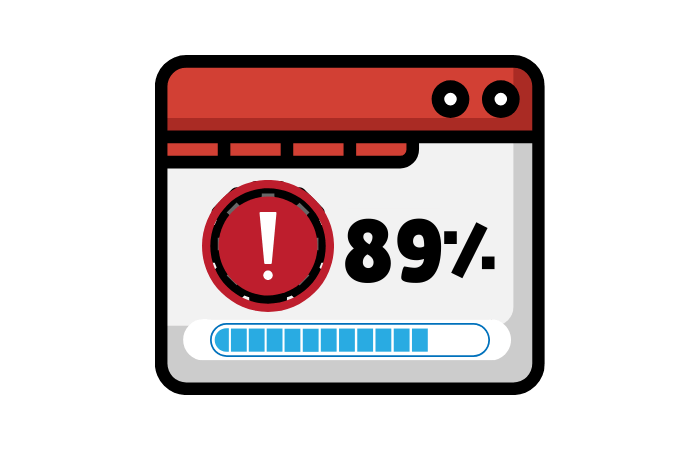
If you’ve ever encountered your WordPress installation getting stuck at 89%, you know how perplexing it can be. The progress bar seems to halt, leaving you wondering what went wrong. This issue typically arises due to file permission problems or insufficient disk space. Hosting providers often implement strict security measures, which can interfere with installations, especially if your server lacks adequate storage. Lets see how to fix WordPress Installation Stuck at 89%.
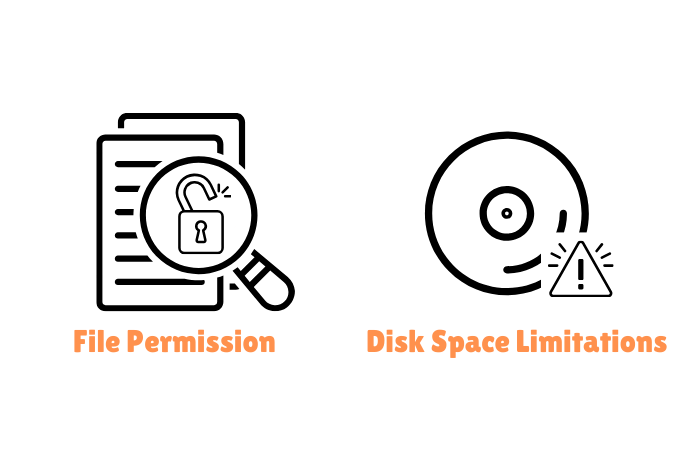
Understanding how to fix WordPress installation problems not only saves you time but also ensures your website runs smoothly. By resolving the stuck installation issue, you’ll be able to:
Here’s a step-by-step guide to help you resolve this common issue:
Ensure your server has enough disk space to accommodate the WordPress installation. If not, consider upgrading your hosting plan or freeing up space. Use your server’s control panel to verify current usage and identify large files that can be deleted or archived.

Incorrect file permissions can hinder the installation process. Ensure that your files have the correct 755 permission settings for directories and 644 for files. You can often adjust these settings through your hosting provider’s file manager or using an FTP client.
Sometimes, PHP memory limits can cause issues. Adjust your php.ini file to increase memory limits if necessary. For example, you can set memory_limit = 256M to provide more resources for your installation.
PHP memory limit guide|https://www.php.net/manual/en/ini.core.php#ini.memory-limit
Check your server’s error logs for any specific messages that could indicate the source of the problem. These logs can often be found in your server’s control panel, providing insights into potential issues with server configuration, permissions, or even plugin conflicts.
If the problem persists, reach out to your hosting provider for additional support. They might have specific solutions tailored to their server settings. Hosting providers can offer detailed diagnostics and potential workarounds if server-level restrictions are causing the issue.
Once you’ve resolved the current problem, it’s vital to prevent it from recurring. Here are some advanced tips to ensure a hassle-free WordPress experience:
Dealing with a WordPress installation that’s stuck at 89% can be daunting, especially for beginners. However, by following the steps outlined above, you can efficiently troubleshoot and resolve the issue. Moreover, implementing the advanced tips will help prevent future problems, ensuring your WordPress journey is smooth and successful.
This issue usually occurs due to file permission errors or insufficient disk space. Ensuring proper permissions and adequate storage can resolve the problem.
Regularly update your WordPress, maintain sufficient disk space, and conduct frequent backups to avoid future installation issues.
If self-troubleshooting doesn’t work, contact your hosting provider for assistance. They can offer solutions tailored to their server settings.
Get free WordPress & AI tips
Join 500+ readers. No spam, unsubscribe anytime.
