
How to Fix WordPress Updating Failed Publishing Failed Error
This WordPress block editor error means your REST API is being blocked, preventing posts…
504
Encountering a 504 status code while trying to access your WordPress site can be frustrating, especially if you’re not sure what it means or how to fix it.
This guide will walk you through understanding the 504 error, its variations, and step-by-step solutions to get your site up and running smoothly again.
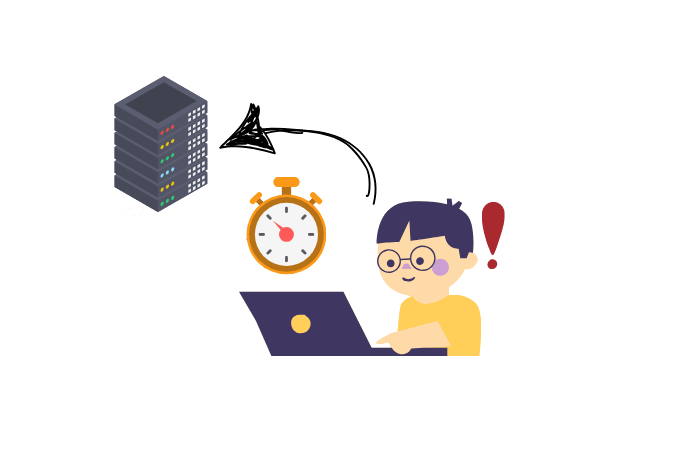
The 504 status code, often called a “504 Gateway Timeout,” occurs when a server fails to receive a timely response from an upstream server. This can happen due to network congestion, server overload, or misconfigurations. Common variations include “504 Gateway Timeout,” “NGINX 504 Gateway Timeout,” “HTTP 504,” and “504 Gateway Time-out -The server didn’t respond in time.”
When this error occurs, users are unable to access your website, leading to a potential loss of traffic and revenue. Understanding the underlying causes and knowing how to troubleshoot effectively is crucial.
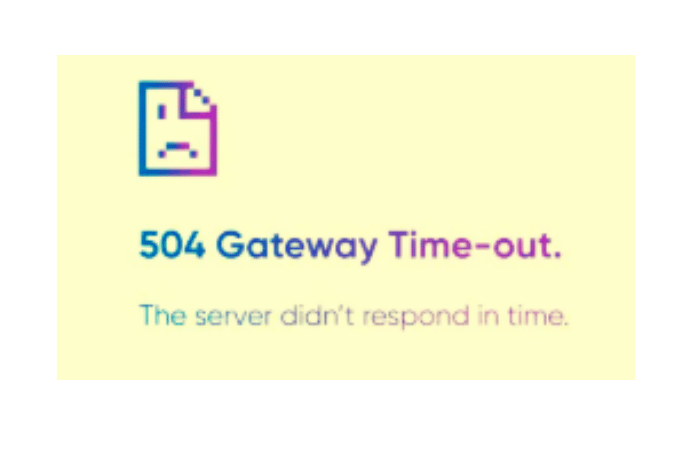
There are several variations of the 504 status code error, each indicating slightly different issues:
Imagine you’re trying to visit your favourite website, but instead of loading, you see a frustrating “504 Gateway Timeout” error. Ugh! Annoying, right? But don’t worry! Fixing this issue is easier than you think. Follow these simple steps to troubleshoot the problem and get back online in no time.
Before diving into technical fixes, start with the easiest solution: refresh the page. Sometimes, the issue is just a temporary glitch, and a simple reload (press F5 or click the refresh button) can fix it. If that doesn’t work, let’s move on to the next step.
Think of your computer, router, and modem like tired workers who need a break. Restarting them can clear minor network issues. Turn them off, wait a few seconds, and power them back on. Now, check if the website loads. If not, let’s try another trick!
Your computer remembers website addresses to load pages faster, but sometimes, it stores outdated information. Flushing the DNS clears these old records and forces your device to fetch fresh data. Here’s how:
ipconfig /flushdns, then press Enter.sudo killall -HUP mDNSResponder, then press Enter.Try opening the website on another phone, laptop, or even a different Wi-Fi network. If it works there, the issue might be with your original device or internet connection. If it still doesn’t load, keep troubleshooting!
If you run a WordPress site, one of your plugins could be causing trouble. To check:
A Content Delivery Network (CDN) helps load websites faster, but sometimes, it can cause errors. If you’re using a CDN like Cloudflare, try disabling it temporarily. If your site loads after that, the CDN might need adjustments. You can try:
Changing the DNS resolution method to see if it improves connection speed.
Purging the cache to remove outdated data.
Optimizing settings like enabling “Development Mode” in Cloudflare.
Your firewall protects your site, but sometimes, it can block necessary connections. If you have a security plugin or a server firewall, check its settings:
If using Cloudflare: Disable “Under Attack Mode” or whitelist your IP.
In WordPress security plugins: Navigate to firewall settings and look for blocked IPs or rules affecting access.
In cPanel or hosting dashboard: Go to security settings and check firewall logs for any blocked requests.
If your website is hosted on a server using NGINX or Apache, increasing the timeout setting might help.
For NGINX, add this line to the configuration file:
proxy_read_timeout 600;
For Apache, modify the .htaccess file and add:
Timeout 600
For PHP-based sites, increase execution time in php.ini:
max_execution_time = 600
Error logs are like detective notes that record what went wrong. You can access them through:
cPanel: Go to Metrics > Errors.
FTP or File Manager: Check the error_log file in your root directory.
WordPress Debugging: Enable debug mode by adding this to wp-config.php:
define('WP_DEBUG', true);
define('WP_DEBUG_LOG', true);
define('WP_DEBUG_DISPLAY', false);
This saves errors in wp-content/debug.log.
Sometimes, your hosting provider might not be giving you enough resources, causing your site to time out. If you notice frequent slowdowns or errors, consider upgrading to a better hosting plan with more power.
Contabo offers high-performance VPS hosting at affordable prices, making it a great choice for websites needing reliable uptime and speed. If you’re experiencing frequent 504 errors, switching to a VPS plan with more resources might be the best long-term solution.
Preventing the 504 status code involves proactive management of server resources and configurations:
Think of your website like a big, messy room. If you need to find something fast, but everything is scattered around, it takes forever! That’s what happens when your database isn’t well-organized. The server struggles to fetch the right information quickly, and boom—your website slows down or crashes.
The fix? Clean up your database! Organize your data properly and write efficient queries so your server doesn’t have to work overtime just to show a simple webpage. The faster your database responds, the lower your chances of facing a 504 status code.
Imagine you have a favorite game, and every time you play, you have to go through a super long loading screen. Annoying, right? But what if the game could remember parts of your progress and load faster? That’s exactly what caching does for websites!
Caching saves a copy of frequently used data, so your server doesn’t have to dig through everything every time someone visits your site. You can use caching plugins or tools to make your website load in a flash, reducing the chances of a timeout error.
Think of your website like a car. If you never check the engine, one day it might just stop working in the middle of the road. Not fun! That’s why regular check-ups matter.
By using server monitoring tools, you can track how well your website is performing and spot issues before they cause a crash. If your server starts slowing down, you can fix it before visitors get stuck with that dreaded 504 error.
Imagine you and your friends are carrying a huge box together. If one person tries to do it alone, they might drop it. But if you all help, it’s way easier! That’s how load balancing works for websites.
When too many people visit your site at the same time, a single server might struggle to handle them all. Load balancing spreads visitors across multiple servers, making sure no single server gets overwhelmed. This helps prevent slowdowns and, you guessed it—504 errors!
For more complex scenarios, consider these advanced techniques:
Assessing the severity of a 504 error can help prioritize troubleshooting efforts:
Encountering a 504 status code can be daunting, but with the right troubleshooting and preventive measures, you can minimize its occurrence and impact. By understanding the error’s root causes and implementing the strategies discussed, you can ensure a smoother and more reliable user experience on your WordPress site.
Get free WordPress & AI tips
Join 500+ readers. No spam, unsubscribe anytime.
