
WordPress Featured Image Not Showing? 8 Easy Fixes That Actually Work
Have you ever experienced that sinking feeling when you publish a WordPress post, only…
Are your WordPress 301 redirects not working, causing unnecessary frustration and potentially harming your site’s SEO performance? You’re not alone. This comprehensive guide will provide you with the solutions you need to effectively fix these issues.
In this guide, we will explore the nature of 301 redirects, delve into the common causes of their failure in WordPress, and provide actionable solutions to rectify these problems.
Furthermore, we will discuss advanced techniques and prevention strategies to avert future occurrences, ensuring your site’s SEO integrity and user experience remain intact.
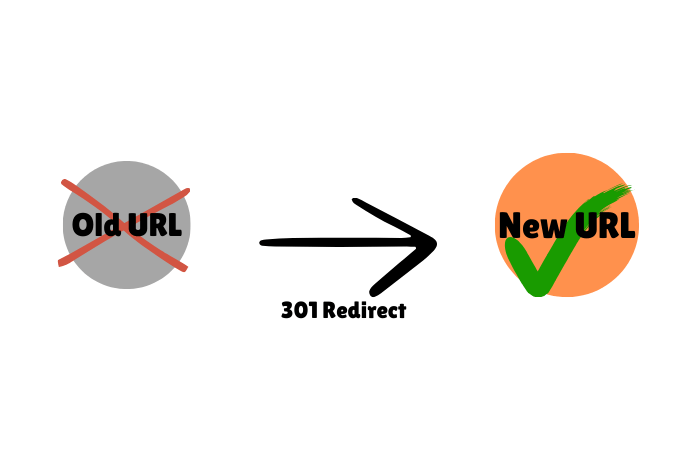
A 301 redirect is a permanent redirect that transfers the majority (between 90-99%) of link equity from the original URL to the redirected page.
This is crucial for maintaining SEO rankings when URLs change due to a permalink update, site migration, or other modifications. However, when WordPress 301 redirects are not working, it can lead to decreased search rankings and a poor user experience, making swift resolution vital.
When 301 redirects fail, the implications are significant. Search engines may encounter broken links or outdated content, leading to a drop in your site’s ranking.

Users may face frustration when they are unable to access the desired content, potentially increasing bounce rates and diminishing trust in your site. Therefore, ensuring 301 redirects function correctly is essential for both technical SEO and overall user experience.
Several factors may disrupt WordPress 301 redirects, including:
Addressing these issues promptly is essential to prevent drops in search rankings and user dissatisfaction. Here are some common fixes:
.htaccess FileUsing a plugin is a safe and beginner-friendly way to modify .htaccess. Here’s how:
.htaccess File:
WP Security > Firewall..htaccess File section.SEO > Tools > File Editor..htaccess file directly from there.Redirect 301 /old-page.html /new-page.htmlIf you prefer a manual approach, follow these steps:
First, visit the old URL in your browser. It should automatically redirect to the new URL. To make this happen, access your server by using an FTP client like FileZilla or by accessing your server’s file manager via cPanel or CyberPanel. Once you’re in, navigate to the root directory of your WordPress site, typically located in /public_html.
Before making any changes, it’s essential to backup the .htaccess file. Download a copy of it to your computer. After that, open the file using a plain text editor, such as Notepad or Sublime Text.
Now, add the redirect rule by inserting the 301 redirect code at the end of the file:
RewriteEngine On
Redirect 301 /old-page.html /new-page.html
After saving your changes, upload the .htaccess file back to your server via FTP or your file manager. To ensure everything is working properly, test the redirect by visiting the old URL once more. It should seamlessly redirect to the new page.
Lastly, always make sure to keep backup copies of your .htaccess file before making any modifications.
Plugins like Redirection provide an intuitive interface for managing redirects. They also help track 404 errors and tidy up any loose ends in your URL structure.
Navigate to Settings > Permalinks in your WordPress dashboard and click Save Changes to refresh the permalink structure, which can resolve many redirect issues.
Sometimes, clearing the browser cache can resolve redirect issues, as the browser may have stored an outdated version of the pages. Check out my Beginners Guide on How to Clear Cache on a WordPress Website to learn how to do this effectively.
Deactivate all plugins and then reactivate them one by one to identify any that may be causing conflicts. Common culprits include security or caching plugins that override URL settings.
For more complex issues, advanced techniques such as custom PHP scripting and modifying server configuration files may be necessary.
By adding custom scripts to your theme’s functions.php file, you can create more sophisticated redirect logic. Here is a basic example:
add_action('template_redirect', 'custom_redirect_function');
functioncustom_redirect_function() {
    if (is_page('old-page')) {
wp_redirect(home_url('/new-page/'), 301);
        exit();
    }
}
For more advanced redirect scenarios, directly modifying your server’s configuration files can offer greater control and flexibility. This approach is especially useful for larger sites or when you need precise redirection rules.
For Apache: To modify redirects on an Apache server, access your server’s .htaccess file, which is usually found in the root directory of your WordPress site. Add the following code to set up a 301 redirect:
Redirect 301 /old-url/ http://www.example.com/new-url/
Be sure to replace /old-url/ with the original URL path and http://www.example.com/new-url/ with the new destination URL.
For Nginx: If you’re using an Nginx server, you’ll need to edit the Nginx configuration file, typically located in /etc/nginx/nginx.conf or a site-specific configuration file. Add this code inside the server block:
location /old-url/ {
    return 301 http://www.example.com/new-url/;
}
Again, replace /old-url/ with the old URL path and http://www.example.com/new-url/ with the new URL destination. After making these changes, be sure to reload or restart your Nginx server to apply the updates.
Note: Modifying server configuration files requires technical expertise, so if you’re not familiar with server configurations, it’s a good idea to consult a WordPress developer or someone with server management experience to avoid errors or downtime.
Preventing 301 redirect failures involves proactive measures, such as:
Fixing WordPress 301 redirects not working can seem daunting, but with the right approach, you can quickly restore your site’s SEO performance and improve user experience. By understanding the causes, applying common fixes, and utilizing advanced techniques when necessary, you can ensure a smooth and efficient redirect process. Moreover, adopting prevention strategies will safeguard your site against future issues.
Why are my WordPress 301 redirects not working?
Common causes include changes in permalink structure, plugin conflicts, or outdated WordPress versions. Reviewing these areas can help identify the issue.
How do I fix 301 errors in WordPress?
Use the .htaccess file for manual redirects, employ redirection plugins, update permalinks, and check for plugin conflicts.
What are advanced techniques for fixing 301 errors?
Advanced methods include custom PHP scripting and modifying server configuration files, which require technical expertise.
