
How to Fix WordPress “Are You Sure You Want to Do This” Error
This WordPress error means a security token (nonce) failed verification; fix it by clearing…

Have you ever experienced that sinking feeling when you publish a WordPress post, only to discover your carefully chosen featured image has vanished? Furthermore, you check your homepage and see blank spaces where stunning visuals should capture your visitors’ attention.
This WordPress featured image not showing problem affects countless website owners. Moreover, it’s not just about aesthetics – missing featured images can seriously impact your site’s performance. Consequently, your social media shares look unprofessional, your blog homepage appears incomplete, and your click-through rates suffer.
Here’s what makes this issue particularly frustrating: featured images work perfectly in your WordPress dashboard, but they simply won’t display on your live website. Additionally, when you share posts on Facebook or Twitter, only plain text appears without any visual appeal.
Featured images are crucial because they serve as visual hooks that grab attention, boost engagement, and make your content shareable across social platforms. Therefore, when WordPress featured images stop showing, your entire content strategy takes a hit.
WordPress featured images (also called post thumbnails) are the primary visual representations of your content. Specifically, they appear in multiple locations:
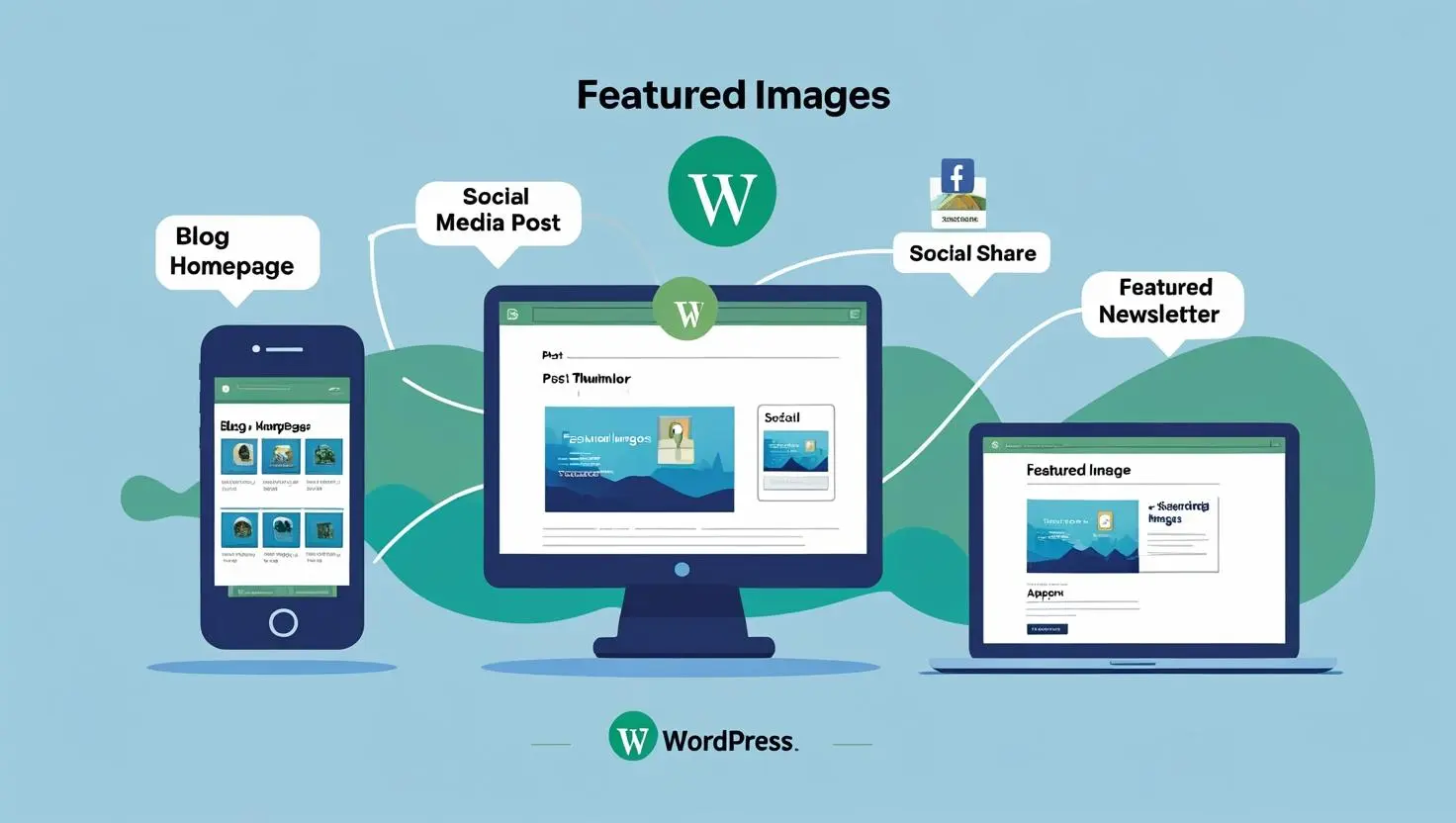
Without functional featured images, your website loses its visual impact. As a result, visitors spend less time on your site, and your content becomes harder to share effectively.
Understanding why WordPress featured image not showing occurs helps you choose the right solution. Here are the primary culprits:
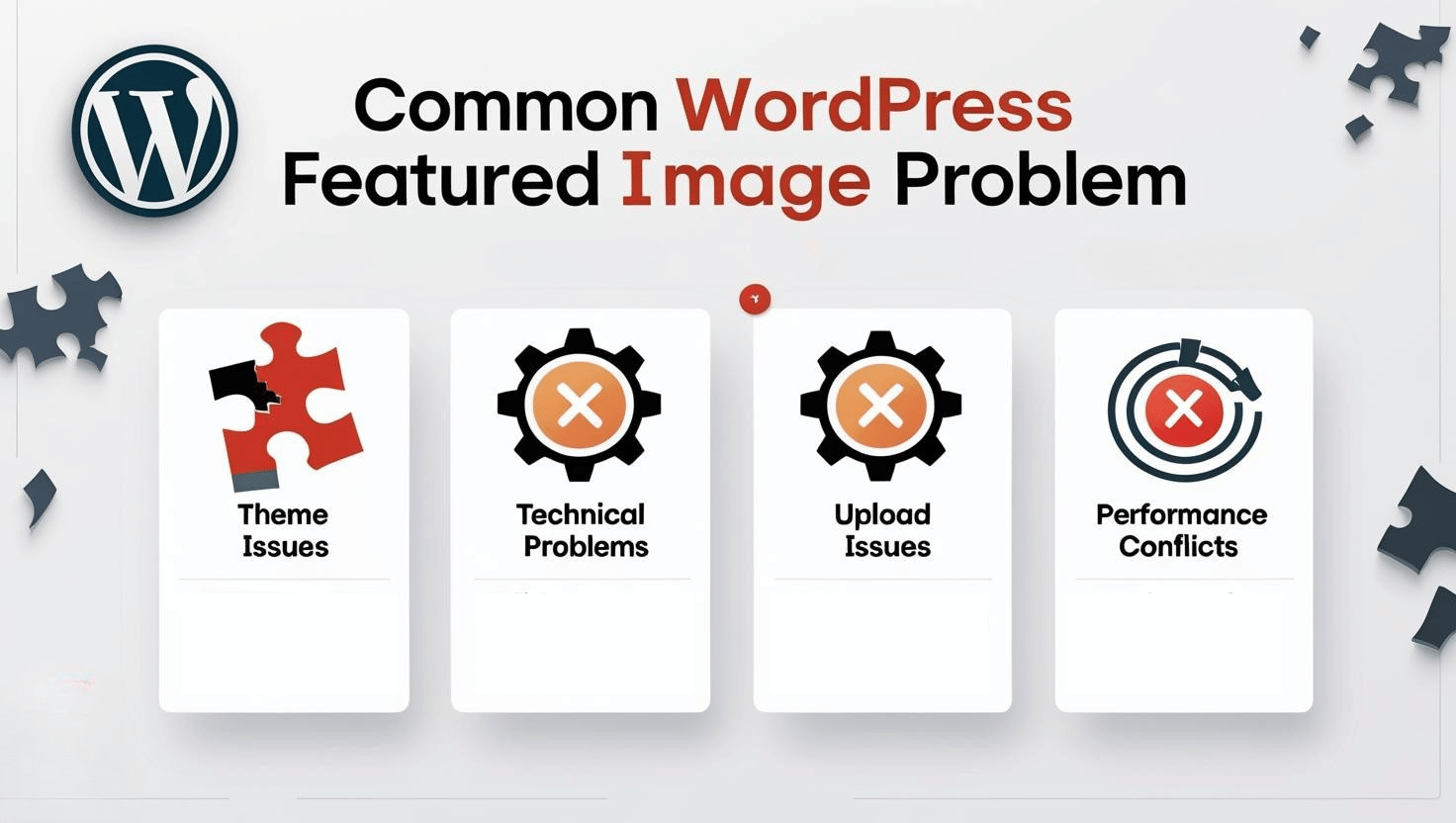
Now, let’s dive into the detailed solutions that will restore your WordPress featured image functionality.
Before implementing technical solutions, let’s ensure your WordPress featured image not showing issue isn’t due to basic setup problems.
Step 1: Check Featured Image Settings
Step 2: Check for Featured Image Panel
If you don’t see the “Featured Image” section in your post editor:
Step 3: Set Your Featured Image
Step 4: Test the Display
Pro Tip: If the image appears in some locations but not others, your theme might have specific size requirements for different display areas.
Many themes, particularly older or custom-built ones, don’t automatically support featured images. This WordPress featured image not showing fix is essential for proper functionality.
This method is safer because it doesn’t require direct file editing:
Step 1: Install WPCode Plugin
Step 2: Add Featured Image Support Code
function enable_featured_images_support() {
    add_theme_support('post-thumbnails');

    // Set default featured image sizes
    set_post_thumbnail_size(1200, 628, true);

    // Add custom image sizes
    add_image_size('featured-large', 1200, 628, true);
    add_image_size('featured-medium', 600, 314, true);
}
add_action('after_setup_theme', 'enable_featured_images_support');
⚠️ Important: Always create a complete website backup before editing theme files.
Step 1: Access Your Theme Files
Via WordPress Dashboard:
Warning: This method can break your site if done incorrectly
Via cPanel File Manager:
Via FTP Client:
Step 2: Add the Featured Image Code
Add this code at the end of your functions.php file, before the closing ?> tag (if it exists):
// Enable WordPress featured image support
function my_theme_featured_image_setup() {
    // Add featured image support
    add_theme_support('post-thumbnails');

    // Set default thumbnail size
    set_post_thumbnail_size(1200, 628, true);

    // Add additional image sizes
    add_image_size('post-thumbnail-large', 1200, 628, true);
    add_image_size('post-thumbnail-medium', 600, 314, true);
}
add_action('after_setup_theme', 'my_theme_featured_image_setup');
Step 3: Save and Upload
Step 4: Verify the Fix
When WordPress featured image not showing due to upload failures, it’s typically a server memory or file size limitation issue.
If you see errors like:
These indicate server-level restrictions preventing image uploads.
If you’re seeing memory-related errors when uploading featured images, this is typically caused by WordPress hitting its memory limit.
For detailed step-by-step instructions on increasing your WordPress memory limit, including multiple methods and troubleshooting tips, please read our comprehensive guide: How to Fix the WordPress Fatal Error: Allowed Memory Size Exhausted.
Quick Summary: You’ll need to add define('WP_MEMORY_LIMIT', '512M'); to your wp-config.php file, but the full guide provides safer methods and additional context.
For detailed instructions on safely editing your .htaccess file, including backup procedures and troubleshooting tips, please read our comprehensive guide: How to Fix .htaccess File in WordPress: A Comprehensive Beginner’s Guide.
Quick Summary for Featured Image Issues:
Step 1: Locate .htaccess File
The .htaccess file is also in your website’s root directory. Note that it’s a hidden file, so you might need to show hidden files in your file manager.
Step 2: Add Memory Directives
Add these lines at the top of your .htaccess file:
# Increase PHP limits for WordPress featured images
php_value memory_limit 512M
php_value upload_max_filesize 64M
php_value post_max_size 64M
php_value max_execution_time 300
php_value max_input_time 300
Step 3: Save and Test
Some hosting providers allow custom php.ini files:
Step 1: Create php.ini File
; WordPress featured image upload settings
memory_limit = 512M
upload_max_filesize = 64M
post_max_size = 64M
max_execution_time = 300
max_input_time = 300
file_uploads = On
Step 2: Upload to Root Directory
Important Note: Not all shared hosting providers allow php.ini customization. If this method doesn’t work, contact your hosting support team.
Plugin conflicts are among the most common causes of WordPress featured image not showing problems. Furthermore, these conflicts can be tricky to identify without systematic testing.
Step 1: Create a Complete Backup
Before deactivating plugins:
Step 2: Systematic Plugin Deactivation
Method to Deactivate All Plugins Quickly:
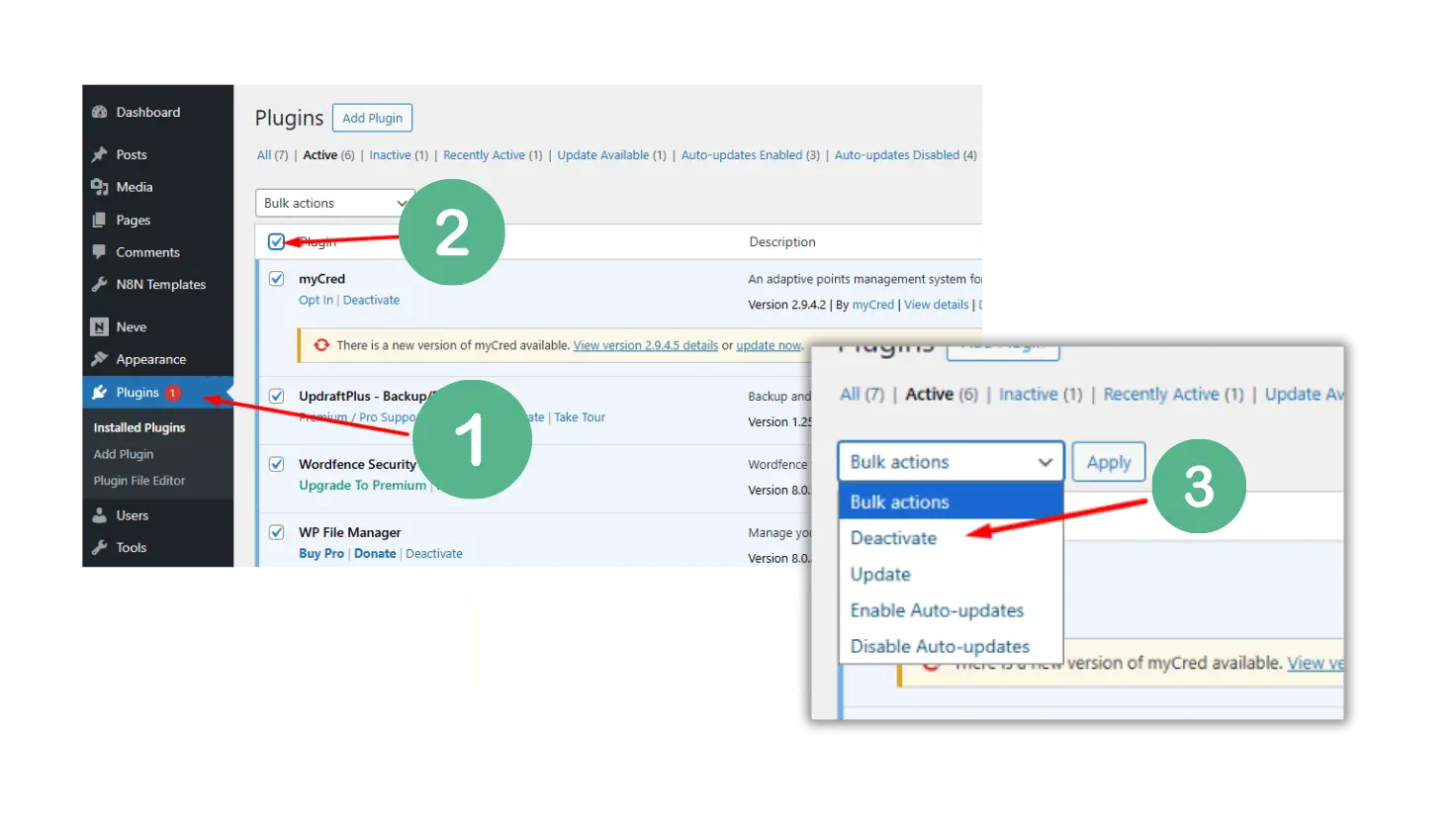
Step 3: Test Featured Image Display
Step 4: Identify the Problematic Plugin
Lazy Loading Plugins:
Image Optimization Plugins:
Page Builder Plugins:
SEO Plugins:
For Lazy Loading Plugins:
wp-post-imageattachment-post-thumbnailpost-thumbnailExample for WP Rocket:
.wp-post-image, .attachment-post-thumbnailFor Image Optimization Plugins:
Lazy loading can interfere with WordPress featured image display, especially above-the-fold images that should load immediately.
Add this code to your theme’s functions.php file or use the WPCode plugin:
// Disable lazy loading for WordPress featured images
function disable_lazy_loading_featured_images($attr, $attachment, $size) {
    // Check if this is a featured image
    if ($size === 'post-thumbnail' || $size === 'thumbnail' ||
        strpos($size, 'featured') !== false) {
        $attr['loading'] = 'eager';
        $attr['decoding'] = 'sync';
    }
    return $attr;
}
add_filter('wp_get_attachment_image_attributes', 'disable_lazy_loading_featured_images', 10, 3);

// Also disable for the_post_thumbnail function
function priority_load_featured_images($html, $post_id, $post_thumbnail_id, $size, $attr) {
    // Add loading="eager" to featured images
    $html = str_replace('<img', '<img loading="eager" decoding="sync"', $html);
    return $html;
}
add_filter('post_thumbnail_html', 'priority_load_featured_images', 10, 5);
For Native WordPress Lazy Loading:
WordPress 5.5+ includes native lazy loading. To disable it for featured images:
// Disable WordPress native lazy loading for featured images
function disable_wp_lazy_loading_featured($attr, $attachment, $size) {
    if (is_admin()) {
        return $attr;
    }

    // Disable lazy loading for featured image sizes
    $featured_sizes = array('post-thumbnail', 'thumbnail', 'medium', 'large');
    if (in_array($size, $featured_sizes)) {
        $attr['loading'] = 'eager';
    }

    return $attr;
}
add_filter('wp_get_attachment_image_attributes', 'disable_wp_lazy_loading_featured', 10, 3);
Sometimes WordPress featured image not showing occurs because existing images aren’t properly sized for your current theme requirements.
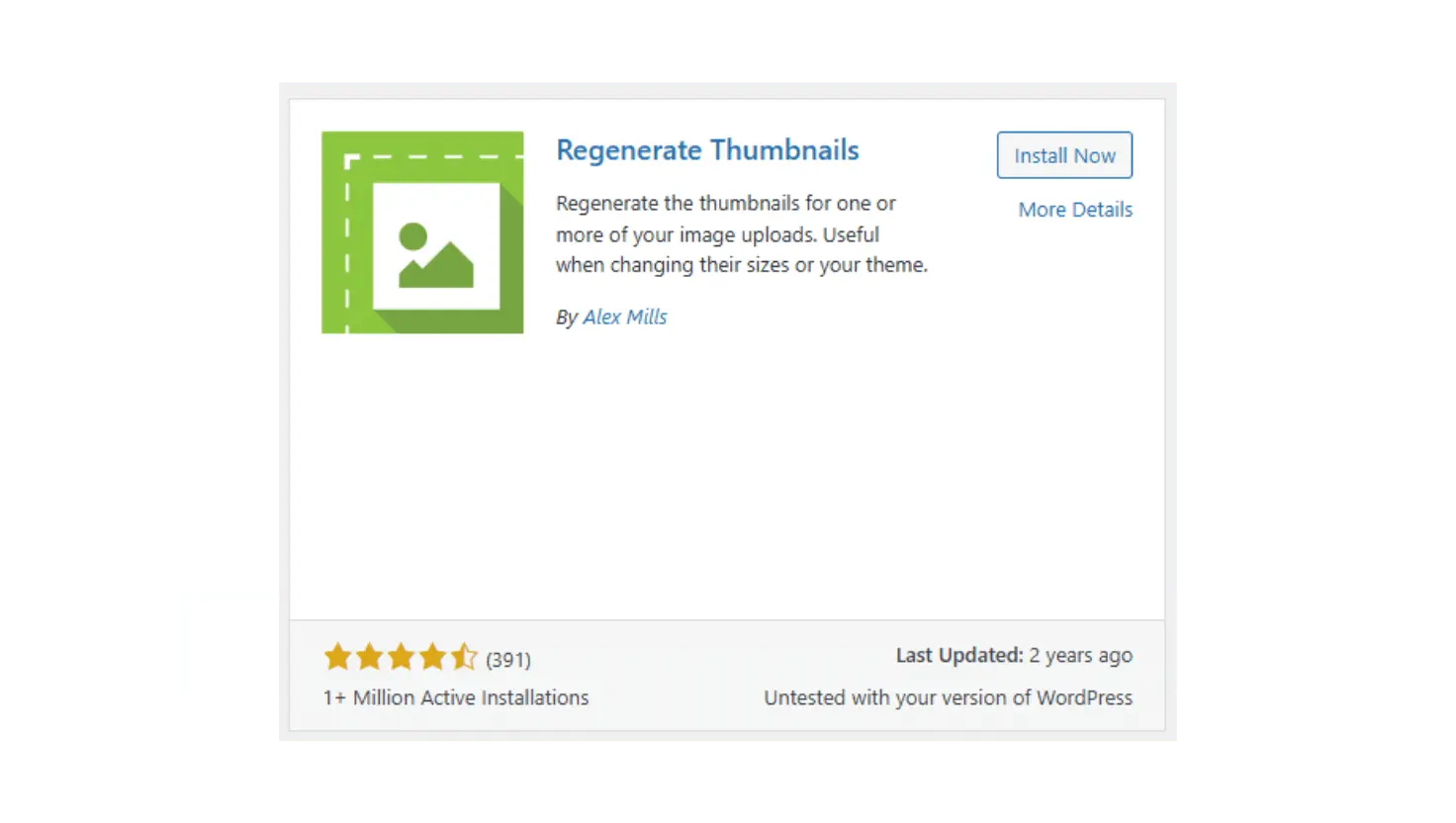
Step 1: Install the Plugin
Step 2: Regenerate All Thumbnails
Step 3: Test Featured Image Display
Step 1: Configure Media Settings
Step 2: Add Custom Featured Image Sizes
Add this code to functions.php or via WPCode:
// Custom featured image sizes for better display
function custom_featured_image_sizes() {
    // Primary featured image size (for social sharing)
    add_image_size('featured-image', 1200, 628, true);

    // Homepage thumbnail
    add_image_size('home-thumbnail', 400, 250, true);

    // Archive page thumbnail
    add_image_size('archive-thumbnail', 300, 200, true);

    // Mobile featured image
    add_image_size('mobile-featured', 600, 314, true);
}
add_action('after_setup_theme', 'custom_featured_image_sizes');
Incorrect file permissions can prevent WordPress featured images from displaying properly on your website.
WordPress requires specific file permissions to function correctly:
Step 1: Access File Manager
Step 2: Fix Uploads Folder Permissions
Step 3: Fix Individual File Permissions
Step 1: Connect via FTP
Step 2: Change Folder Permissions
Step 3: Change File Permissions
Caching can cause WordPress featured image not showing issues by serving outdated page versions without your newly added images.
For WP Rocket:
For W3 Total Cache:
For WP Super Cache:
For Cache Enabler:
Desktop Browsers:
Test in Incognito/Private Mode:
For Cloudflare:
For MaxCDN/StackPath:
When basic fixes don’t resolve WordPress featured image not showing issues, these advanced solutions can help.
Step 1: Enable Database Repair
Add this line to your wp-config.php file:
define('WP_ALLOW_REPAIR', true);
Step 2: Run Database Repair
yourwebsite.com/wp-admin/maint/repair.phpIf your theme lacks proper featured image display code:
Step 1: Identify Template Files
Common files that display featured images:
single.php (individual posts)index.php (homepage)archive.php (category pages)page.php (static pages)Step 2: Add Featured Image Code
Add this code where you want featured images to appear:
<?php if (has_post_thumbnail()) : ?>
    <div class="featured-image-container">
        <a href="<?php the_permalink(); ?>" title="<?php the_title_attribute(); ?>">
            <?php the_post_thumbnail('large', array('class' => 'featured-image')); ?>
        </a>
    </div>
<?php endif; ?>
Install and Configure Yoast SEO:
Alternative: RankMath SEO Setup:
Monthly Tasks:
Quarterly Tasks:
Optimal Image Specifications:
Technical Recommendations:
WordPress featured image not showing is a common but solvable problem. Most issues stem from theme support, memory limits, or plugin conflicts – all fixable with the right approach.
Here’s your action plan:
Remember to always backup your website before making changes. Most WordPress featured image problems resolve within the first three solutions.
Your featured images are too important for visual appeal and social sharing to let this issue persist. With these detailed fixes, you’ll have your WordPress featured images displaying perfectly again.
Sudden WordPress featured image not showing issues typically result from recent plugin updates, theme changes, or hosting server modifications. Additionally, lazy loading plugin conflicts or memory limit changes can cause this problem. Start by checking recent plugin updates and deactivating them one by one to identify the culprit.
Check if the “Featured Image” panel appears in your post editor. If missing, go to Screen Options and enable it. However, if it still doesn’t appear, your theme lacks featured image support. Consequently, you’ll need to add add_theme_support('post-thumbnails'); to your functions.php file.
The optimal WordPress featured image size is 1200 × 628 pixels. This dimension works perfectly for social media sharing, most themes, and responsive displays. Furthermore, keep file sizes under 1MB and use JPEG format for photos to ensure fast loading speeds.
Yes! Many WordPress featured image not showing issues can be resolved without coding. Try these non-coding solutions first: check plugin conflicts, clear cache, regenerate thumbnails using plugins, verify image uploads, and ensure proper image selection. However, if these don’t work, you may need simple code additions using the WPCode plugin for safety.
