
How to Fix WordPress Installation Stuck at 89%
If you’ve ever encountered your WordPress installation getting stuck at 89%, you know how…
You log into your WordPress dashboard to make a quick update, and suddenly notice something’s wrong. Your contact form plugin isn’t there. Your SEO plugin has disappeared. Half your essential plugins are missing from the dashboard with no explanation.
This is one of the most frustrating WordPress issues because it breaks your site’s functionality without warning. Your visitors might not see any problems, but behind the scenes, forms stop working, SEO features disappear, and your workflow grinds to a halt.
The good news? I’ve troubleshot this exact problem many times over 15+ years of WordPress development. There are usually simple fixes that take just a few minutes to implement.
Let me walk you through the exact troubleshooting process I use to get plugins back where they belong.
When WordPress plugins disappear from your dashboard, you’ll notice one or more of these symptoms:
The tricky part? Your website might still look normal to visitors, but essential backend functionality breaks down.
After troubleshooting WordPress sites, I’ve found these are the most common reasons plugins vanish:
If you’re not logged in as an Administrator, WordPress hides the plugins menu. This happens often on multi-author sites or when working as a client on someone else’s website.
One misbehaving plugin can cause others to disappear. I once saw a poorly coded gallery plugin hide every other plugin on the site.
Browser cache or WordPress caching plugins can show you an outdated version of your dashboard where plugins appear missing.
Failed updates, server issues, or file permission problems can corrupt plugin files, making them unreadable to WordPress.
In rare cases, malware or hackers can remove or hide plugins as part of an attack on your site.
Note: I always start with the simplest fixes first. Nine times out of ten, it’s a permissions or caching issue that takes 2 minutes to resolve.
Time needed: 2 minutes
Difficulty: Beginner
This is where I always start because it’s the most common cause.
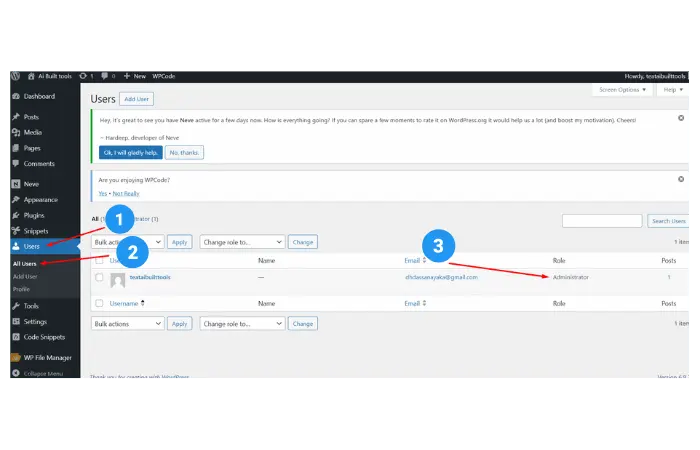
Quick test: Try accessing yoursite.com/wp-admin/plugins.php directly. If you get a “You do not have sufficient permissions” error, this confirms it’s a user role issue.
Time needed: 5-10 minutes
Difficulty: Beginner
Plugin conflicts are sneaky. One bad plugin can hide all the others.
Via WordPress Dashboard (if you can access it):
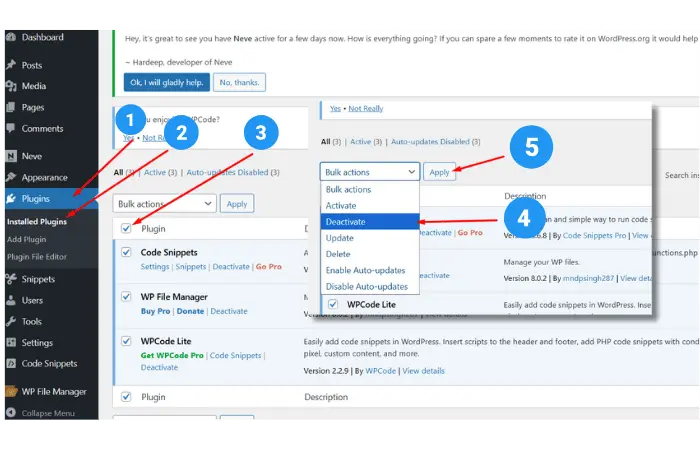
Via FTP/File Manager (if locked out of dashboard):
/wp-content/plugins/plugins folder to plugins-disabledpluginsplugins-disabled to test each oneIf you’re having trouble identifying the conflicting plugin, you can use tools like the WordPress Plugin Finder to help research and compare plugins before installation.
Time needed: 3-5 minutes
Difficulty: Beginner
Sometimes you’re looking at a cached version of your dashboard that doesn’t reflect current reality.
Clear Browser Cache:
Google Chrome:
Firefox:
Ctrl + Shift + DeleteSafari:
Clear WordPress Cache:
If you use a caching plugin like WP Rocket, WP Super Cache, or W3 Total Cache:
For WP Rocket: Settings → WP Rocket → Clear Cache
For Bluehost users: Hover over “Caching” in the top toolbar → Purge All
Pro tip: I always clear both browser AND WordPress cache when troubleshooting. It takes an extra minute but saves time in the long run.
Time needed: 5-10 minutes
Difficulty: Intermediate
If plugins are installed but not showing up, the files might be corrupted or have wrong permissions.
Check Plugin Files via FTP:
/wp-content/plugins/Fix Permission Issues:
If permissions are wrong:
Reinstall Corrupted Plugins:
If plugin files are missing or corrupted:
Time needed: 10-15 minutes
Difficulty: Beginner
When plugins disappear suddenly with no obvious cause, it could be a security breach.

Using Wordfence Security Plugin:
Using Sucuri Security:
Manual Security Check:
When I suspect a security issue: I immediately run a Wordfence scan and check the site’s error logs. If malware is found, I clean it first before troubleshooting the missing plugins – sometimes they come back automatically after cleanup.
Time needed: 10-15 minutes
Difficulty: Advanced
Sometimes the WordPress database gets corrupted, causing plugin information to disappear.
Database Repair via WordPress:
wp-config.php file: define('WP_ALLOW_REPAIR', true);yoursite.com/wp-admin/maint/repair.phpwp-config.php when doneCheck Plugin Data in Database (via phpMyAdmin):
wp_options tableoption_name = ‘active_plugins’option_value⚠️ Warning: Always backup your database before making any changes. One wrong move can break your entire site.
Time needed: 30-45 minutes
Difficulty: Advanced
When all else fails, sometimes you need to start fresh while preserving your content.
What you’ll need:
Steps:
/wp-content/ (themes, plugins, uploads)wp-config.php.htaccessThis is my last resort, but it works 100% of the time when file corruption is the issue.
Regular Backups: I use UpdraftPlus to backup my sites daily. When plugins disappear, I can restore from a working backup in minutes.
Staging Sites: Test plugin updates on a staging site first. I use WP Staging to clone sites before making changes.
Plugin Monitoring: Wordfence monitors file changes and alerts me if plugins are modified or deleted unexpectedly.
User Role Management: Only give Administrator access to people who absolutely need it. Use Editor or Author roles for content creators.
Smart Plugin Selection: Before installing new plugins, research them thoroughly. Use tools like the WordPress Plugin Finder to compare options and check compatibility. This prevents many conflict issues before they start.
Sometimes you need expert eyes on the problem. Consider professional WordPress support if:
I’ve helped dozens of clients recover from missing plugin situations. Sometimes it takes a combination of fixes, or there’s an underlying server issue that needs hosting provider intervention.
Here’s my tried-and-tested approach to fixing WordPress plugins disappearing from dashboard:
Pro tip: Document which method worked for your site. Plugin disappearance often happens for the same reason if it happens again.
The key is working through these systematically. Don’t skip steps or jump ahead – I’ve seen too many people create bigger problems by rushing to complex solutions first.
Most of the time, missing plugins come back with Methods 1-3. The advanced fixes are for stubborn cases or when there’s underlying corruption.
Got your plugins back? Great! Now set up regular backups so you’re prepared if this happens again. Your future self will thank you.
Need more WordPress troubleshooting help? Check out my other guides on fixing WordPress memory limit errors and resolving plugin conflicts. Got a question about this fix? Drop a comment below – I read and respond to every one.
Yes, but it’s uncommon. Failed automatic updates can corrupt plugin files or cause compatibility conflicts that make plugins disappear. Always backup before major WordPress updates.
No. Deactivating plugins keeps all settings intact. Only deleting a plugin removes its settings and data (though some plugins store data separately that persists even after deletion).
This usually indicates a user permission issue or dashboard-specific caching problem. The plugin files are intact and functional, but WordPress isn’t displaying them in the admin area due to role restrictions or cached admin pages.
Some managed WordPress hosts automatically disable or remove plugins that pose security risks or performance issues. Check with your hosting provider’s support team if you suspect this happened.
Set up regular automated backups, use a staging site for testing updates, monitor file changes with security plugins, and limit Administrator access to trusted users only. Regular maintenance and monitoring prevent most plugin disappearance issues.
Get free WordPress & AI tips
Join 500+ readers. No spam, unsubscribe anytime.
