
Yoast Canonical Pointing to Staging: Why No Setting Shows It
My Yoast canonical pointed at a dead staging site while every setting looked fine.…
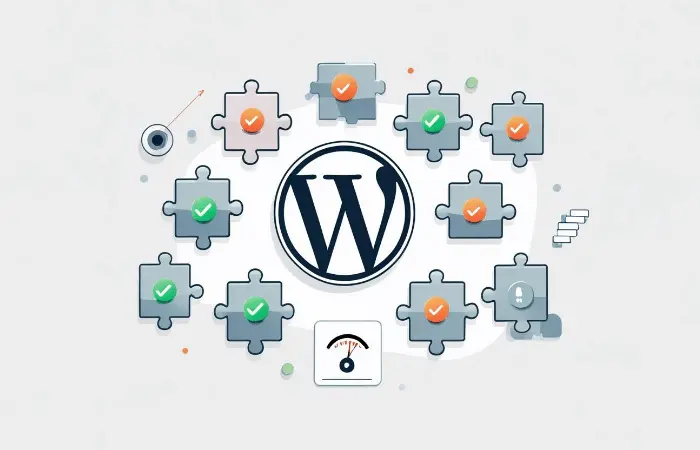
Last week, I was helping a friend troubleshoot his WordPress site that had suddenly started crawling. Moreover, page load times jumped from 2 seconds to over 8 seconds, and he had no idea why. However, WordPress plugin performance issues were the real culprit behind his site’s slowdown.
“I didn’t change anything!” he insisted. Sound familiar?
Here’s the thing — WordPress plugin performance issues are silent site killers. Furthermore, they’re designed to add functionality, but many of them come with hidden costs that can tank your site speed without you even noticing.
Get free WordPress & AI tips
Join 500+ readers. No spam, unsubscribe anytime.
After running my AI-powered WordPress Performance Analyzer on his site, I discovered something shocking: three “essential” plugins were responsible for 60% of his WordPress plugin performance issues. Additionally, the kicker? These were plugins with thousands of 5-star reviews that everyone recommends.
Let me show you how to identify which plugins are secretly sabotaging your site — and how AI can help you catch these performance thieves red-handed.
Most WordPress users install plugins like they’re collecting Pokemon cards. Need a contact form? Install a plugin. Want better SEO? Another plugin. Social media integration? You guessed it — more plugins.
But here’s what nobody tells you: every plugin you install is like adding another passenger to your car. Eventually, you’re going to notice the difference in how it drives.
WordPress plugins can slow down your site in several sneaky ways:
Script and CSS Loading Issues: Many plugins load their JavaScript and CSS files on every page of your site, even when they’re not needed. Imagine loading a contact form script on your homepage where there’s no contact form!
Database Queries: Some plugins perform unnecessary database queries on every page load. I’ve seen plugins that make 15+ database calls just to display a simple widget.
External API Calls: Plugins that connect to external services can add significant delays. If that third-party service is slow or down, your entire page waits.
Render-Blocking Resources: Plugins often add CSS and JavaScript that prevents your page from displaying until everything loads. This kills your First Contentful Paint scores.
Memory Usage: Heavy plugins consume server memory, especially when multiple plugins compete for resources.
The worst part? You often can’t tell which plugin is causing problems just by looking at your admin dashboard.
Traditional WordPress users try to identify slow plugins through trial and error — deactivating plugins one by one to see if site speed improves. However, this method has several problems:

Let me share some shocking examples I’ve discovered while analyzing WordPress sites:
The Social Media Monster: A popular social sharing plugin was loading 12 external JavaScript files and making API calls to 6 different social platforms on every page load. Consequently, the result? 4.2 seconds added to load time.
The SEO Slowdown: An “all-in-one” SEO plugin was generating detailed page analysis on every single page view (not just admin pages). This meant complex calculations running for every visitor. Therefore, the impact? 45% slower page speeds.
The Security Blocker: Meanwhile, a security plugin was checking every single visitor against 3 external blacklist databases in real-time. Each check took 800ms. For a site with international visitors, this consequently meant 3+ second delays.
The Builder Burden: Similarly, a page builder plugin was loading its entire JavaScript framework and CSS library on every page, even for simple blog posts that didn’t use any builder elements. As a result, the cost? 2MB of additional resources per page.
These aren’t hypothetical scenarios — rather, these are real cases I’ve encountered using my AI-powered analysis tools.
This is where artificial intelligence comes in handy. Instead of manually testing each plugin, consequently, AI can analyze your entire WordPress site and identify performance bottlenecks with surgical precision.
When I run my WordPress Performance Analyzer on a site, furthermore, the AI looks at dozens of performance factors:
Core Web Vitals Analysis: The AI measures Largest Contentful Paint (LCP), First Input Delay (FID), and Cumulative Layout Shift (CLS) — the metrics Google uses to rank your site.
Resource Loading Patterns: Additionally, it identifies which plugins are loading unnecessary scripts, when they’re loading them, and how much they’re impacting performance.
Database Query Analysis: Moreover, the AI spots plugins making excessive database calls and identifies optimization opportunities.
Third-Party Dependency Mapping: Furthermore, it tracks which plugins are making external API calls and how those affect your site speed.
Plugin Interaction Detection: Finally, the AI can identify when multiple plugins conflict with each other, creating performance bottlenecks.
Traditional performance testing tools show you the symptoms. In contrast, AI analysis shows you the root causes.
For example, a regular speed test might tell you that your JavaScript is render-blocking. However, AI analysis tells you that your contact form plugin is loading a 150KB JavaScript library on your homepage where there’s no contact form, and provides specific recommendations for fixing it.
Let me walk you through the process I use to identify problematic plugins using AI-powered analysis.
Start by getting a comprehensive performance snapshot of your current site. While I use my custom AI analyzer, here’s what you should look for in any tool:
The AI should identify:
Look for these red flags in your analysis:
High-Impact JavaScript Issues: Plugins loading more than 15 external scripts or scripts larger than 100KB
CSS Bloat: Similarly, plugins adding more than 20 stylesheets or inline styles
Database Overload: Additionally, plugins making more than 10 database queries per page load
Compression Problems: Furthermore, plugins preventing server-level compression
External Dependencies: Finally, plugins making calls to slow or unreliable third-party services
AI can identify plugin conflicts that human analysis often misses:
Here’s a systematic approach I’ve developed for identifying plugin conflicts and WordPress plugin performance issues:
Automated Plugin Analysis: Instead of manually deactivating plugins, AI can simulate the impact of each plugin and predict performance changes.
Dependency Mapping: Additionally, the AI creates a visual map of how your plugins interact with each other and with WordPress core.
Performance Prediction: Furthermore, before you make changes, AI can predict how removing or replacing specific plugins will affect your site speed.
Optimization Recommendations: Finally, the AI provides specific, actionable recommendations for each problematic plugin.
When I ran my analyzer on that friend’s site I mentioned earlier, here’s what we discovered:
Consequently, the solution wasn’t to remove these plugins entirely, but to configure them properly and find lighter alternatives.
I built my AI-powered WordPress Performance Analyzer using FastAPI and Claude AI to solve exactly this problem. Here’s how it works behind the scenes:
The analyzer performs comprehensive site analysis by:
Unlike generic speed test tools, my analyzer is specifically designed for WordPress sites. It understands WordPress architecture, common plugin patterns, and typical performance bottlenecks.
The AI doesn’t just tell you that your site is slow — it tells you exactly which plugins are causing problems and how to fix them.
Here’s what the analysis typically reveals:

Based on analyzing hundreds of WordPress sites, here are the plugin categories that most commonly cause WordPress plugin performance issues:
Page builders like Elementor, Divi, and Visual Composer are notorious for bloated code. Moreover, they often:
Real Impact: Specifically, I’ve seen page builders add 1-3MB of resources per page.
Social sharing and feed plugins often cause WordPress plugin performance issues by:
Real Impact: Can add 2-5 seconds to load time, especially on mobile.
While SEO is crucial, some plugins go overboard and create WordPress plugin performance issues:
Real Impact: 20-40% slower page speeds are common.
Security plugins sometimes create WordPress plugin performance issues by:
Real Impact: Can double your page load times.
Backup plugins running during peak hours can cause WordPress plugin performance issues:
Real Impact: Site-wide slowdowns during backup operations.
Once you’ve identified problematic plugins, here’s how to fix these WordPress plugin performance issues:
Enable Compression: Most WordPress plugin performance issues can be reduced by enabling Gzip or Brotli compression. Additionally, this is often the #1 recommendation from my AI analyzer.
Minify and Combine Resources: Furthermore, use a caching plugin to combine and minify CSS and JavaScript files from multiple plugins.
Optimize Database Queries: Moreover, install a database optimization plugin to clean up unnecessary queries and optimize database tables.
Implement Lazy Loading: Finally, delay loading of plugin resources until they’re actually needed.
Page Builders:
Social Media Plugins:
SEO Plugins:
Security Plugins:
As WordPress continues to evolve, AI-powered performance analysis is becoming essential for solving WordPress plugin performance issues. Here’s why:
Instead of waiting for WordPress plugin performance issues to impact users, AI can predict problems before they happen. Moreover, my analyzer can simulate the impact of plugin updates or new installations.
AI doesn’t just identify problems — it provides context-aware solutions. Additionally, the recommendations are tailored to your specific site setup, hosting environment, and user base.
Furthermore, AI can monitor your site’s performance trends and alert you when plugin updates or changes negatively impact performance.
Finally, the future of WordPress performance will include AI that can automatically optimize plugin configurations and suggest real-time improvements.
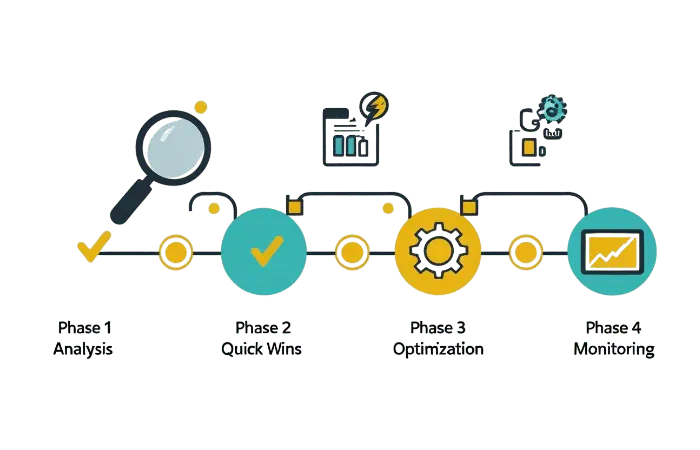
Here’s your step-by-step plan to identify and fix WordPress plugin performance issues:
While I recommend using my AI-powered WordPress Performance Analyzer for the most comprehensive analysis, here are other tools that can help:
For Performance Testing:
For Plugin Analysis:
For Optimization:
But remember — these tools show you data. AI analysis shows you solutions.
WordPress plugin performance issues are more common than most people realize, but they’re also completely solvable with the right approach.
The key is moving beyond basic speed tests to AI-powered analysis that can identify specific WordPress plugin performance issues and provide actionable solutions.
If you’re serious about WordPress performance, I’d recommend:
Want to see exactly which plugins are slowing down your site? Try my WordPress Performance Analyzer — it’s specifically designed to identify WordPress plugin performance issues and provide actionable recommendations.
You might also find my guides on fixing WordPress errors using AI and understanding SSL and HTTPS for WordPress helpful for overall site optimization.
Remember: every second counts when it comes to user experience and search rankings. Don’t let hidden WordPress plugin performance issues silently sabotage your WordPress site’s success.
