
Yoast Canonical Pointing to Staging: Why No Setting Shows It
My Yoast canonical pointed at a dead staging site while every setting looked fine.…
In today’s digital landscape, maintaining a seamless WordPress site is crucial for businesses and bloggers alike. Yet, common errors can disrupt the user experience, leading to loss of traffic and credibility. Fortunately, AI offers innovative solutions to detect and fix these issues promptly. By leveraging the power of the WordPress error log, AI technologies like Natural Language Processing (NLP) and Machine Learning (ML) can transform how we handle WordPress errors.
At the heart of AI’s ability to manage WordPress errors lies its proficiency in analyzing the WordPress error log. The error log is a valuable resource that records every glitch and issues your website encounters.
By employing NLP, AI can read and interpret these logs, identifying patterns and pinpointing the root causes of errors. Machine Learning takes this a step further, learning from past errors to predict and prevent future incidents.
Get free WordPress & AI tips
Join 500+ readers. No spam, unsubscribe anytime.
Additionally, AI-powered chatbots can offer instant troubleshooting suggestions, enhancing user experience and reducing downtime.
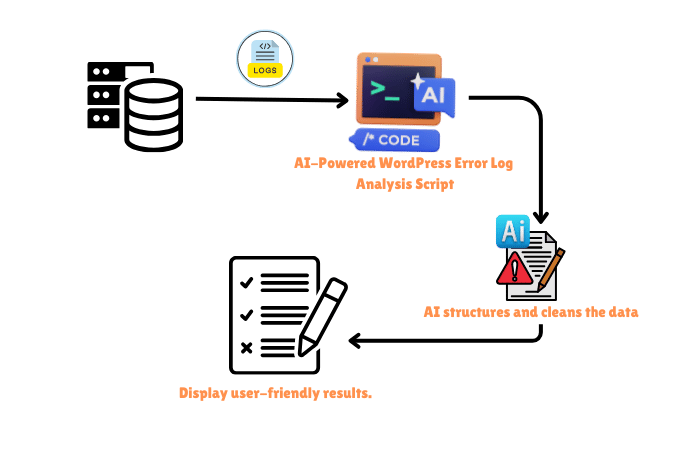
In this guide, I’ll walk you through setting up and running a cool Python script that does exactly that!
By the end of this, you’ll be able to:
Let’s dive in!
Before we start fixing errors, we need an error log! If your WordPress site is showing errors, you can find your error log here:
Log into your hosting panel (like cPanel or Plesk). Navigate to File Manager > public_html > wp-content. Look for a file named debug.log inside the wp-content folder.
If it’s not there, you might need to enable debugging. To do this:
Open the wp-config.php file in the root folder of WordPress. Add these lines before the / That’s all, stop editing! / comment:
define('WP_DEBUG', true);

define('WP_DEBUG_LOG', true);

define('WP_DEBUG_DISPLAY', false);

@ini_set('log_errors', 1);
Reload your site and check wp-content/debug.log again. You should see some logs now.
Great! Now, let’s move on to setting up our script.
A virtual environment (or venv) keeps all your project’s dependencies in one place so they don’t mess with other Python projects.
Ctrl + ~ on Windows/Linux or Cmd + ~ on Mac).python -m venv venvvenv\Scripts\activatesource venv/bin/activateIf everything worked, your terminal should now show (venv) at the beginning of the line. That means your virtual environment is activated!
Now that we have our virtual environment ready, we need to install the necessary packages. Run this command in your VS Code terminal:
pip install streamlit openai pandas
Once the installation is complete, we’re ready to add the magic ingredient: our OpenAI API key!
To use AI for WordPress error fixing, you need an OpenAI API key. If you don’t have one yet, follow these steps:
app.py) in VS Code.OPENAI_API_KEY = "sk-xxxxxxxxxxxxxxxxxxxxxxxx""sk-xxxxxxxxxxxxxxxxxxxxxxxx" with your actual API key.Make sure you never share your API key with anyone!
It’s showtime! Let’s launch our AI-powered WordPress error log analyzer.
venv).streamlit run app.py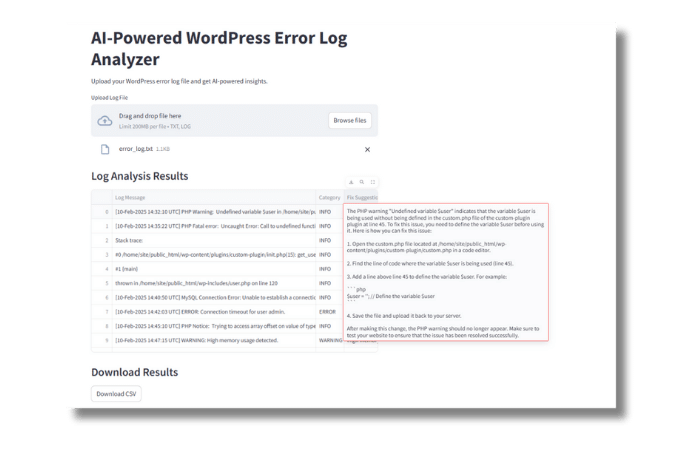
Script:
import streamlit as st
import pandas as pd
import openai


# OpenAI API Key (Replace with your own key)
OPENAI_API_KEY = "sk-xxxxxxxxxxxxxxxxxxxxxxxxxxxxxxx"
openai.api_key = OPENAI_API_KEY

def analyze_logs(logs):
    error_keywords = ['ERROR', 'FAILED', 'EXCEPTION']
    log_entries = logs.split('\n')

    categorized_logs = []
    for log in log_entries:
        category = 'INFO'
        for keyword in error_keywords:
            if keyword in log:
                category = 'ERROR'
                break
        if 'WARNING' in log:
            category = 'WARNING'
        categorized_logs.append([log, category])

    df = pd.DataFrame(categorized_logs, columns=['Log Message', 'Category'])
    return df

def suggest_fixes(df):
    suggestions = []
    for log in df['Log Message']:
        response = openai.ChatCompletion.create(
            model="gpt-3.5-turbo",
            messages=[
                {"role": "system", "content": "You are an AI assistant helping to diagnose and fix WordPress errors."},
                {"role": "user", "content": f"How do I fix this issue: {log}"}
            ]
        )
        fix = response.choices[0].message.content.strip()
        suggestions.append(fix)

    df['Fix Suggestion'] = suggestions
    return df

def main():
    st.title('AI-Powered WordPress Error Log Analyzer')
    st.write("Upload your WordPress error log file and get AI-powered insights.")

    uploaded_file = st.file_uploader("Upload Log File", type=["txt", "log"])

    if uploaded_file is not None:
        logs = uploaded_file.read().decode('utf-8')
        df = analyze_logs(logs)

        with st.spinner("Analyzing errors and fetching solutions..."):
            df = suggest_fixes(df)

        st.write("### Log Analysis Results")
        st.dataframe(df)

        st.write("### Download Results")
        csv = df.to_csv(index=False).encode('utf-8')
        st.download_button("Download CSV", csv, "log_analysis_results.csv", "text/csv")

if __name__ == "__main__":
    main()
Diving deeper, the AI-powered WordPress error log analysis script is a robust tool designed to automate error detection and resolution. Still, this is not an advanced tool. But by adding some optimized prompts you can get maximum results. Here’s a breakdown of how it works:
By implementing this script, WordPress users can automate error management, leading to more reliable and efficient website performance.
While AI offers significant benefits, there are challenges and limitations to consider:
Despite these challenges, the advantages of AI in error detection make it a worthwhile investment for WordPress users seeking to optimize their site performance.
AI’s integration into WordPress error management marks a significant advancement in website maintenance. By transforming the WordPress error log into a powerful diagnostic tool, AI enhances efficiency, accuracy, and cost-effectiveness, ensuring your website remains competitive and user-friendly. As technology evolves, embracing AI for error detection and resolution will become increasingly indispensable for WordPress users.
The WordPress error log is a record of errors and issues encountered by your website, providing insights into what might be causing malfunctions.
AI, through Natural Language Processing, can interpret error logs, identify patterns, and suggest fixes, making it an invaluable tool for website maintenance.
Implementing AI can be straightforward with the right tools and scripts. Platforms like Streamlit simplify the process, making AI accessible even for beginners.
Yes, AI can anticipate potential errors by learning from past data, allowing you to implement preventive measures before issues arise.
