
How to Fix WordPress Could Not Insert Attachment into Database
This error occurs when WordPress cannot save an uploaded file's record to the database;…
WordPress 500 Internal Server Error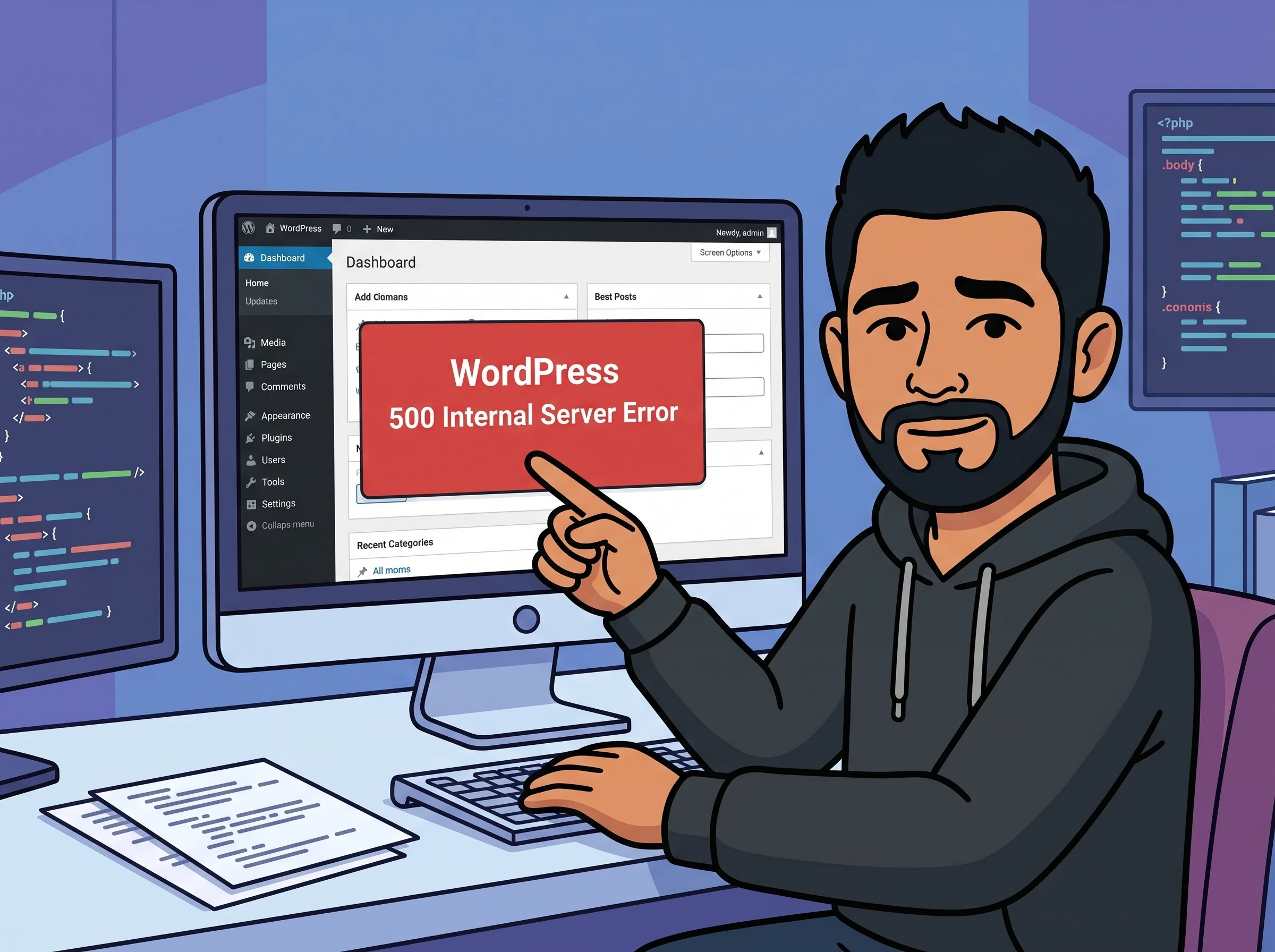
The WordPress 500 Internal Server Error is one of the most frustrating messages a site owner can encounter — it tells you something broke on the server, but offers absolutely no clue about what. Your visitors either see a blank white screen or a generic browser error page, and in many cases your wp-admin dashboard is completely unreachable too.
Unlike a 404 (missing page) or a 403 (access denied), a 500 error is a server-side catch-all. WordPress or your web server hit a condition it couldn’t handle, threw up its hands, and returned this generic code. It could be one tiny misconfiguration or a cascading plugin conflict — the error message itself won’t tell you which.
The good news is that this error almost always has one of a handful of common causes, and you can track it down systematically — no deep coding knowledge required. Think of it like a fire alarm with no smoke detector: you check each room one by one until you find what’s burning.
functions.php is loaded on every single request. Syntax errors or calls to missing functions inside it crash the site just as effectively as any plugin..htaccess to .htaccess_old — do not delete it. Then, if your dashboard is accessible, go to Settings → Permalinks and click Save Changes. WordPress will write a clean .htaccess automatically.
You should see: Your site loads normally. If it does, the old .htaccess file was corrupted. You can safely delete .htaccess_old.
wp-content/plugins/ and rename the entire plugins folder to plugins_disabled. WordPress will auto-deactivate everything because the folder no longer exists.
You should see: The site loads (likely with a stripped-down look). That confirms a plugin is the culprit. Rename the folder back to plugins, then reactivate plugins one at a time — testing after each — until the 500 returns and reveals the bad actor.
wp-content/themes/, rename your active theme’s folder (e.g., my-theme → my-theme_old). WordPress will fall back to the most recent default theme it can find, such as Twenty Twenty-Four.
You should see: If the site loads cleanly, your theme’s code is the problem. Restore the folder name, then inspect the theme’s functions.php for recent edits or contact the theme developer.
wp-config.php and add the following line directly above the /* That's all, stop editing! */ comment:
define('WP_MEMORY_LIMIT', '256M');You should see: The site loads if memory exhaustion was the root cause. If your host caps memory below 256M, you’ll need to contact them to raise the server-level limit.
wp-config.php, add these three lines:
define('WP_DEBUG', true);
define('WP_DEBUG_LOG', true);
define('WP_DEBUG_DISPLAY', false);
Then check /wp-content/debug.log for the actual PHP error. Your host’s error_log file in the root directory is another place to look.
You should see: A specific error message naming the exact file and line number that caused the crash — this eliminates all guesswork and points you straight to the fix.
define('WP_MEMORY_LIMIT', '1024M') won’t work if your hosting plan hard-caps PHP memory at 256M. WordPress can only request up to what the server allows — check your host’s documentation or open a support ticket for the real ceiling.debug.log already contains the exact filename, function, and line number of the crash. If you have server access, always check the log first — it’s the single fastest path to a resolution.Get free WordPress & AI tips
Join 500+ readers. No spam, unsubscribe anytime.
No. A 500 Internal Server Error is a runtime crash — it has no effect on your database or file uploads. Your content, settings, and media files are completely untouched. You’re only modifying configuration files and plugin states, not the data itself.
Use your hosting control panel’s built-in file manager (available in cPanel, Plesk, or most managed hosts) or connect via FTP using a client like FileZilla. Every step in this guide — renaming .htaccess, disabling plugins, editing wp-config.php — can be done directly on the server without needing WordPress admin access.
A page-specific 500 usually points to a shortcode, Gutenberg block, or widget from a particular plugin that only runs on that page. Open that page in the editor and remove blocks or shortcodes one at a time while testing. Your debug.log will also show a repeating error tied to requests for that specific URL, which narrows it down fast.
Yes, especially if none of these steps resolve it. Your host has access to server-level Apache or Nginx error logs that go deeper than what WordPress can expose. Issues like a PHP version upgrade, a mod_security rule blocking a request, or a server misconfiguration can only be diagnosed and fixed at that level. Most hosts are happy to check the logs on your behalf if you open a support ticket.
