
HTTP Error Uploading Image in WordPress: How to Fix It Easily!
Have you ever had a frustrating situation where every attempt to upload an image…
WordPress Too Many Redirects After SSL Certificate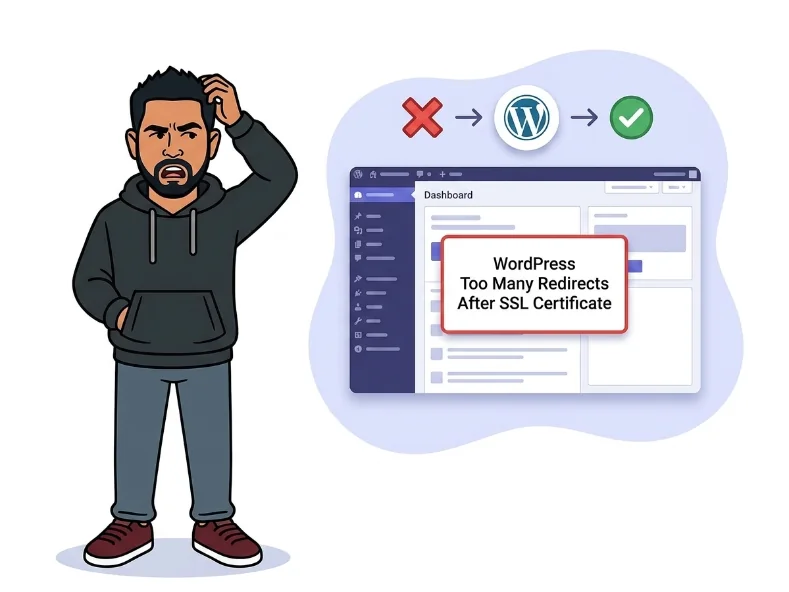
When you install an SSL certificate and switch your site to HTTPS, WordPress can get stuck in an endless redirect loop. The browser and server keep bouncing the request back and forth — each one insisting the other handle the redirect — until the browser gives up and throws the ERR_TOO_MANY_REDIRECTS error.
The root cause is almost always a mismatch in where WordPress thinks it lives. WordPress stores your site URL in multiple places: the database, wp-config.php, and sometimes .htaccess. If one location says http:// while another enforces https://, you get a circular redirect chain. To make things trickier, many hosting providers terminate SSL at a load balancer before the request ever reaches PHP — so WordPress never detects the connection as secure and keeps redirecting.
The good news: this error is almost always fixable without a developer. You just need to know which config files to touch and in what order.
http://, so WordPress keeps redirecting users away from the HTTPS version your server just sent them to..htaccess redirect rules: You may have both a server-level HTTPS redirect and a manual RewriteRule in .htaccess — two redirects chasing each other in circles.wp-config.php is already doing.wp-config.phpwp-config.php in the root directory. Add these two lines directly above the /* That's all, stop editing! */ comment:
define('WP_HOME', 'https://yourdomain.com');
define('WP_SITEURL', 'https://yourdomain.com');
You should see: Your site loads without a redirect loop. If it still loops, move to the next step — don’t skip it.
wp-config.php, add this block just above the lines you added in Step 1:
if (isset($_SERVER['HTTP_X_FORWARDED_PROTO']) && $_SERVER['HTTP_X_FORWARDED_PROTO'] === 'https') {
    $_SERVER['HTTPS'] = 'on';
}
You should see: WordPress now correctly detects HTTPS even when your host terminates SSL at the edge, stopping the redundant redirect chain.
.htaccess file.htaccess from your WordPress root folder. Remove any duplicate HTTPS redirect rules — especially if your hosting panel already enforces HTTPS. Your file should contain only the standard WordPress block:
# BEGIN WordPress
<IfModule mod_rewrite.c>
RewriteEngine On
RewriteBase /
RewriteRule ^index\.php$ - [L]
RewriteCond %{REQUEST_FILENAME} !-f
RewriteCond %{REQUEST_FILENAME} !-d
RewriteRule . /index.php [L]
</IfModule>
# END WordPress
You should see: No duplicate RewriteRule entries redirecting HTTP to HTTPS. One enforcement point only — either server or .htaccess, never both.
https://yourdomain.com. Or run these WP-CLI commands via SSH:
wp option update siteurl 'https://yourdomain.com'
wp option update home 'https://yourdomain.com'
You should see: Both fields display https:// after saving, and no redirect warning appears on the Settings page.
Ctrl+Shift+R / Cmd+Shift+R).
You should see: The site loads cleanly at https:// with a valid padlock icon and no redirect error in any browser.
wp-config.php via FTP — it overrides the database and gets you back in the door..htaccess: This is actually the most common cause of the loop itself. Choose a single enforcement point and remove the other. Double-redirecting is circular by design.https:// before the SSL certificate is active: Verify your certificate is fully installed at ssllabs.com/ssltest before changing any URLs. Swapping the URL too early trades one error for another.No. This is a configuration and routing issue only. Your database content, uploaded images, posts, pages, and plugins are completely untouched by any of these fixes.
Rename your plugins folder to /wp-content/plugins-disabled/ via FTP to deactivate everything at once. If the loop stops, you have a plugin conflict. Rename the folder back and reactivate plugins one at a time to find the culprit — security and redirect plugins are the usual suspects.
Yes. Images, scripts, and internal links hardcoded as http:// will trigger mixed content warnings even after the redirect loop is resolved. Use a plugin like Better Search Replace to do a database-wide find-and-replace from http://yourdomain.com to https://yourdomain.com.
The wp-config.php steps apply, but Multisite stores individual site URLs in the wp_blogs table and per-site options tables. You may need to update each subsite’s URL separately, either through the Network Admin panel or with WP-CLI’s wp site list and wp option update commands targeting each blog ID.
Get free WordPress & AI tips
Join 500+ readers. No spam, unsubscribe anytime.
