
How to Fix WordPress Login Page Refreshing Loop — Complete Guide
Fix the WordPress login redirect loop by clearing cookies, correcting your site URL settings,…
WordPress Cannot Modify Header Information Headers Already Sent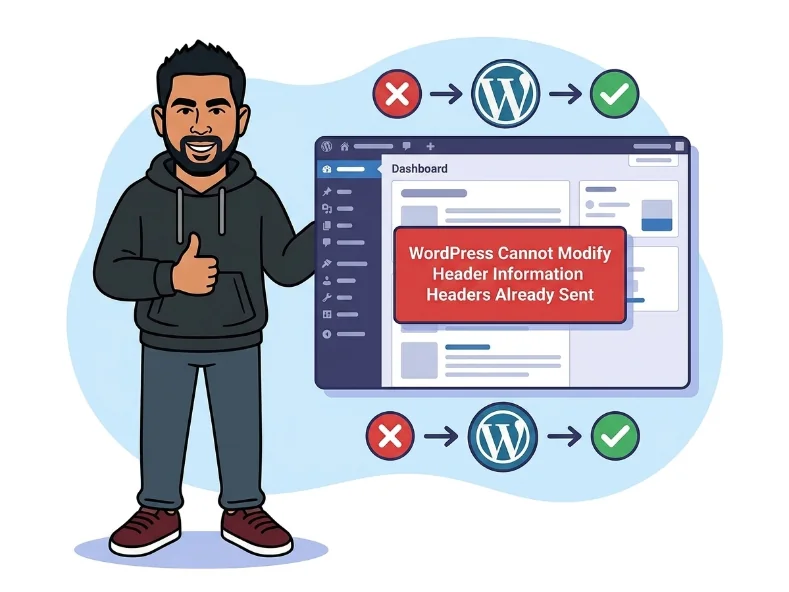
When WordPress throws “Cannot Modify Header Information — Headers Already Sent,” it means PHP tried to send an HTTP header after content had already been output to the browser. HTTP headers must travel first — once even a single character goes out, it is too late to send them.
The error message usually includes a hint like: output started at /wp-content/plugins/some-plugin/file.php:1. That file path and line number is your starting point — it tells you exactly where the premature output originated.
This won’t take your entire site offline, but it breaks redirects, logins, and cookie-dependent features. If you suddenly can’t log in to wp-admin or pages stop redirecting correctly, this error is almost certainly the culprit.
/wp-content/themes/mytheme/functions.php:45. This gives you the exact file and line number. Open that file before doing anything else.
You should see: A complete file path and line number that pinpoints where the unwanted output begins.
<?php with absolutely nothing before them — no spaces, no blank lines, no invisible characters.
<?php
// Your code starts here — nothing above this line
You should see: The file opens directly with <?php on line 1, no preceding content of any kind.
?> tag. Delete it along with any blank lines or spaces that follow it at the bottom of the file.
You should see: The file ends cleanly with PHP code and no closing tag or trailing empty lines.
You should see: The error disappears and the broken WordPress feature — login, redirect, or cookie — works normally again.
/wp-content/plugins/ to /wp-content/plugins_disabled/. Log in, then rename it back and reactivate plugins one at a time to identify the offender.
You should see: After disabling the problematic plugin, the error stops appearing completely.
?> tag is just as guilty — check both ends of every flagged file.Get free WordPress & AI tips
Join 500+ readers. No spam, unsubscribe anytime.
It’s extremely unlikely. WordPress core is rigorously maintained. If the error path points to a core file, your installation may be corrupted. Try reinstalling WordPress from Dashboard → Updates → Re-install now. That replaces core files without touching your content or settings.
Connect via FTP or your hosting control panel’s file manager. Rename the plugins folder from /wp-content/plugins/ to something like /wp-content/plugins_off/. This bulk-deactivates every plugin. Once you can log in again, rename the folder back and reactivate plugins one at a time until the error reappears — that’s your culprit.
The new plugin most likely contains a PHP file with a BOM, trailing whitespace after a closing tag, or an echo statement that fires during WordPress initialization. Deactivate it to confirm, then report the issue to the plugin author with the full error message so they can push a fix.
No — not as a final solution. Output buffering delays when content is sent, which can hide the warning, but the root cause stays in your codebase. Use it temporarily while debugging if you need the site functional, but always go back and fix the actual file. Leaving ob_start() in place is technical debt that can cause harder-to-diagnose issues later.
