
How to Fix WordPress 429 Too Many Requests Error — Complete Guide
The WordPress 429 error means your server is rate-limiting requests — find the source…
WordPress Destination Folder Already Exists Plugin Installation Error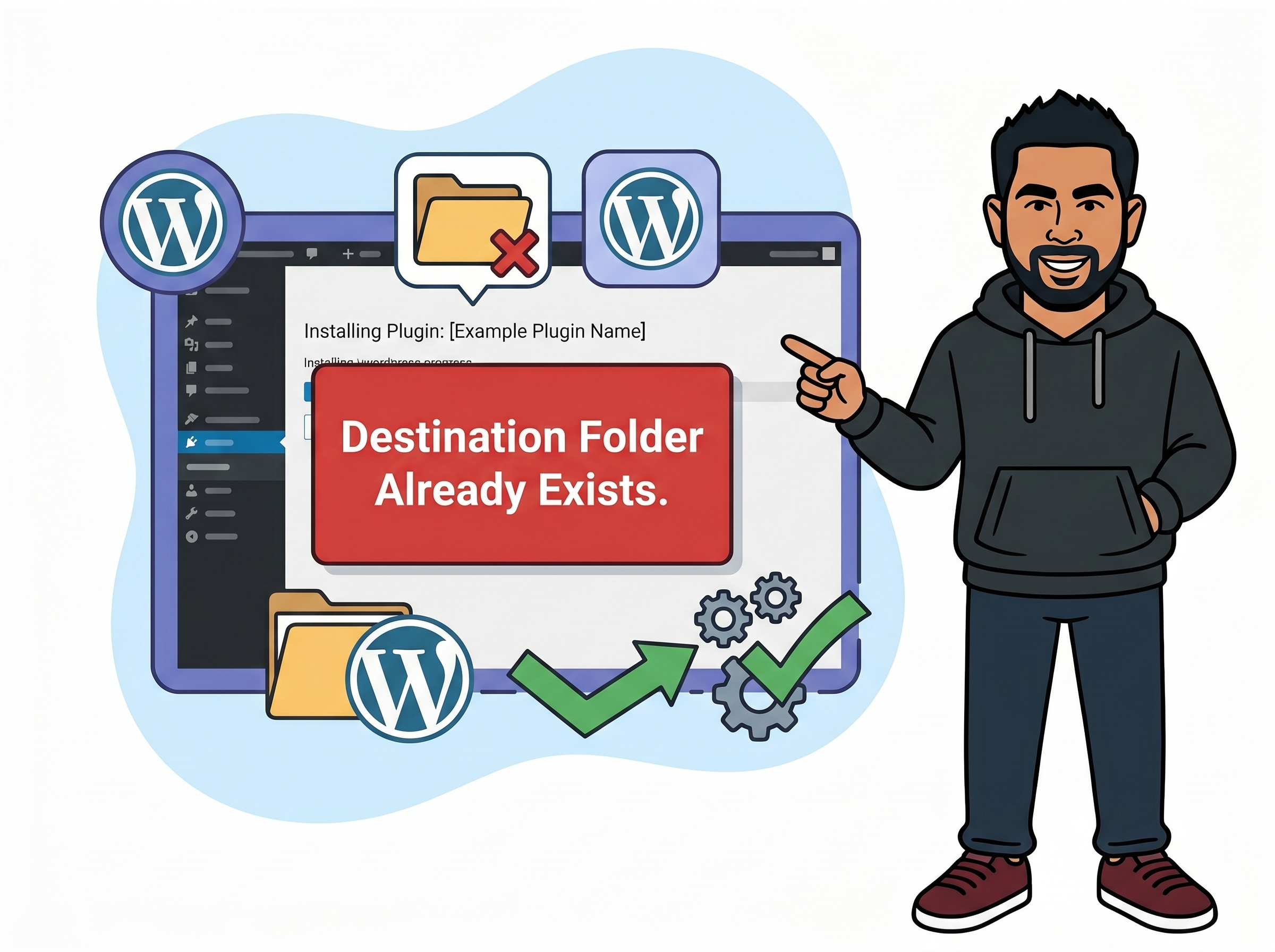
When you install a plugin through the WordPress dashboard, WordPress downloads the plugin’s zip file, unpacks it, and moves the contents into your wp-content/plugins/ directory. The “Destination Folder Already Exists” error fires when WordPress finds a folder with the exact same name already sitting at that path — and rather than risk overwriting something important, it halts the installation completely.
The full message usually reads something like: Destination Folder Already Exists. /wp-content/plugins/your-plugin-name/ It looks alarming, but your site is almost certainly fine. The culprit is typically a leftover folder from a failed install attempt, a manual FTP upload, or a previous version that wasn’t fully cleaned up.
The fix is straightforward: locate that orphaned folder, remove it, and retry the installation. You’ll need access to your site’s file system through your hosting control panel’s File Manager or an FTP client like FileZilla.
You should see: A file browser displaying your website’s root directory.
/public_html/wp-content/plugins/. Adjust if WordPress is in a subdirectory.
You should see: A list of folders, one per installed plugin on your site.
contact-form-7.
You should see: The folder present, possibly empty or partially filled from a failed install attempt.
contact-form-7-backup) so you can restore it if needed. Via SSH, you can remove it with:
rm -rf /path/to/public_html/wp-content/plugins/your-plugin-nameYou should see: The folder is gone from the directory listing, or shows its new renamed name.
You should see: An installation progress bar, followed by a green “Plugin installed successfully” message and an Activate button.
You should see: The plugin listed as Active on your Plugins page with no errors.
woocommerce and “Yoast SEO” becomes wordpress-seo. Deleting the wrong folder can break an active plugin. Always cross-reference the exact folder name shown in the error message before touching anything.plugins/ directory itself may not be writable by the web server. The correct permission for that folder is 755 — check and correct it in File Manager if needed.Get free WordPress & AI tips
Join 500+ readers. No spam, unsubscribe anytime.
In most cases, no. WordPress plugins store their configuration in the database, not in the plugin folder — so deleting the folder removes only the code files, not your saved settings. The exception is plugins that store user-generated files (like PDFs, form submissions, or generated images) inside their own folder. Peek inside before deleting to make sure there’s nothing you need to preserve.
Contact your hosting provider’s support team and ask them to delete the specific plugin folder at wp-content/plugins/folder-name. Most hosts can do this in minutes via live chat. If you have SSH access, a single rm -rf command pointed at the correct path will handle it just as well.
Yes, exactly the same error can occur during theme installation if a folder with a matching name already exists inside wp-content/themes/. The fix is identical — navigate to that directory in File Manager or via FTP, remove the conflicting folder, and retry the installation from Appearance → Themes → Add New.
A backup plugin or file sync tool running in the background may be restoring the folder automatically. Temporarily disable any active backup or staging sync plugins, clear all caches, then retry the install. Persistent reappearance can also indicate a deeper permissions problem where WordPress lacks the write access needed to properly replace files during installation.