
WordPress Featured Image Not Showing? 8 Easy Fixes That Actually Work
Have you ever experienced that sinking feeling when you publish a WordPress post, only…
WordPress White Screen of Death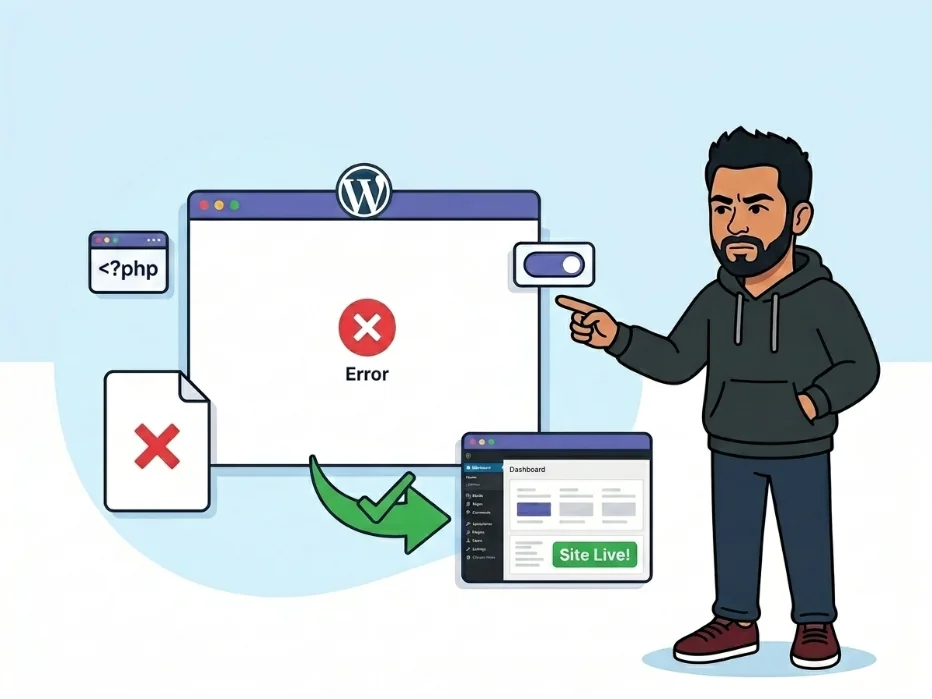
The WordPress White Screen of Death (WSOD) is exactly what it sounds like — you open your site or admin dashboard and get a completely blank white page. No error message, no loading spinner, just nothing. It can hit your entire site, only the frontend, or only the wp-admin area.
What’s actually happening is that WordPress encountered a fatal PHP error and stopped executing before it could send any HTML to the browser. To avoid leaking sensitive information, WordPress hides PHP errors on live sites by default — so there’s nothing visible to explain what went wrong.
The good news: your content and database are completely unaffected. The WSOD is almost always caused by a plugin, a theme conflict, or a PHP memory limit — all of which are fixable without reinstalling WordPress.
wp-config.php via FTP or your host’s file manager and add these three lines just before the line that reads /* That's all, stop editing! */:
define( 'WP_DEBUG', true );
define( 'WP_DEBUG_LOG', true );
define( 'WP_DEBUG_DISPLAY', true );
You should see: An actual PHP error message on the white screen, or a new debug.log file created inside your wp-content/ folder.
wp-config.php in the same editing area:
define( 'WP_MEMORY_LIMIT', '256M' );You should see: Your site loads normally if memory exhaustion was the root cause of the crash.
wp-content/ and rename the plugins folder to plugins_disabled.
You should see: WordPress loads with no plugins active. If the white screen is gone, a plugin was the culprit.
plugins_disabled back to plugins, log into wp-admin, then activate your plugins one at a time — checking your site after each one.
You should see: The white screen returns the moment you activate the broken plugin, telling you exactly which one to remove or replace.
wp-content/themes/, rename your active theme’s folder (e.g., my-theme to my-theme_disabled). WordPress will automatically fall back to a bundled default like Twenty Twenty-Four.
You should see: Your site loads with the default theme if your custom theme contained the fatal PHP error.
wp-content/debug.log in a text editor and scroll to the bottom.
# Common entries to look for:
PHP Fatal error: Allowed memory size of 134217728 bytes exhausted
PHP Parse error: syntax error, unexpected token in .../plugins/my-plugin/file.php on line 42
You should see: A specific file name and line number pointing directly at the broken code so you can fix or remove it.
WP_DEBUG back to false right away.Get free WordPress & AI tips
Join 500+ readers. No spam, unsubscribe anytime.
No. The WSOD is a PHP execution error, not a database issue. Your posts, pages, comments, and settings all live in the MySQL database and are completely untouched by plugin deactivations or theme switches. Your content is safe the entire time.
This almost always points to an admin-specific plugin — something like a dashboard widget, analytics tool, or admin UI enhancement — or a memory spike triggered by the heavier admin interface. Disable all plugins via FTP, confirm wp-admin loads, then reactivate them one by one from the dashboard to find the conflict.
WordPress manages its own internal memory ceiling separately from the server-level PHP setting. The WP_MEMORY_LIMIT constant in wp-config.php tells WordPress how much of the server’s memory it’s allowed to request. If this constant is missing or set to a low value like 64M, WordPress caps itself even when the server could offer far more.
Yes. If an automatic update was interrupted by a server timeout or network drop, it can leave core PHP files in an incomplete state. To recover, download a fresh copy of WordPress from WordPress.org, then manually re-upload all files via FTP — skip the wp-content folder entirely so you don’t overwrite your themes, plugins, or uploads.