
Error Establishing a Database Connection in WordPress
What Is This Error?
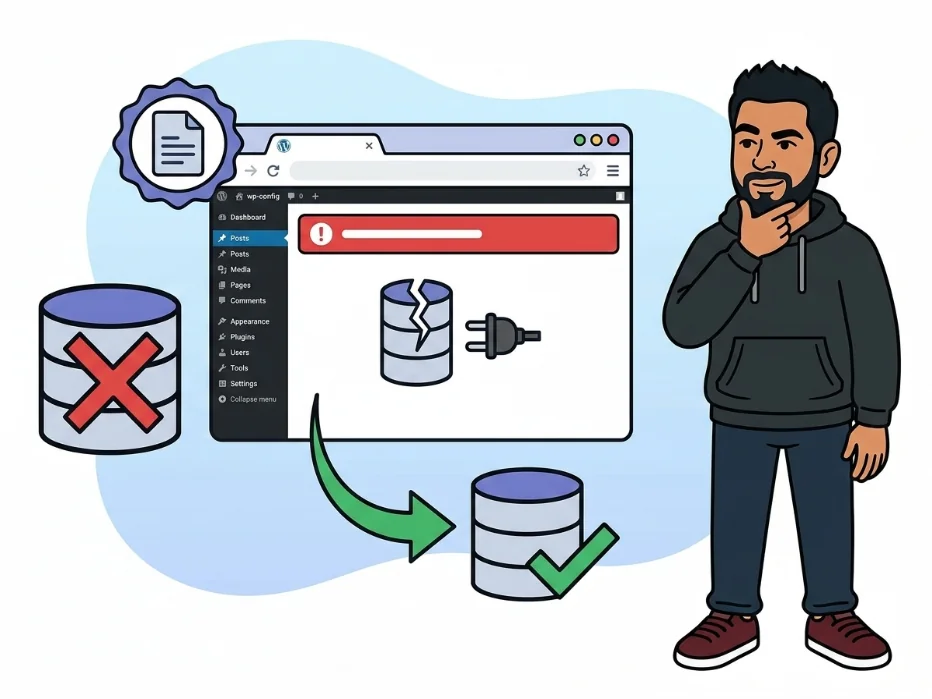
When WordPress shows “Error Establishing a Database Connection,” it means the application completely failed to talk to its MySQL database. Since WordPress stores everything — your posts, pages, settings, and user accounts — inside that database, not a single page can load without it. Visitors land on a plain white screen with just that error message staring back at them.
This is one of the most alarming WordPress errors because your entire site goes dark at once. The good news is that it’s almost always fixable without losing any data. In the vast majority of cases, your database is perfectly intact — WordPress simply can’t reach it.
You might also notice that wp-admin throws the same error, or shows “One or more database tables are unavailable.” Both symptoms point to the same root problem: a broken handshake between WordPress and MySQL.
Get free WordPress & AI tips
Join 500+ readers. No spam, unsubscribe anytime.
Why Does This Happen?
- Wrong credentials in wp-config.php: If the database name, username, password, or host in your config file doesn’t match what’s actually set up on the server, WordPress fails to authenticate and the connection is rejected immediately.
- MySQL server is down: The database service itself may have crashed or been stopped — this commonly happens on shared hosting during traffic spikes, after a server update, or when the server runs out of memory.
- Corrupted database tables: A sudden server crash, a bad plugin, or an interrupted WordPress update can corrupt MySQL tables, making them unreadable and triggering this error on every page load.
- Connection limit exceeded: Shared hosting plans cap how many simultaneous database connections your site can open. A traffic spike or a plugin firing excessive queries can hit that ceiling and lock everyone out.
- Site was recently migrated: After moving a site to a new host, wp-config.php often still holds the old server’s database credentials, causing an instant failure on the new environment.
How to Fix It — Step by Step
- Verify credentials in wp-config.phpAccess your files via FTP or your host’s File Manager. Open
wp-config.phpin the root directory and find these four lines:define( 'DB_NAME', 'your_database_name' ); define( 'DB_USER', 'your_database_user' ); define( 'DB_PASSWORD', 'your_database_password' ); define( 'DB_HOST', 'localhost' );Log into your hosting control panel (cPanel, Plesk, etc.), go to MySQL Databases, and confirm every value matches exactly — including any prefix your host prepends to names. Reset the password if you’re unsure, then update it in wp-config.php and save.
You should see: The site loading normally if credentials were the culprit. If not, continue to the next step.
- Check whether MySQL is actually runningIf you have SSH access, run:
sudo systemctl status mysqlIf the service shows as stopped, start it with:
sudo systemctl start mysqlOn shared hosting you won’t have SSH — open a support ticket and ask your host to confirm whether MySQL is running on your server account.
You should see: A status of “active (running)” in the terminal output, or a confirmation from your host that the service is up.
- Run WordPress’s built-in database repair toolAdd this line to wp-config.php, just above the “That’s all, stop editing!” comment:
define( 'WP_ALLOW_REPAIR', true );Then visit this URL in your browser (replace the domain with your own):
https://yourdomain.com/wp-admin/maint/repair.phpClick “Repair Database” and let it run. As soon as it finishes, remove that line from wp-config.php — leaving it active is a security risk anyone can exploit.
You should see: A list of repaired tables with success messages, and the site loading normally when you revisit the homepage.
- Confirm the DB_HOST value is correctOn many managed platforms — WP Engine, Kinsta, AWS RDS — the database host is not
localhost. Check your hosting dashboard for a field labeled “Database Host” or “MySQL Hostname” and update wp-config.php accordingly:define( 'DB_HOST', 'mysql.yourhostprovider.com' );You should see: The site come back online the moment you save the correct host string.
- Verify database user privilegesIn cPanel, go to MySQL Databases and scroll to the “Add User to Database” section. Make sure your database user is linked to the correct database and that “All Privileges” is checked. Partial privileges — like read-only access — will cause this exact error even when everything else is set up correctly.
You should see: “ALL PRIVILEGES” listed next to your user-database pairing in the Current Users section.
Common Mistakes When Fixing This
- Ignoring the hosting prefix on database names: Hosts like Bluehost and SiteGround automatically prefix database and username values with your cPanel account name (e.g.,
myacct_dbname). If you only enter the short name without the prefix, credentials will never match — always copy the full value directly from your hosting panel. - Leaving WP_ALLOW_REPAIR enabled: Forgetting to remove
define( 'WP_ALLOW_REPAIR', true );after running the repair tool leaves a publicly accessible endpoint that anyone can use to interfere with your database tables. Delete that line immediately after the repair completes. - Restoring a backup before checking credentials: Most people panic and roll back to a backup before doing anything else. Since the database is usually intact, an unnecessary restore can overwrite newer content with older data. Always exhaust the credential and repair steps first.
- Trusting a cached browser view: After applying a fix, the error page can persist in your browser cache, making it look like nothing worked. Always verify in an incognito or private window before concluding a fix failed.
Frequently Asked Questions
Will fixing this error wipe out my posts or content?
No — this error is purely about the connection between WordPress and the database, not the stored data itself. Your posts, pages, comments, and settings remain in the database untouched. Even the repair tool only patches table structure issues; it does not delete or overwrite any content rows.
What if wp-admin also shows the database error?
That means WordPress can’t reach the database at all — not just for visitors, but for admin operations too. Start with Step 1 and verify every credential in wp-config.php. If those are correct, the MySQL service itself is likely down and you’ll need to restart it or contact your host.
Why did this suddenly appear after my host performed server maintenance?
Server upgrades can change the MySQL hostname, reset user passwords, or move databases to a new server with a different address. After any host-side maintenance, cross-check your DB_HOST, DB_USER, and DB_PASSWORD values in wp-config.php against the current details shown in your hosting control panel.
Can a plugin actually cause this error?
Indirectly, yes. A poorly coded plugin can flood the database with queries and exhaust the connection limit, triggering this error for every visitor. If the problem started right after installing or updating a plugin, rename the wp-content/plugins folder to plugins_disabled via FTP to bulk-deactivate all plugins, then reload the site to see if it recovers.