
How to Fix 504 Status Code: Comprehensive Guide for Beginners
Encountering a 504 status code while trying to access your WordPress site can be frustrating, especially…
WordPress Scheduled Posts Not Publishing Automatically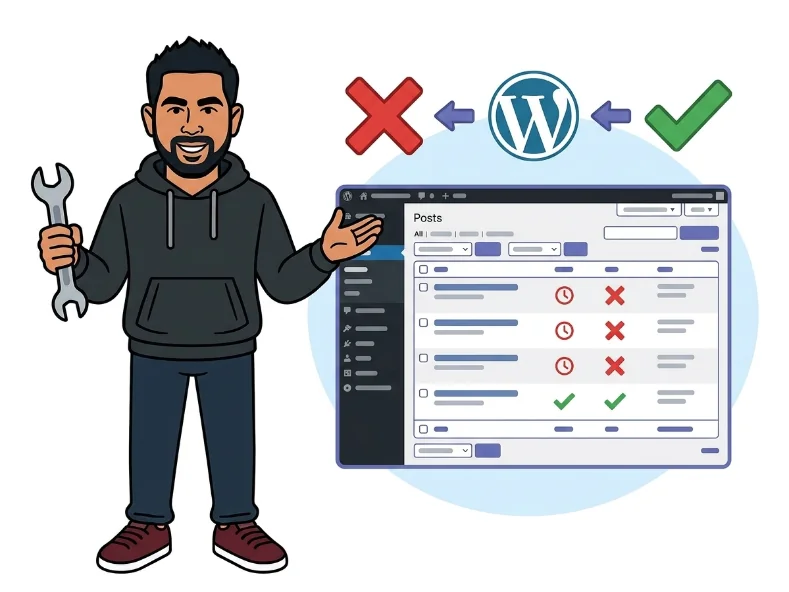
WordPress has a built-in scheduling feature that lets you write posts ahead of time and set them to go live at a specific date and time. Under normal circumstances, the post quietly flips from “Scheduled” to “Published” at exactly the right moment — no manual effort needed.
When this breaks, the post just sits there. After the scheduled time passes, you might see a “Missed Schedule” label in your posts list, or the post remains stuck as “Scheduled” indefinitely. Either way, visitors cannot see it and it never went live on its own.
The root cause in almost every case is WordPress’s internal task runner, called WP-Cron. Unlike a real server cron job, WP-Cron only fires when a visitor loads a page on your site — meaning if nobody visits at the exact scheduled moment, your publish task silently gets skipped.
You should see: Your correct city or region listed, with the accurate local time displayed just beneath the dropdown.
define('DISABLE_WP_CRON', true); If you find it, either remove it entirely or change true to false as a temporary measure — but plan to move on to Step 4 for a permanent fix.
You should see: Scheduled posts begin publishing again once any visitor triggers WP-Cron on your site.
wp_publish_future_post hook — this is the event responsible for publishing scheduled posts. If it is missing entirely or shows a stale “Next Run” timestamp, WP-Cron has been failing to fire.
You should see: A list of scheduled cron events with upcoming run times. When you have posts scheduled, the wp_publish_future_post event should appear with a valid future timestamp.
define('DISABLE_WP_CRON', true);Then log into your hosting control panel (cPanel, Plesk, or similar) and create a cron job that runs every 5 minutes:
*/5 * * * * wget -q -O /dev/null https://yoursite.com/wp-cron.php?doing_wp_cron Replace yoursite.com with your actual domain. If you have SSH access, you can also use:
*/5 * * * * php /path/to/your/site/wp-cron.php > /dev/null 2>&1You should see: Scheduled posts now publish reliably within 5 minutes of their scheduled time, regardless of how much traffic your site receives.
You should see: The post status changes to “Published” and it becomes visible to visitors on your site right away.
Get free WordPress & AI tips
Join 500+ readers. No spam, unsubscribe anytime.
Yes, it absolutely can. Aggressive caching setups serve fully pre-built pages without executing any PHP, which means WP-Cron never gets a chance to run. The server cron job in Step 4 sidesteps this entirely because it calls wp-cron.php directly on the server, completely independent of your page cache.
You have a solid workaround: use a free external cron service like cron-job.org or EasyCron. These services send an HTTP request to your wp-cron.php URL on whatever schedule you set, effectively acting as your server cron from the outside. It is just as reliable as a native hosting cron job for this purpose.
Schedule a test post for 6–10 minutes in the future and wait it out. If it publishes on its own, you’re all set. You can also open WP Crontrol under Tools → Cron Events and watch the timestamps — if the “Last Run” values update roughly every 5 minutes, your server cron is firing correctly.
It’s much less common on managed platforms because most of them run real server-side cron jobs by default. However, if you’ve manually added DISABLE_WP_CRON to wp-config.php without setting up a replacement, you’ll still hit the same problem. Contact your host’s support team if scheduling issues persist after following these steps — they can usually confirm whether cron is running on your account.
