
Replace Vercel, Sentry & Plausible for $5/Month (Real Setup)
I replaced four paid subscriptions ($152/mo) with one $5/mo self-hosted server: real deployment, a…
The official WordPress AI plugin page says you need an account with an AI company, and that they bill you for usage. I wanted to know if that’s really true.
So I tested it. I used WordPress AI for free on my own computer, with no API key and no credit card, and I clicked every AI button the plugin has.
Some features worked well, some were slow or made mistakes, and one didn’t work at all. Here’s exactly what happened, so you know what to expect before you try it.
Get free WordPress & AI tips
Join 500+ readers. No spam, unsubscribe anytime.
I also tested the paid route, so you can compare the two honestly.
A quick word on the words. A model is the AI “brain” that writes the text.
An API key is a password that lets WordPress use a paid company’s model, and they bill you for it. A connector is the small plugin that tells WordPress where the model lives.
My test machine was an ordinary office PC: an Intel i5-8400, no graphics card, 15 GB of RAM. I also limited Ollama to 3 of the 6 processor cores to keep the computer cool.
So my speeds are slow on purpose. A newer PC will be faster.
Download Ollama from ollama.com and install it like any other program.
Then download a model. I used a small one called Qwen 2.5 3B. “3B” means it has 3 billion parameters, which is small enough to run on a normal computer. Open a terminal and run:
ollama pull qwen2.5:3b-instruct-q4_K_M
ollama list
The second command should show the model in the list. That’s your confirmation it downloaded. It is about 1.9 GB.
In wp-admin, go to Plugins → Add New and install AI and AI Provider for Ollama. If you use WP-CLI (the WordPress command line), this is the same thing in one line:
wp plugin install ai ai-provider-for-ollama --activate
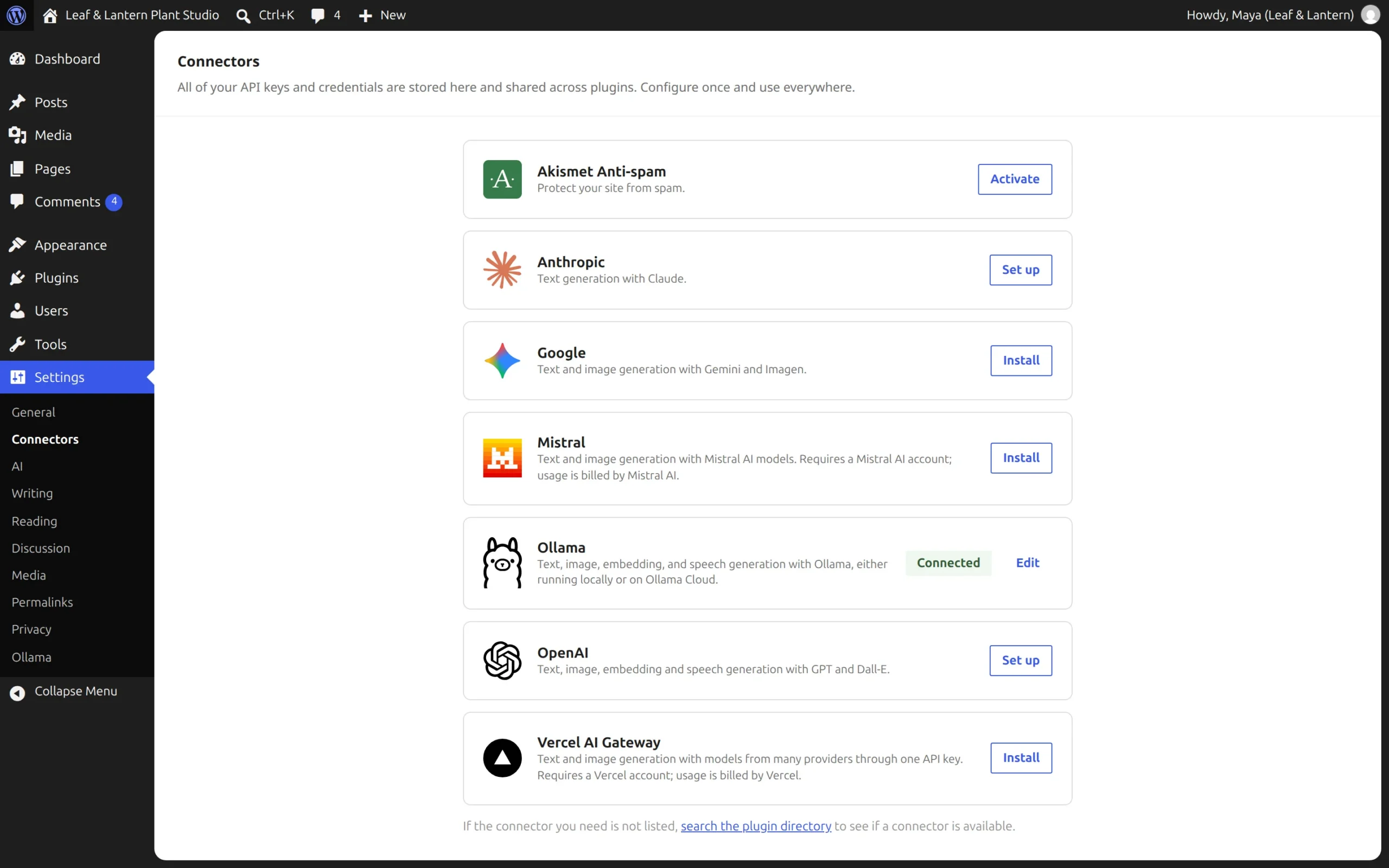
Now open Settings → Connectors. You should see Ollama marked Connected.
There is no key to fill in, because a local model doesn’t need one.
By default, the Ollama connector looks for Ollama at http://localhost:11434. “Localhost” means “this same machine”.
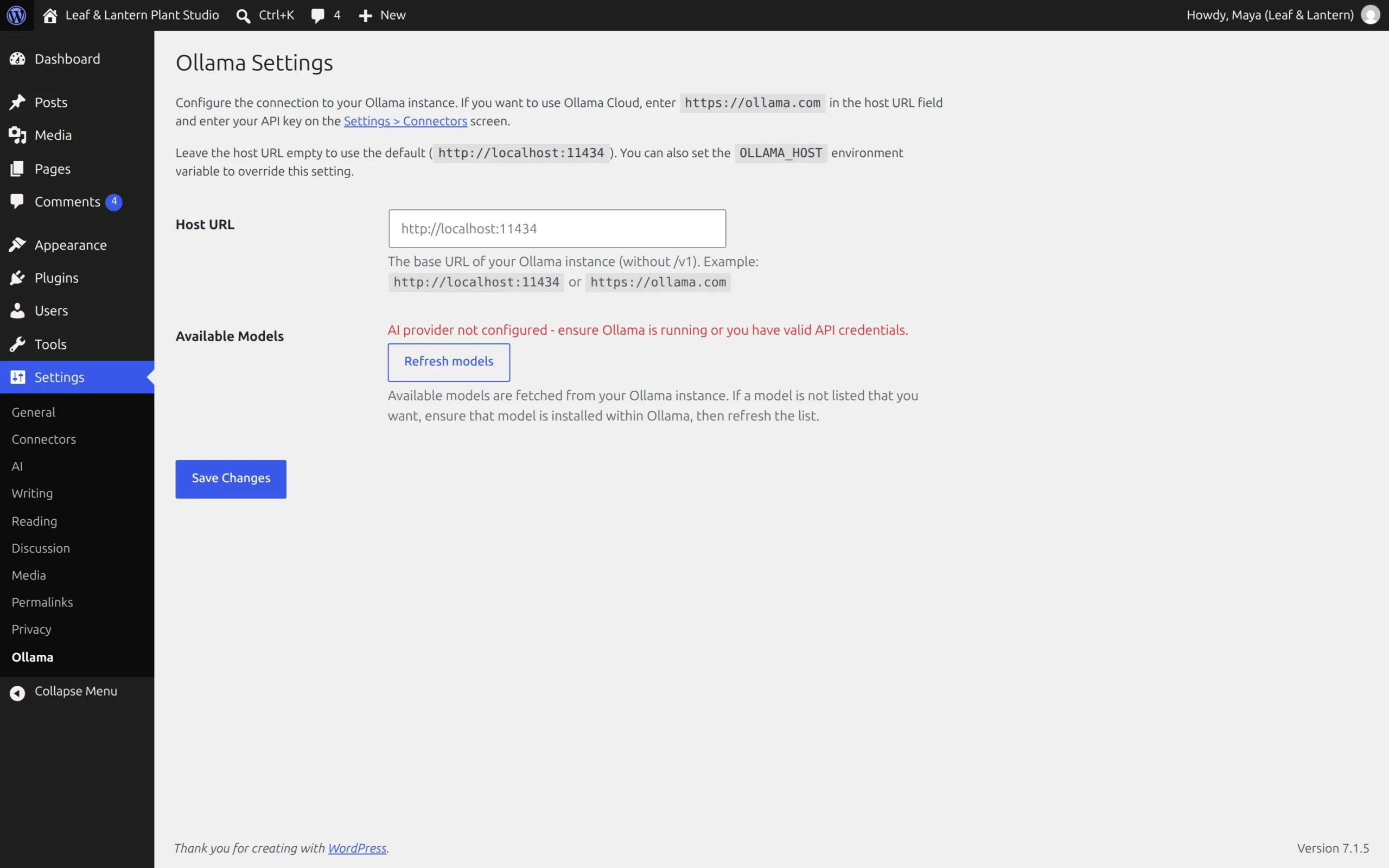
This is where I hit my first problem. My WordPress runs inside Docker, a tool that runs each program in its own little box (a container).
Inside a container, “localhost” means that container only. So WordPress was looking for Ollama in the wrong box.
Here’s what I saw on Settings → Ollama:
And when I tried to use a feature, WordPress said:
No models found for provider "ollama" that support text_generation for this prompt.
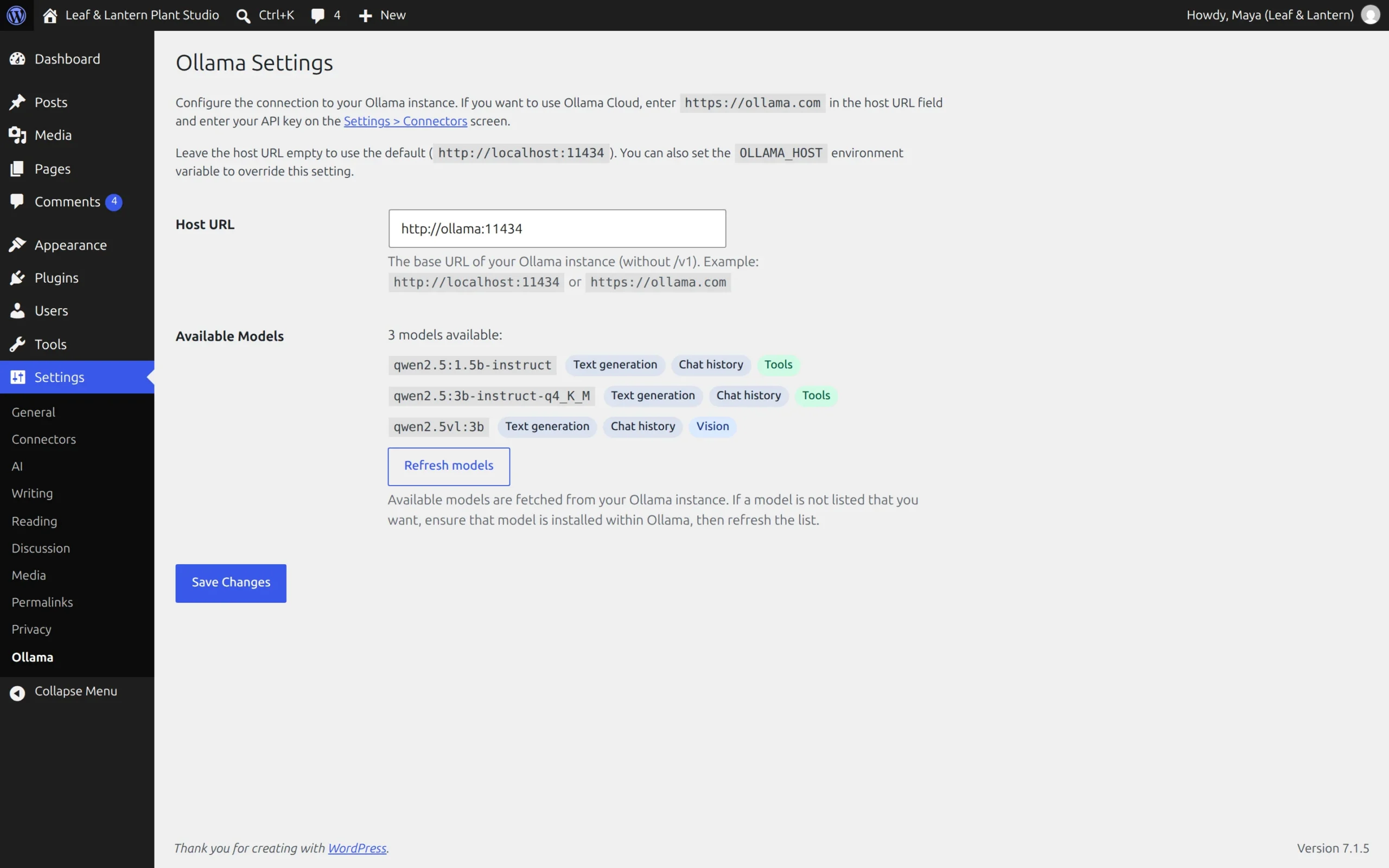
Ollama was running the whole time. The fix was one setting. In Settings → Ollama → Host URL, I typed the name of the Ollama container instead of localhost:
http://ollama:11434
After saving, the same screen listed my models, and the first test answer came back in 9.3 seconds.
If WordPress and Ollama run directly on the same computer (not in Docker), the default should be fine. I only tested the Docker setup, so check this screen either way.
Two more problems showed up in my tests, and both are fixed by one small file. Here they are in plain words.
Problem 1: slow features time out. The Ollama connector gives up after 60 seconds. On my PC, two features (tag suggestions and Editorial Notes) needed longer, so they failed with a “timed out” error.
Problem 2: WordPress picks the wrong model. The AI plugin has a “preferred model” list, but it only names paid models. For Ollama, WordPress simply uses the model you downloaded most recently.
I downloaded a second, smaller model halfway through my tests, and WordPress quietly switched to it. Nothing on screen told me. I only caught it because Ollama’s own status showed the wrong model loaded.
Save this as wp-content/mu-plugins/local-ai-fixes.php. A must-use plugin is a file in that folder that WordPress always loads. There’s nothing to activate.
<?php
/**
 * Plugin Name: Local AI fixes (Ollama)
 * Description: Give a slow local model more time, and always use the model you choose.
 */

// Fix 1: allow up to 5 minutes instead of 60 seconds.
add_filter( 'ai_provider_for_ollama_request_timeout', function () {
    return 300; // seconds
} );

// Fix 2: always use this model. The name must match `ollama list` exactly.
add_filter( 'wpai_preferred_text_models', function ( $models ) {
    array_unshift( $models, array( 'ollama', 'qwen2.5:3b-instruct-q4_K_M' ) );
    return $models;
} );
With this in place, Editorial Notes took 63.4 seconds and worked. Without it, it would have failed at 60.
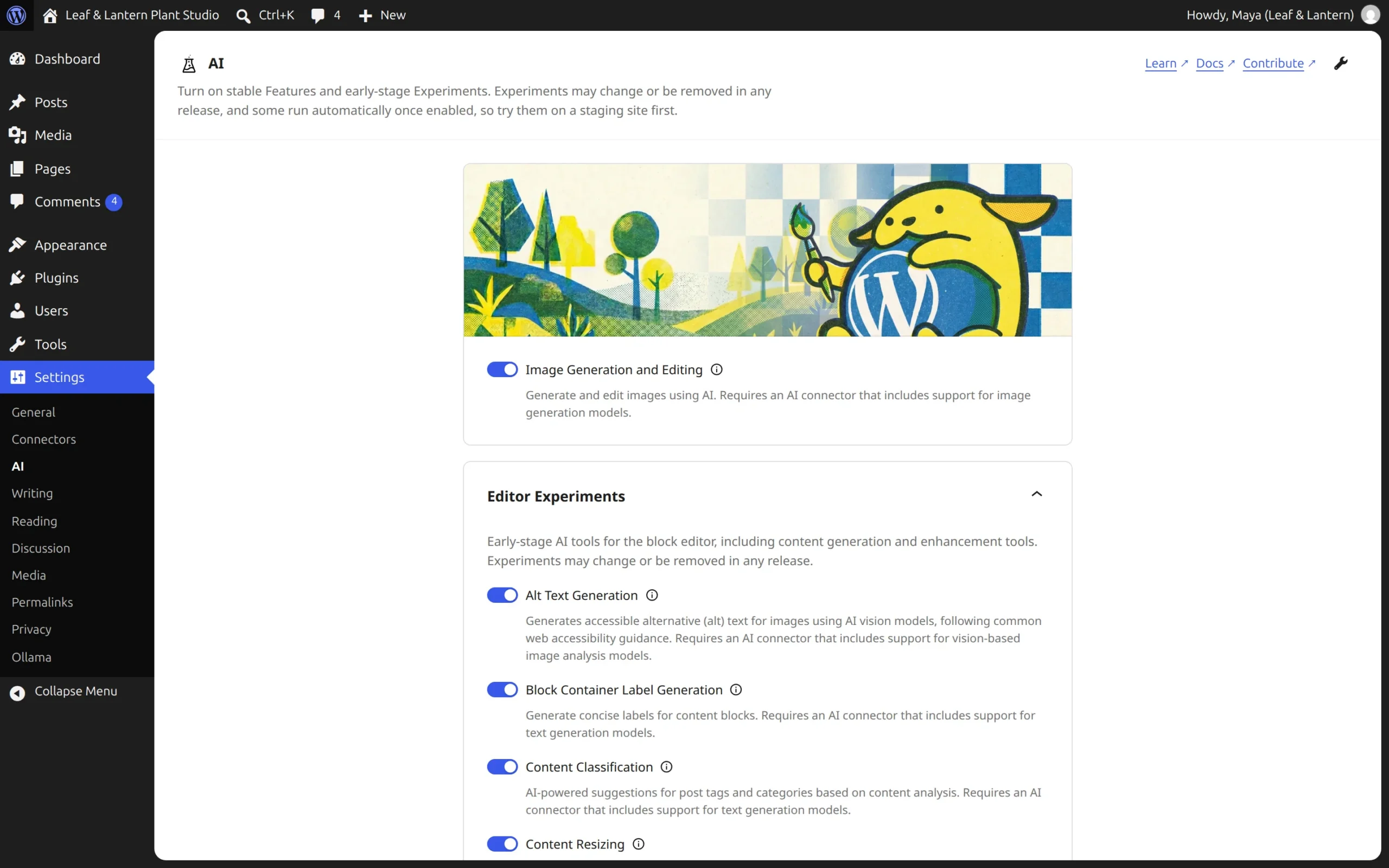
Go to Settings → AI. Nothing is on by default. Each feature has its own switch, so turn on only what you’ll use.
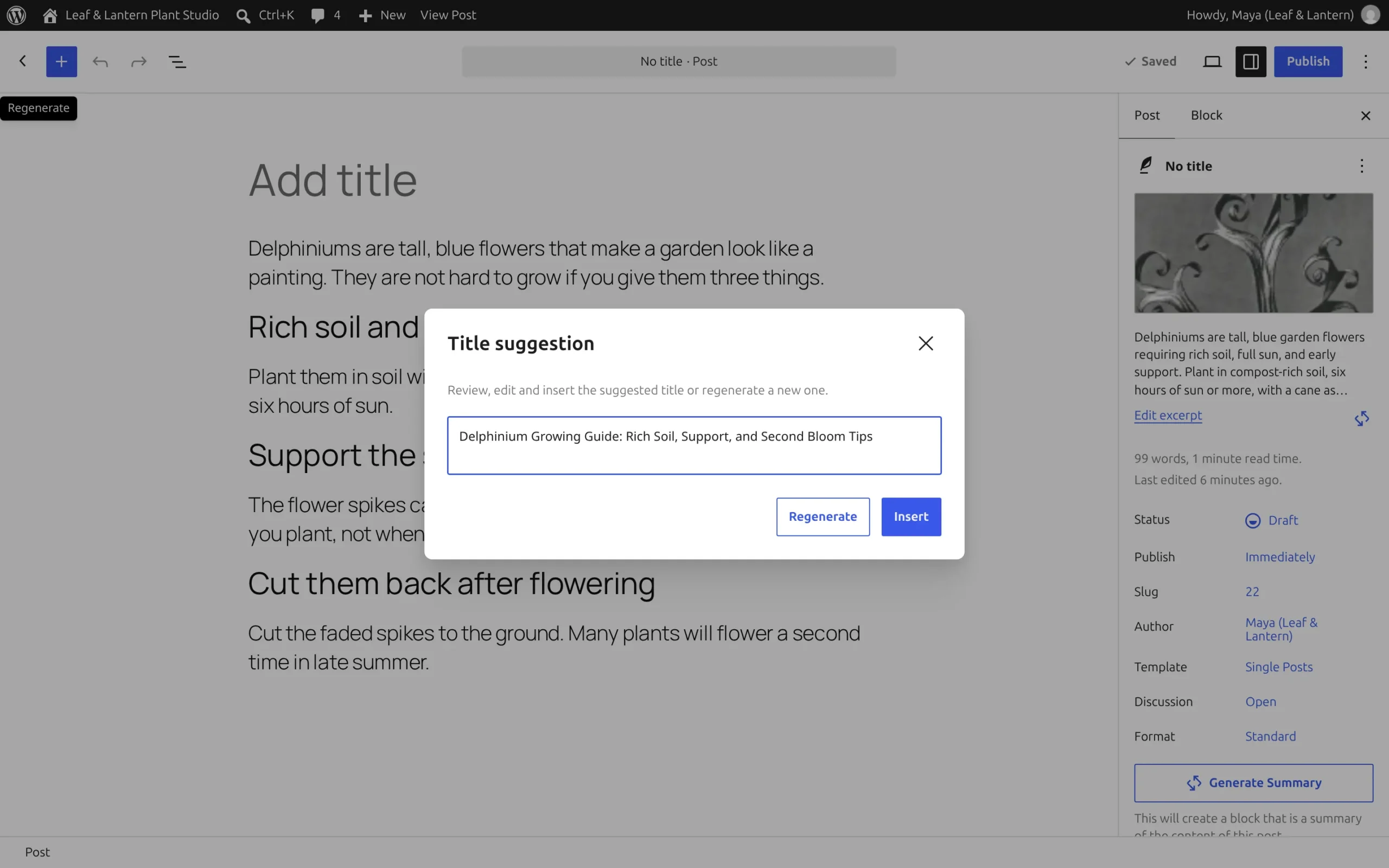
Then open any post. The buttons appear in the editor. Here’s the title button on a draft post. It took 9.2 seconds and suggested “Delphinium Growing Guide: Rich Soil, Support, and Second Bloom Tips”:
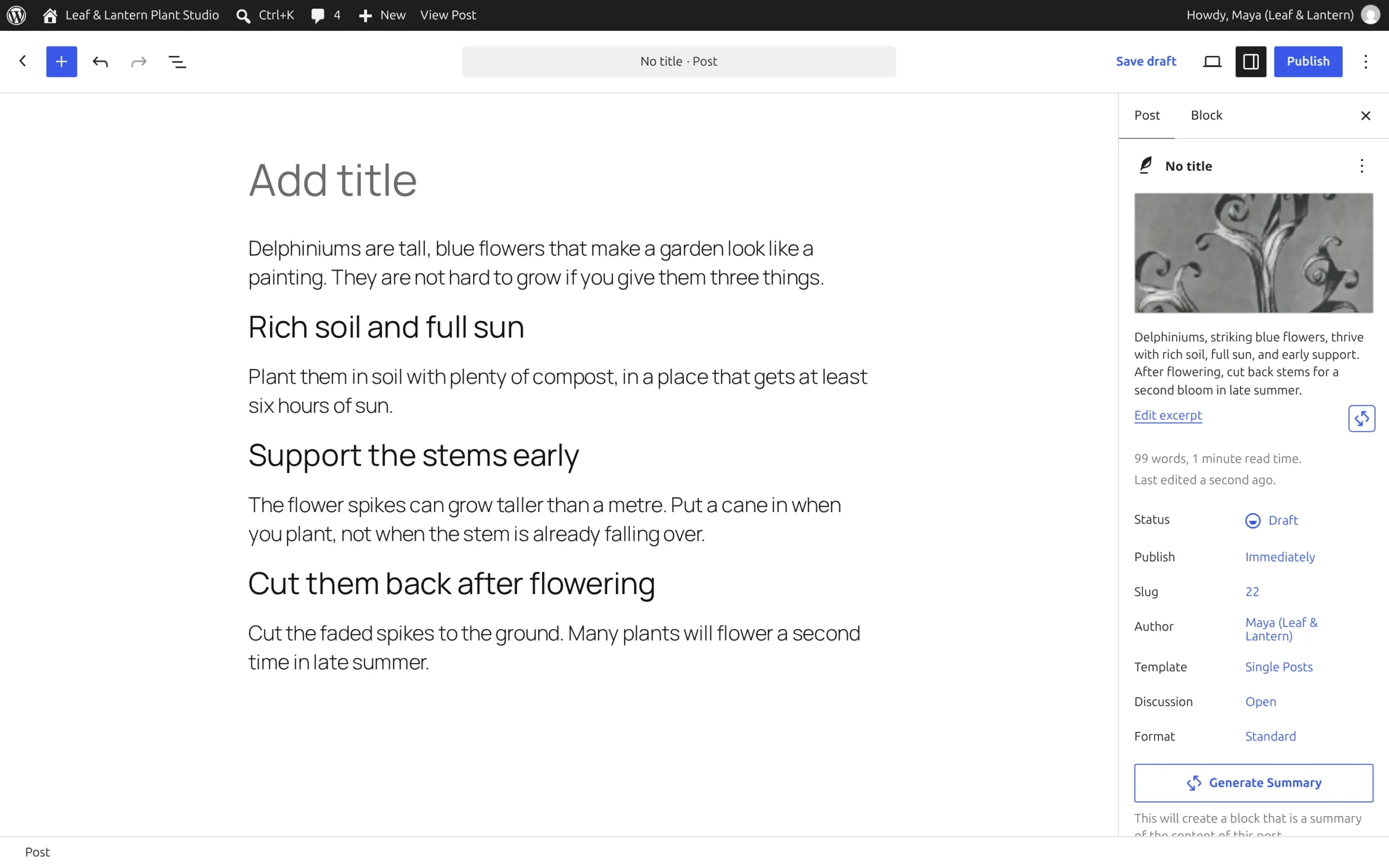
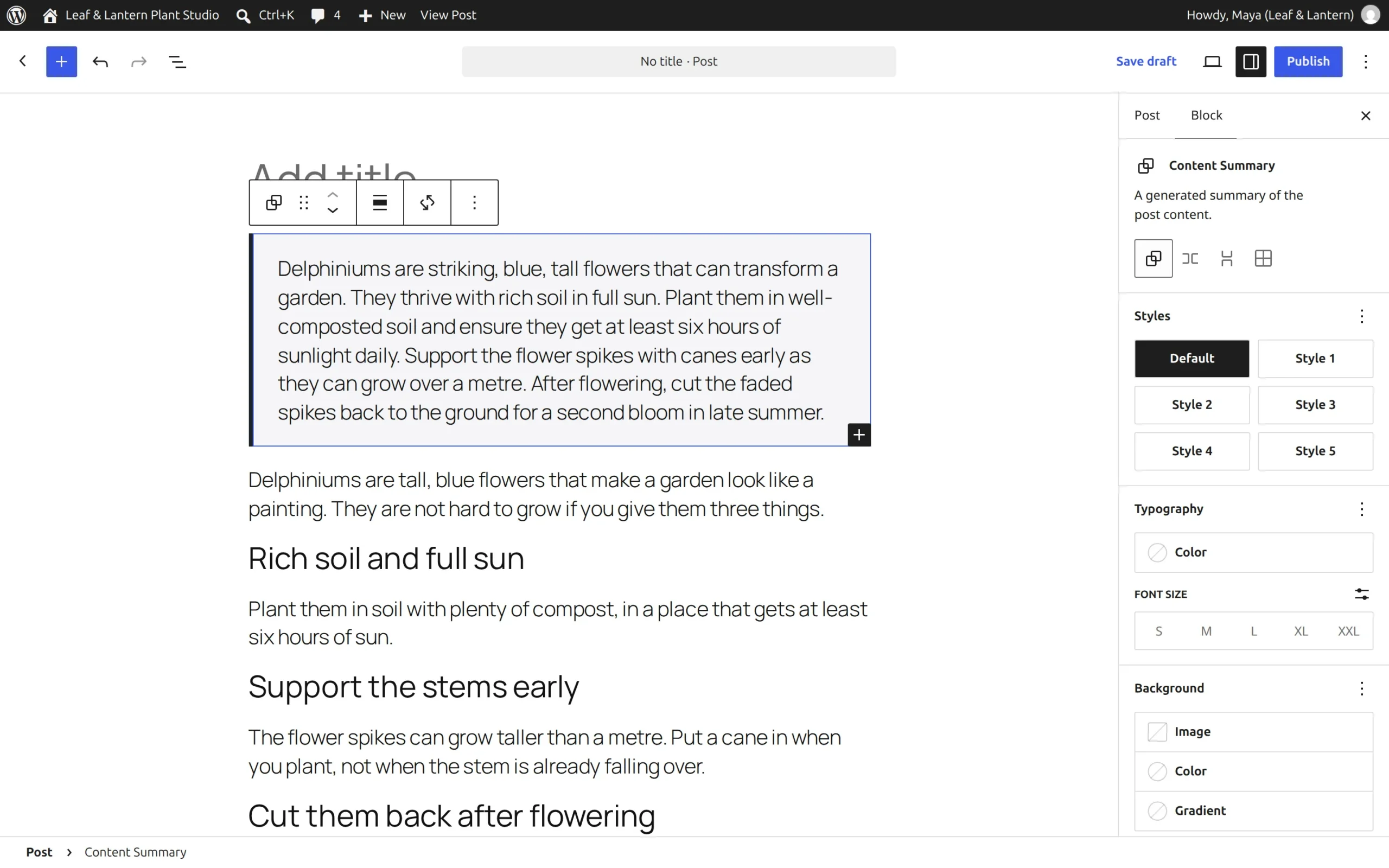
And here’s the excerpt it wrote into the sidebar (14.4 seconds), and a summary block it added to the top of the post (31.6 seconds):
I ran every AI feature on the same short blog post, about speeding up a slow website, using the free 3B model. Times are from my slow, 3-core setup.
Two terms you’ll see: an excerpt is the short teaser shown on blog lists, and a meta description is the snippet Google shows under your title.
| Feature | Worked? | Seconds | What I noticed |
|---|---|---|---|
| Title suggestion | ✅ | 3-26 | Good titles. First try on a new post is slowest |
| Excerpt | ⚠️ | 39 | Readable, but mixed up two numbers |
| Summary | ⚠️ | 39 | Same number mix-up |
| Meta description | ✅ | 37 | Good, 106 characters |
| Slug (URL) | ⚠️ | 34 | One suggestion had a typo: “maked” |
| Shorten / rephrase | ✅ | 24 | Good |
| Translate (French) | ⚠️ | 41 | Mostly right, but it invented a French word |
| Tag suggestions | ⚠️ | 20-61 | Worked 2 times out of 4 |
| Editorial Notes | ⚠️ | 63 | Needs the timeout fix. Notes were vague |
| Block labels (List View) | ✅ | 18 | Short, sensible label |
| Revision summary | ✅ | 54 | Accurate: “Added a final line about improved Core Web Vitals” |
| Comment check | ✅ | 8 | Held a rude test comment for review |
| Reply suggestion | ✅ | 28 | Friendly, sensible reply |
| Image prompt | ✅ | 59 | Useful prompt text |
| Alt text | ⚠️ | 160-210 | Needs a second “vision” model. See below |
| Image generation | ❌ | n/a | “Please ensure you have a connected provider that supports image generation” |
So 8 features worked well, 6 worked but made mistakes, alt text was unreliable, and image generation didn’t work with Ollama.
The pattern: a small model is fine at short jobs like titles and labels. It slips on numbers and facts. On the plant post in the screenshots, the excerpt and summary were accurate, so always read what it writes.
Alt text is the short description of an image that screen readers read out. To write it, the model has to “see” the picture, so you need a vision model. I downloaded qwen2.5vl:3b (3.2 GB), and WordPress picked it for alt text automatically.
It was slow: about 2.5 to 3.5 minutes per image on my PC. Worse, it marked a real hibiscus photo as “decorative” and cleared the alt text:
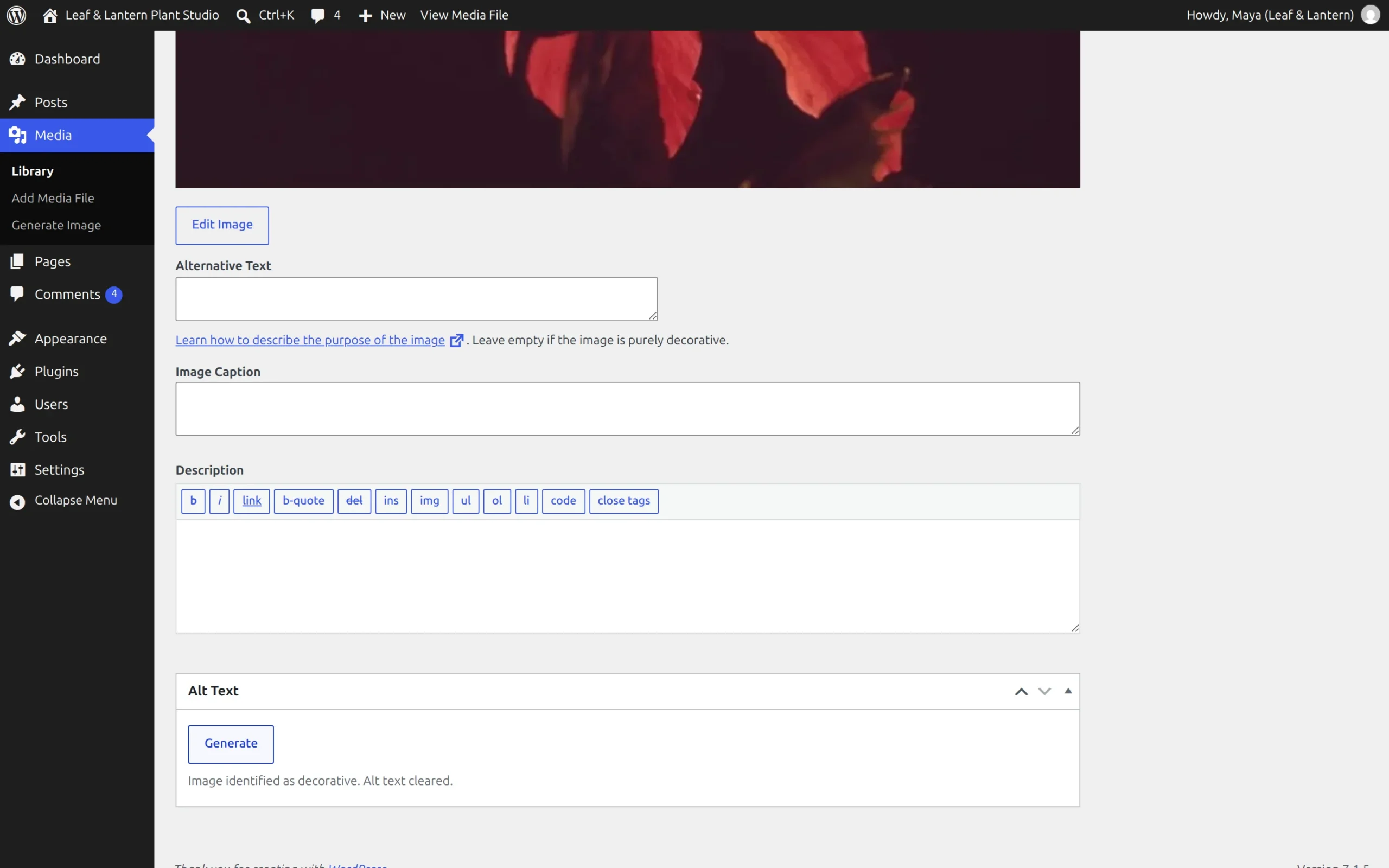
Out of three tries, it described the image correctly once, with a stray code word, [[DECORATIVE_ALT]], stuck on the end. I wouldn’t trust a small local model for alt text.
I tried the 1.5B version too. It was roughly twice as fast, but the writing got clearly worse.
Its French translation was garbled, and its comment reply contradicted the article. For me, 3B was the smallest model worth using.
Most features only run when you click a button. Comment moderation is different: it checks every new comment automatically.
I tested what a visitor experiences. With comment moderation off, posting a comment took less than a quarter of a second. With it on, the visitor’s browser waited 21 to 42 seconds, because the check happens while they wait.
On a slow computer, that’s a terrible experience for your readers. My advice: leave comment moderation off when you use a local model, or use it only on a fast machine.
If you want better quality, you can use a paid model instead. Install the connector for your provider (Anthropic, OpenAI or Google), open Settings → Connectors, click Set up and paste your key.
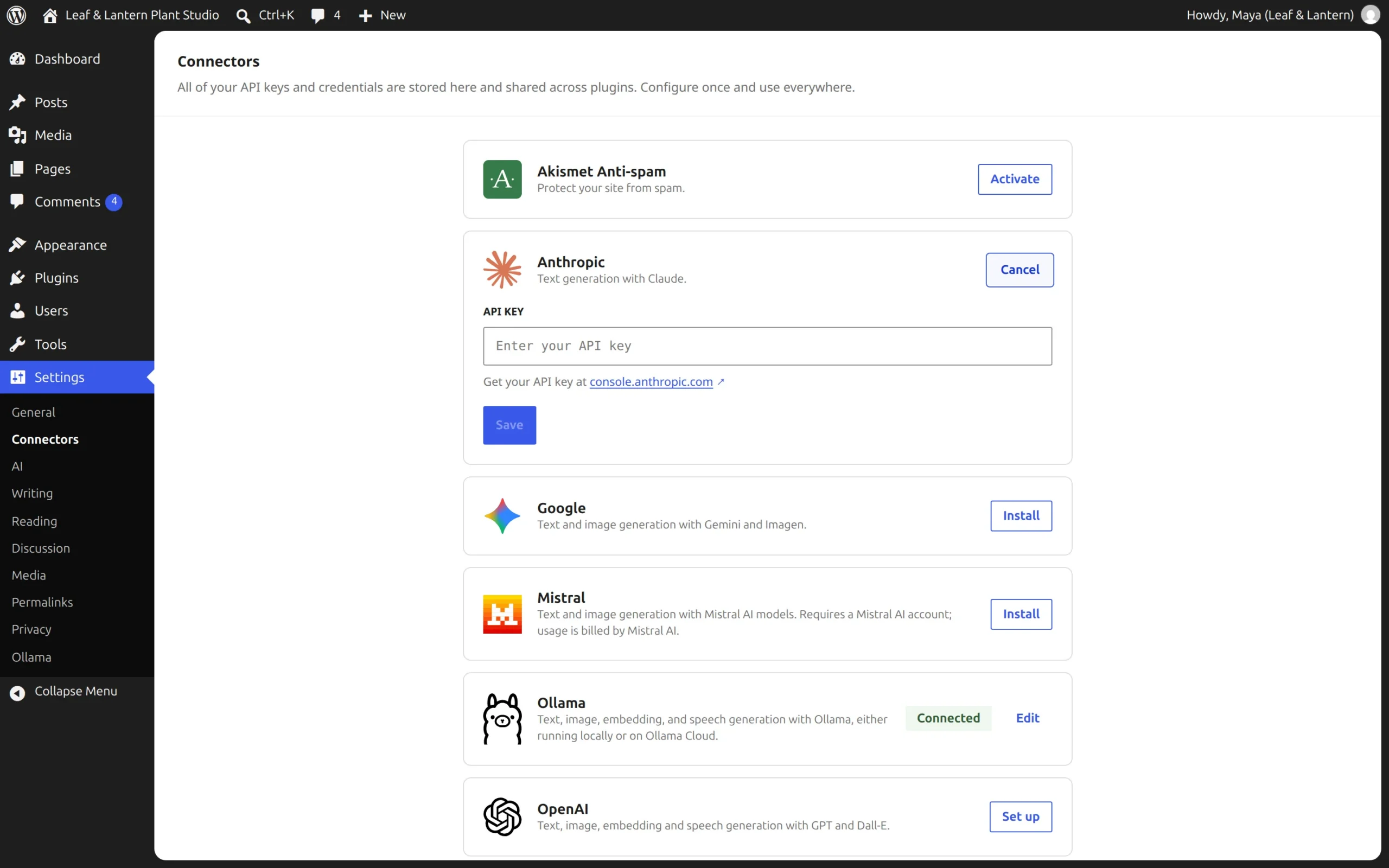
I measured how much text WordPress sends for each feature. Then I worked out the cost from each company’s own price page (checked on 22 November 2026). Text is billed in tokens, roughly 4 characters each, so these are close estimates.
| Model | Price per 1M tokens (in / out) | Cost per click | Best for |
|---|---|---|---|
| Ollama (local) | free | $0 | Trying AI with no card, privacy |
| Claude Haiku 5.5 | $0.10 / $0.50 | about $0.0001 | Cheap everyday use |
| Claude Sonnet 5.5 | $2 / $10 | about $0.001-0.004 | Best writing quality |
| GPT-6.2 Sol | $2 / $10 | about $0.001-0.004 | Same price as Sonnet |
So 1,000 AI titles would cost about $1.10 on Sonnet, or about 5 cents on Haiku. Comment moderation is the one to watch, because it runs on every comment.
Yes, clearly. I sent the same tasks to a Claude model through a small test bridge on my own computer. This was not the public API, so I’m only comparing what the answers said, not the speed.
The French translation was correct, with no invented words. The excerpt and summary kept the numbers right (“from 7 MB to 900 KB”).
The tags were sensible on the first try. Image features I couldn’t test this way, because my bridge only handled text.
This part surprised me, so I checked the database directly with a fake key:
wp_options database table by default. Anyone with a copy of your database can read it.wp-config.php file, so a database backup alone isn’t enough to read it. If you switch the option off later, the key goes back to plain text.wp-config.php instead. WordPress reads it from there, and in my test no database row held the key.define( 'ANTHROPIC_API_KEY', 'your-key-here' );
Use OPENAI_API_KEY for OpenAI. The pattern is the provider name in capitals plus _API_KEY.
Usually not on shared hosting. Ollama is a program that has to run on the server, and shared hosting plans normally don’t let you install programs.
You’d need a VPS (your own small server) with enough memory for WordPress plus the model. Mine used about 2.5 GB with the 3B model.
If you go that way, Contabo is worth a look for the amount of RAM you get. I only tested on my own computer, though, so treat that as a starting point, not a promise.
For most people, the easiest path is a local copy of your site for experimenting, and a cheap paid model like Haiku for the live site.
Yes. Install the free “AI Provider for Ollama” connector and run Ollama with a downloaded model. WordPress shows Ollama as Connected with no key, and every text feature ran this way.
With the 3B model, my whole setup (WordPress, database and Ollama) used about 2.5 GB. The model itself took about 2.3 GB. A vision model for alt text needs more: it is 3.2 GB to download.
All the text features ran: titles, excerpts, summaries, meta descriptions, translation, tags, notes and comment replies. Quality was mixed, especially with numbers and translation.
Alt text needs a vision model and was unreliable. Image generation didn’t work.
WordPress can’t reach Ollama. The most common reason is Docker, where “localhost” points to the wrong container. Change the Host URL in Settings → Ollama to the real address.
No. The free 3B model made small mistakes a paid model didn’t, like inventing words in French. It’s great for trying the features and for simple jobs like titles and excerpts.
You really can use WordPress AI for free, and it’s a great way to learn what the AI plugin does before you spend anything. Just add the two small fixes, keep comment moderation off on a slow machine, and don’t trust alt text from a tiny model.
If you’d rather build your own AI feature from scratch, you might like how I added an AI chatbot to WordPress with no plugin. It uses the same free Ollama setup. Now go build it.