
AI Generated WordPress Plugin Security, Tested for Real
I tested AI generated WordPress plugin security with the official Plugin Check tool: 21…

Four invoices landed in my inbox the same week: Vercel, Sentry, Plausible, Better Stack. Added up, they came to $152 a month, just to host an app, know when it broke, see who visited, and get a ping if it went down.
None of those jobs are hard. They’re just scattered across four different companies, each charging you separately for the privilege.
Get free WordPress & AI tips
Join 500+ readers. No spam, unsubscribe anytime.
So I moved all four onto one box. A $5/mo VPS, one install command, one binary doing all four jobs. Here’s exactly what that looks like, with the real thing actually running: not a feature comparison, not a pricing page screenshot.
I run my whole setup on a Contabo VPS, solid price for what you get, and it’s what this whole post is built on.
Here’s what four separate “it’s just $20/mo” subscriptions actually add up to:
| Service | Job | Monthly cost |
|---|---|---|
| Vercel | App hosting | $20 |
| Sentry | Error tracking | $29 |
| Plausible | Web analytics | $69 |
| Better Stack | Uptime monitoring | $34 |
| Total | $152/mo, $1,824/year |
Each one, on its own, sounds reasonable. Stacked, it’s real money for four things that don’t individually need a dedicated company behind them.
I’ll be straight with you: “run your whole stack on one cheap box” is a claim I’ve measured being wrong before. A different self-hosted stack I tested, Coolify plus Postal plus Mautic plus WordPress, needed real RAM minimums that added up fast. Coolify alone wants 2 cores and 2GB before you’ve deployed anything. Postal’s own docs recommend 8GB on its own, because it runs MariaDB and RabbitMQ next to its web and worker processes. Stack those together and you’re looking at two boxes, not one, closer to $15/mo than the $4/mo the pitch usually promises.
This is a different situation, and I didn’t want to just assume it was different because the marketing said so. The tool I used, Temps, a single self-hosted Rust binary, states its own idle footprint at around 50MB of RAM on its own homepage. That’s genuinely light, not a marketing rounding error, because it’s one purpose-built binary doing these four jobs natively, instead of four separate open-source apps glued together on the same box, each with its own database, its own worker process, its own idea of how much RAM is “normal.”
I went looking for that number specifically because I’d been burned assuming a lightweight-sounding pitch would hold up without checking. It’s worth doing that check yourself on any tool before you commit a VPS tier to it. The resource page is usually one search away, and it’s a lot cheaper to read than to discover you need a bigger box halfway through setup.
You could. GlitchTip (Sentry-API-compatible) and Umami (a clean Plausible-style dashboard) are both solid, genuinely open-source options if you only need to replace one piece. I looked at going that route instead of an all-in-one tool, and the honest answer is: it works, but you’re back to running multiple separate apps, each with its own database and its own update cycle, even if each one individually is light. The appeal of Temps specifically is that it’s one binary, one install, one thing to keep patched, not that the individual alternatives are bad.
SSH into a clean Ubuntu box and run one command:
curl -fsSL https://temps.sh/deploy.sh | bash
That’s it. No dashboard sign-up first, no credit card, no multi-step wizard before you see anything. The installer provisions Docker, a time-series database, and a Pingora-based proxy (the same proxy engine Cloudflare runs) automatically.
Once it finishes, you register your admin account and you’re deploying. No signup form, no credit card, no email verification loop before you can see the dashboard: the install script is genuinely the whole onboarding.
What you should see once it’s done: a confirmation that default roles were initialized, an admin user created, and a preview domain assigned automatically (Temps hands you a working subdomain immediately, so you’re not stuck configuring DNS before you can test anything). If any of those three lines don’t show up, something in the install failed silently. Re-run the script before moving on rather than troubleshooting forward from a broken base.
Point your domain at the box, connect a repo, deploy. Here’s the real thing, actually live, not a staged screenshot:
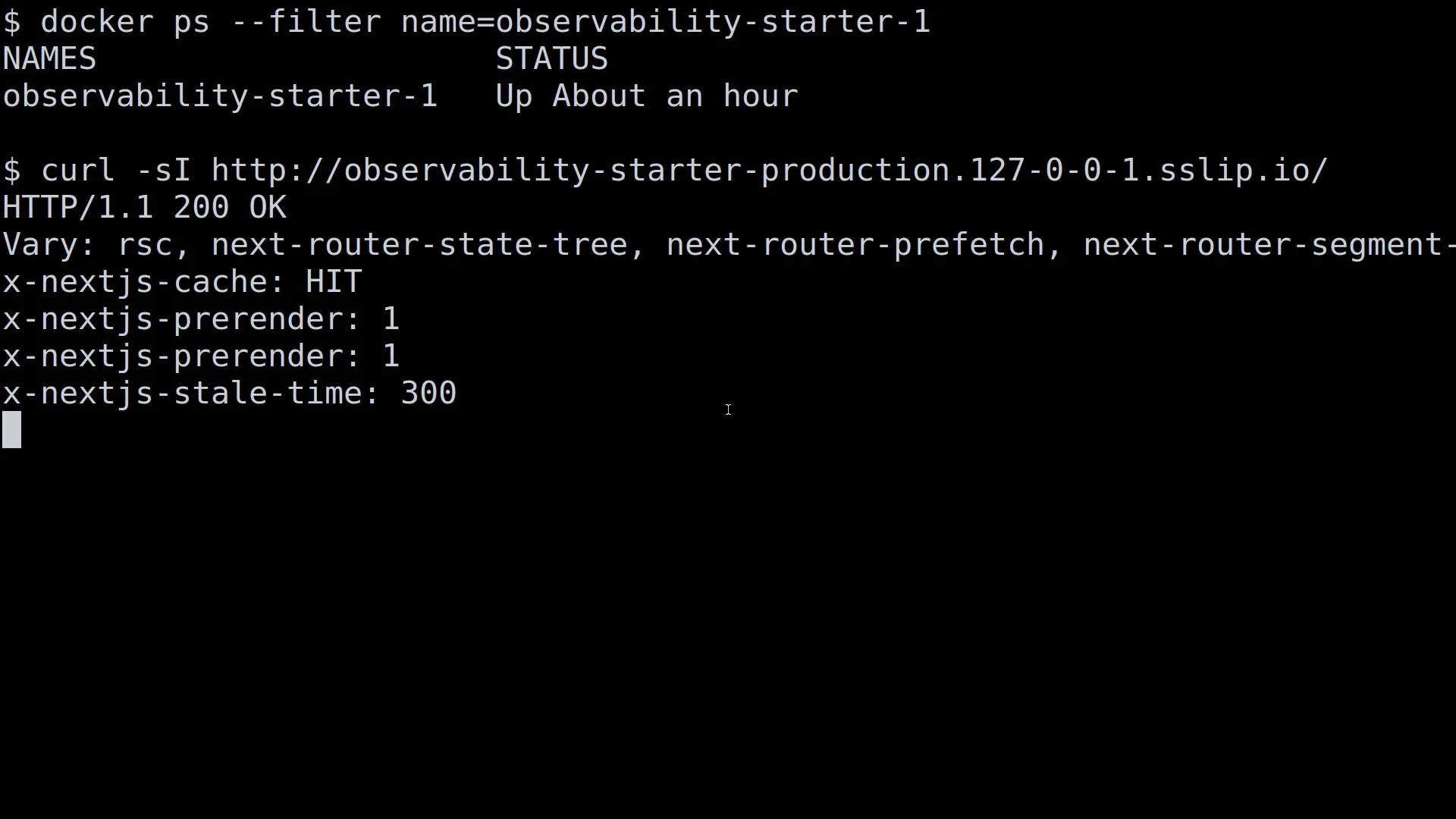
That’s observability-starter, genuinely running on my own box, answering real requests.
Temps accepts your app’s existing Sentry SDK. You point its DSN at your Temps instance instead of Sentry’s servers, and your error reporting code doesn’t change.
I didn’t just take that on faith. I threw a real error on purpose and watched it get caught:
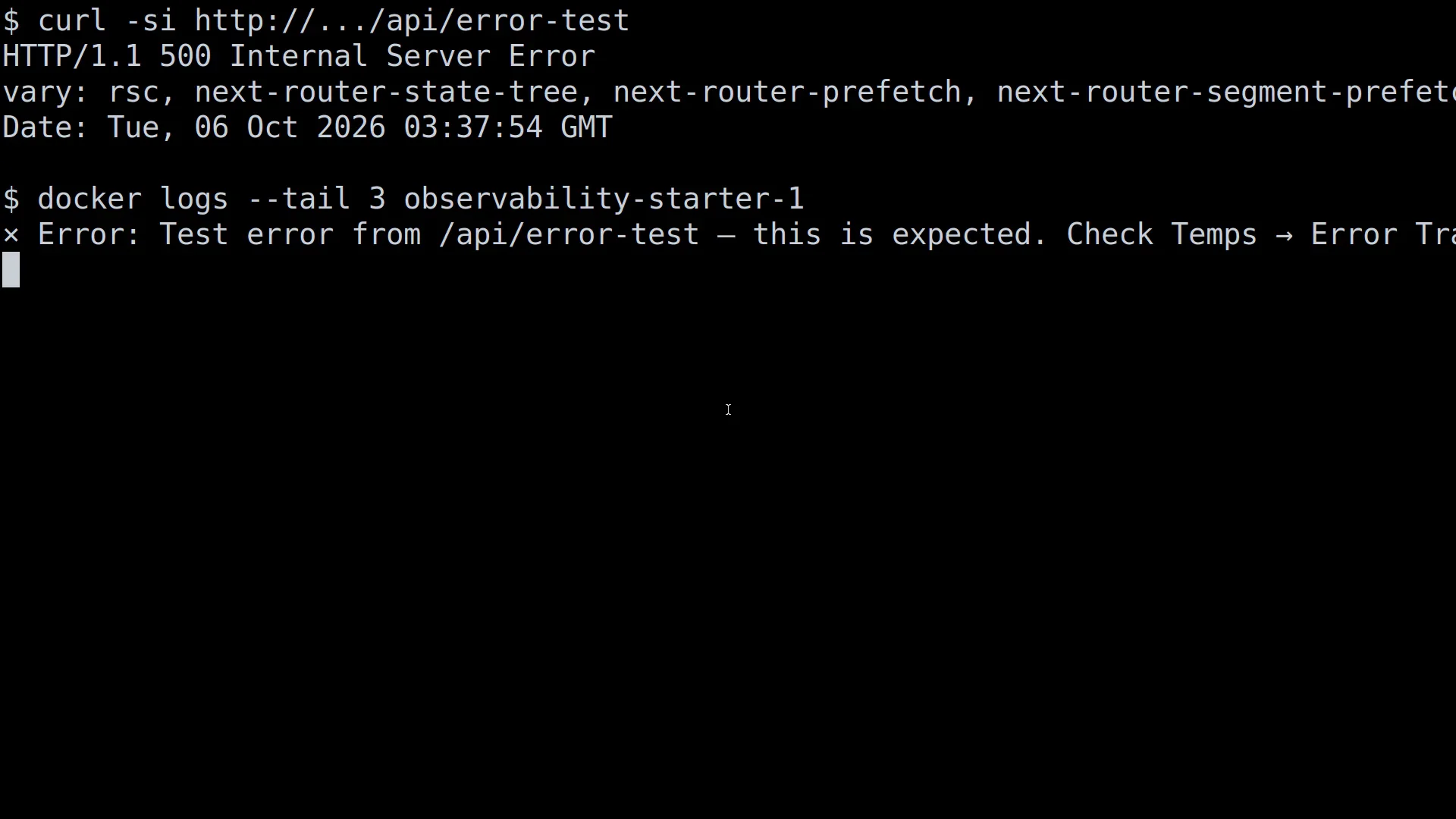
That’s a genuine HTTP 500 from a real endpoint, and the app’s own log line telling you exactly where to go look for it.
Analytics here means real request counting, not a JavaScript snippet reporting back to someone else’s server. Here’s a real count, pulled straight from the box’s own service log:
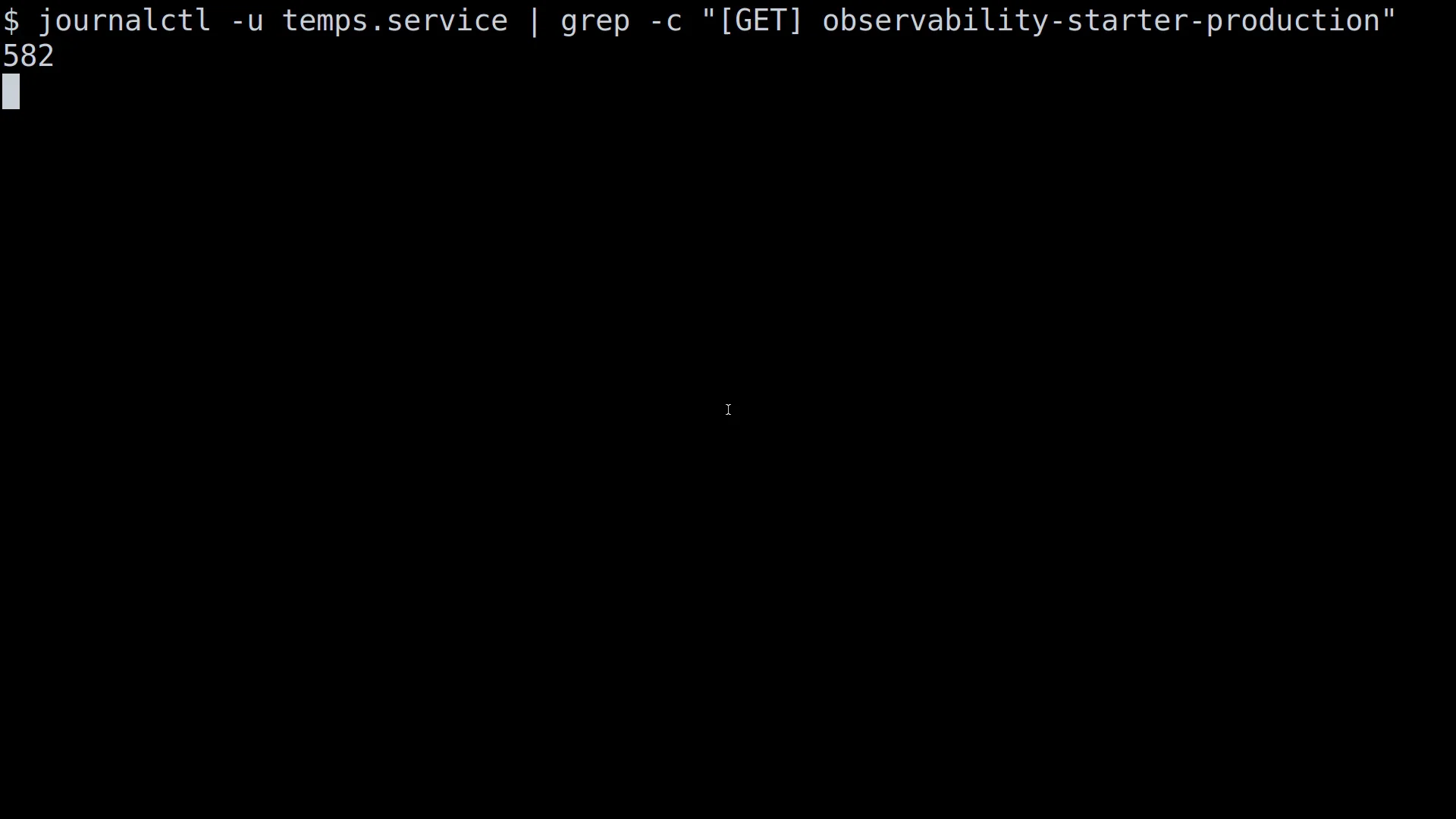
That number is real, counted from journalctl, not invented for this post.
Temps runs its own health checks every 5 seconds, with a 60-second window before it acts. This is specifically its deploy-health and auto-rollback mechanism, not a separate uptime-monitoring product bolted on. Add a webhook and you get a ping the moment something looks wrong, the same job Better Stack is doing for $34/mo.
I’ve been burned by this exact question before. On a different self-hosted tool (Coolify), I measured that ufw cannot close a port that Docker has published. Docker writes its own firewall rules ahead of ufw‘s, so a ufw deny on that port does nothing at all. I’d actually written the opposite assumption into a script once, and only caught it by testing instead of trusting.
Temps avoids that specific trap by construction: its control-plane runs as a host systemd service, not a Docker-published port, and every deployed app routes through its single Pingora proxy rather than individual host ports. There’s no equivalent Docker-published admin port here to accidentally leave open.
ufw to close a Docker-published port. It silently won’t. If a tool exposes its dashboard via docker run -p, firewall it at the DOCKER-USER chain or put it behind a reverse proxy. ufw alone is not protection.One box only. The moment you need a second server, more traffic than one box handles, or you want redundancy, you’re back to manual provisioning each time. There’s no fleet management, no declarative multi-box config, no unified observability across machines. That’s a real trade-off, not a footnote.
Is Temps really free?
Yes. The software itself has no license fee. You pay for the VPS it runs on, which is where the $5/mo comes from.
Does this replace Sentry’s exact feature set?
It accepts Sentry-compatible DSNs so your existing error-reporting code works unchanged, but it’s not a drop-in clone of every Sentry feature. Check your specific needs against what you actually use.
What if I outgrow one server?
You provision a second box manually, there’s no built-in fleet management. See “What This Doesn’t Do” above.
Is my admin console exposed to the internet by default?
Its control-plane binds to an address you configure (TEMPS_CONSOLE_ADMIN_ADDRESS), separate from the public traffic path. Register your admin account immediately after install regardless, the same advice that applies to any fresh self-hosted install.
Do I need to know Docker to run this?
Not really. The install script provisions Docker underneath for you. You’re not writing Docker Compose files or managing containers by hand day to day, the same way you wouldn’t on Vercel. It’s there, it’s just not something you touch directly for normal use.
Can I migrate an existing app over, or does it only work for new projects?
The install and the hosting side work the same either way, point an existing repo at it the same as a new one. What I haven’t personally tested is migrating historical error/analytics data out of Sentry or Plausible into Temps; treat that as a fresh start for monitoring data, not a data-import job.
$152/mo down to $5/mo is $1,824 a year back in your pocket, for four jobs that genuinely don’t need four separate companies billing you for them.
I put together a free one-page cheat sheet with the exact install command, the setup checklist, and the hardening steps. Grab it below if you want to run this yourself without re-reading this whole post.

Get the free $5/Mo Self-Hosted Cheat Sheet
Every command from this post, one page, as a PDF. Enter your email and we’ll send it straight to your inbox.
If you want to see this whole setup walked through start to finish, I made a video covering the same build. [LINK: video URL, once the video ships].
