
How to Fix WordPress Password Reset Link Not Working
The WordPress password reset link fails due to URL mismatches, caching, or email issues…
When you make changes to your WordPress website, have you ever noticed that they don’t show up immediately? You’ve probably wondered why that happens. The answer is simple: cache. If you’re new to WordPress, don’t worry if this term feels confusing. By the end of this guide, I’ll explain exactly what caching is and show you how to clear cache on a WordPress website.
To explain it simply: Imagine your WordPress site as a huge backpack filled with books. Every time someone asks you for a book, you must dig through your backpack to find it. That takes time. Now, imagine if you had all the books already laid out neatly. You could just hand them over in an instant! Cache is like laying those books out, so your site loads fast, without digging.
Let’s start with the basics. Every time your WordPress site loads, it uses scripts and data, which can take a while, especially if your site has a lot of content like ceeveeglobal.com . The cache is like a temporary storage system that holds a static version of your site. Instead of making your visitors wait while all the data loads from scratch, your site can load quickly by using the cached version.
Caching is like a superhero for your website, especially when it comes to speed. Here’s why it’s so important:
Now that you know why caching is helpful, let’s talk about the different places it can happen on a WordPress site.
Now that you know why caching is helpful, let’s talk about the times when it’s important to clear cache on your WordPress website.
Sometimes, caching can act like a stubborn friend who doesn’t listen when you make changes. Imagine you just added a cool new feature to your site, but when you check it, it’s nowhere to be found. That’s because the cache is still showing an old version of your site, and it hasn’t updated to the new one yet.
Here are some situations when clearing the cache is crucial:
Clearing cache in WordPress might sound technical, but I’m going to break it down step-by-step so it’s super easy.
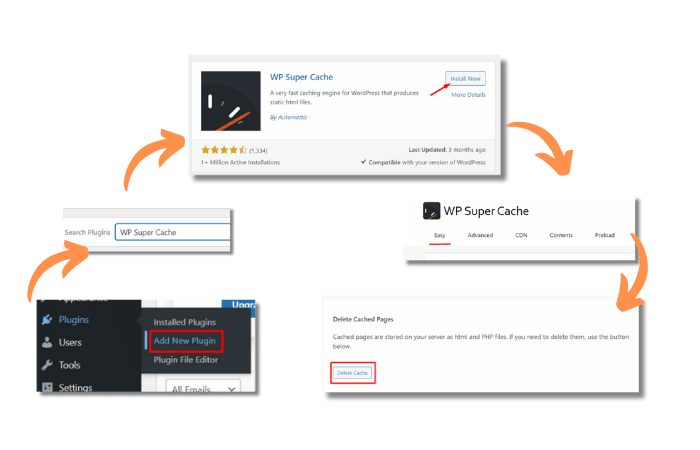
Many WordPress users rely on plugins for caching. Two of the most popular ones are WP Super Cache and WP Rocket. Let’s go over how to clear the cache for both.
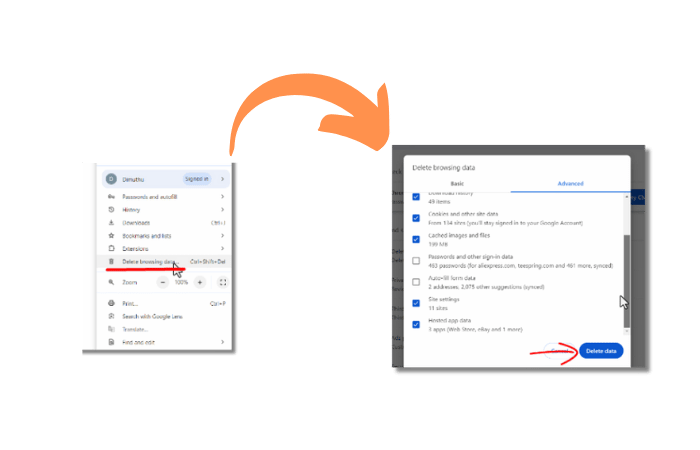
Sometimes, even if you clear the cache on your WordPress website, your browser still shows the old version. Here’s how you clear it:
If your hosting provider has built-in caching, there should be an option in your hosting control panel to clear it. For example, in SiteGround, you can go to your hosting account, find the caching option, and hit Purge Cache.
If you’re using Cloudflare or Sucuri to protect your site, they also have cache options. In Cloudflare, go to your Dashboard, select Caching, and click on Purge Everything.
Learning how to clear cache on a WordPress website is an essential skill for any site owner. Whether it’s from a plugin, your browser, or your hosting provider, knowing how to clear cache ensures that your site stays up-to-date and runs smoothly. By clearing your cache regularly, you keep your website fresh, fast, and responsive to any changes you make.
If you found this guide useful, you might also want to explore more about WordPress plugins or tips for improving your website’s speed. Stay tuned for more tutorials to help you make the most out of WordPress!
Get free WordPress & AI tips
Join 500+ readers. No spam, unsubscribe anytime.
