
How to Fix WordPress Sidebar Below Content — Complete Guide
A broken sidebar layout in WordPress is usually caused by CSS float or width…
WordPress Upload Could Not Insert Attachment into Database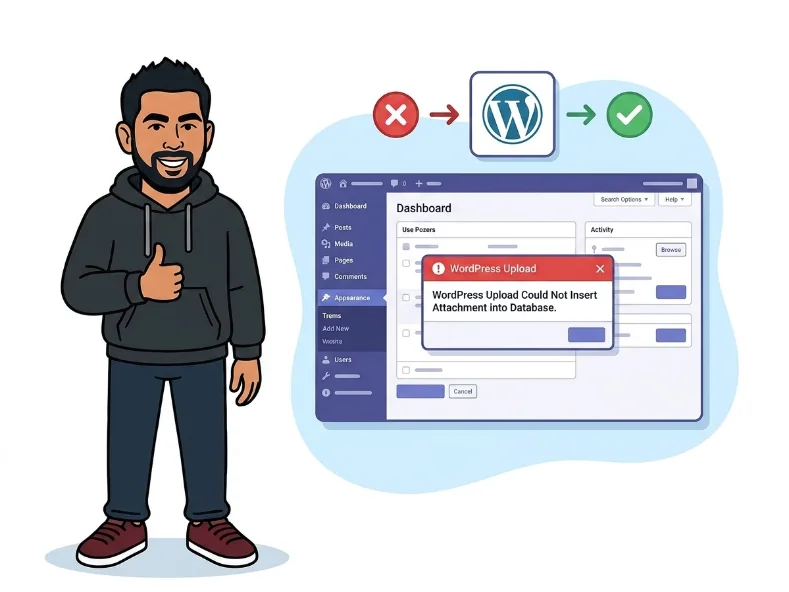
When you upload a photo or file to WordPress, two things happen behind the scenes: the actual file gets copied to your server’s /wp-content/uploads/ folder, and a database record gets created in the wp_posts table to register it as an attachment. This error means the file transfer may have worked, but the database step failed — so WordPress has no idea the file exists.
Because WordPress treats all media as a special post type stored in the database, a failed insert means you won’t see the file in your Media Library even if it’s sitting on your server right now. Trying to re-upload usually just gives you the same error again.
The good news: this error almost always has one of a handful of causes, and most of them are fixable in a few minutes without touching any code.
INSERT privilege on wp_posts, so the query is rejected before it even runs.wp_posts or wp_postmeta has damaged indexes or rows, MySQL can refuse new writes entirely to protect data integrity.max_allowed_packet setting that is too small, can cause the insert query to fail silently mid-execution./wp-content/uploads/[year]/[month]/. If the file is there, only the database write failed — focus your troubleshooting on the database, not file permissions.
You should see: The uploaded file listed in the current month’s uploads folder.
wp-config.php and add this line just above the line that reads /* That’s all, stop editing! */:
define('WP_ALLOW_REPAIR', true); Then visit https://yoursite.com/wp-admin/maint/repair.php and click Repair and Optimize Database. Once it finishes, remove that line from wp-config.php immediately.
You should see: Each database table listed with a status of Repaired or OK — no table should show Error.
SHOW GRANTS FOR 'your_db_user'@'localhost'; The output must include INSERT, UPDATE, and DELETE on your WordPress database. If not, update the user’s permissions through your host’s control panel.
You should see: GRANT ALL PRIVILEGES ON `your_database`.* TO 'your_db_user'@'localhost' in the results.
You should see: The upload succeeds with plugins off, and fails again only after re-enabling one specific plugin.
wp-config.php just before the stop-editing comment:
define('WP_MEMORY_LIMIT', '256M'); Alternatively, add this to your .htaccess file in the root of your site:
php_value memory_limit 256MYou should see: The upload completes without error and the attachment appears in your Media Library.
my-image-01.jpg before uploading. Encoding mismatches between your filesystem and database collation can silently block the insert.
You should see: The renamed file uploads successfully and shows up in your Media Library.
chmod 755 on the uploads folder. That solves file-write errors, not database-insert errors. Confirm which part of the process is actually failing before you start making changes.define('WP_ALLOW_REPAIR', true); after using the repair tool is a real security risk — anyone who knows that URL can trigger a live database repair on your site with no authentication.define('WP_DEBUG', true); and define('WP_DEBUG_LOG', true); to wp-config.php — the log at /wp-content/debug.log will show you the exact MySQL error and cut troubleshooting time significantly.Get free WordPress & AI tips
Join 500+ readers. No spam, unsubscribe anytime.
Not necessarily. The file may have already been copied to your server’s uploads folder even though the database record failed. Check /wp-content/uploads/ via FTP or your hosting file manager. If it is there, fix the database issue and re-upload, or manually register the file using a plugin like “Add From Server” without uploading it again.
Yes, and it is more common on shared hosting than you might expect. Hosts sometimes set restrictive MySQL user permissions or very low max_allowed_packet limits at the server level that you cannot change yourself. If you have ruled out plugins and your tables are healthy, contact your host and specifically ask them to check your MySQL user’s INSERT privileges and the server’s packet size configuration.
No. This error only blocks new uploads. Everything already in your Media Library has an existing database record and will not be touched. Only new upload attempts will fail until you fix the root cause.
Enable WordPress debug logging by adding define('WP_DEBUG', true); and define('WP_DEBUG_LOG', true); to wp-config.php. The log saved at /wp-content/debug.log will contain the exact MySQL error message behind the failure. Share that output with your hosting provider or a developer — it gives them exactly what they need to pinpoint the problem without any guesswork.
