
How to Fix WordPress Sidebar Below Content — Complete Guide
A broken sidebar layout in WordPress is usually caused by CSS float or width…
WordPress ERR_TOO_MANY_REDIRECTS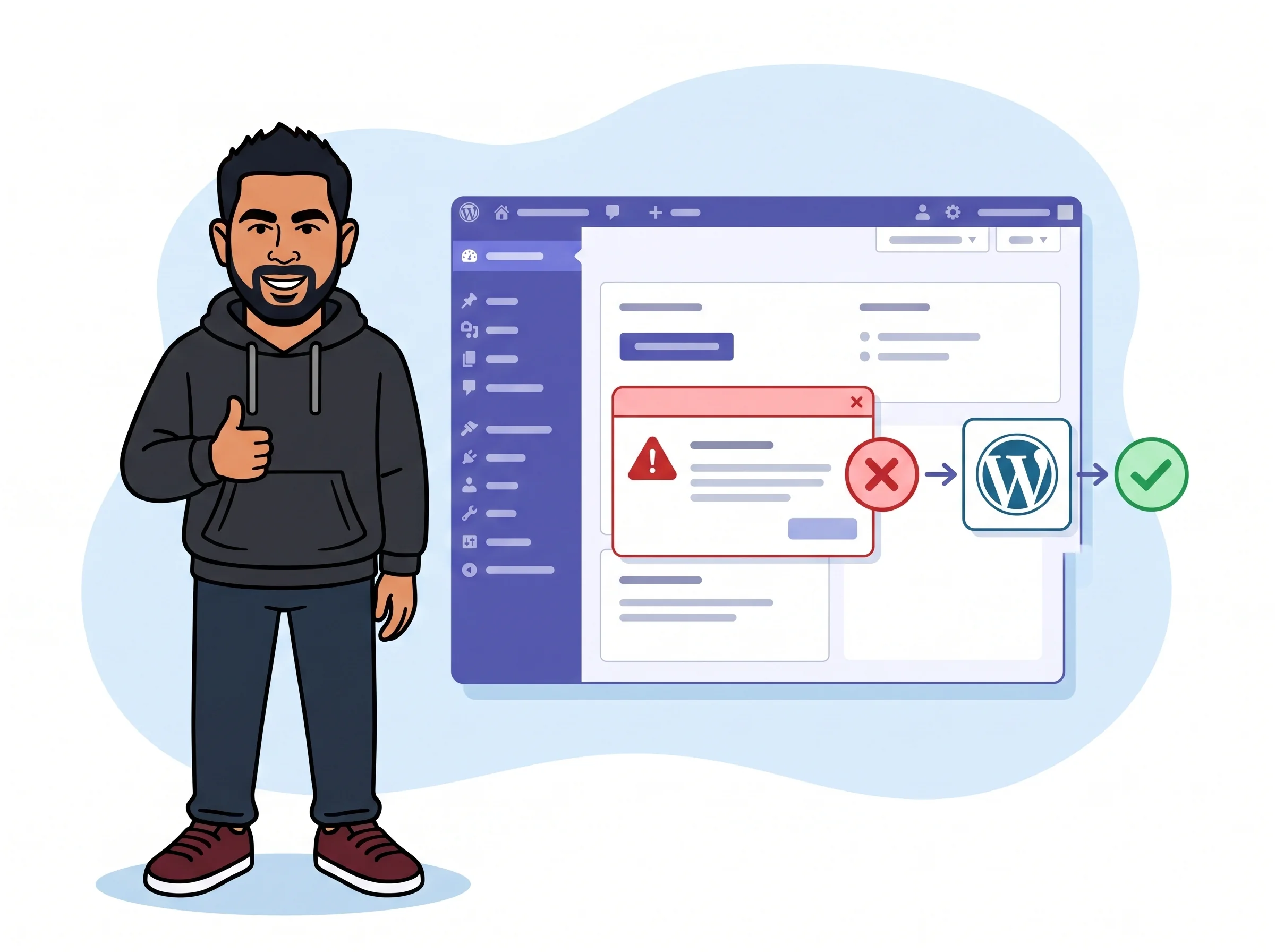
When you see ERR_TOO_MANY_REDIRECTS, your WordPress site has fallen into an infinite redirect loop. It keeps bouncing between URLs — say, from HTTP to HTTPS and back again — without ever settling on one. Your browser follows redirects up to a limit (usually around 20), then throws up its hands and shows this error instead of your site.
Think of it like two people at a doorway, each insisting the other go first. Nothing moves. Your visitors see a blank error screen, your admin panel is unreachable, and no amount of refreshing helps.
The good news: this error almost always traces back to one of a handful of specific causes, and most of them can be fixed by editing two lines in a config file. You don’t need to be a developer to sort this out.
You should see: Either the site loads normally (browser cache was the culprit) or the same error in a clean window, confirming it is a server-side issue worth digging into.
/* That's all, stop editing! */:
define('WP_HOME', 'https://yourdomain.com');
define('WP_SITEURL', 'https://yourdomain.com');
Replace the URL with your actual domain, using the correct HTTP or HTTPS prefix.
You should see: The site loads without a redirect error, or you can reach the WordPress admin panel again.
# BEGIN WordPress
<IfModule mod_rewrite.c>
RewriteEngine On
RewriteBase /
RewriteRule ^index\.php$ - [L]
RewriteCond %{REQUEST_FILENAME} !-f
RewriteCond %{REQUEST_FILENAME} !-d
RewriteRule . /index.php [L]
</IfModule>
# END WordPress
You should see: The site or admin panel loads after saving the new file, indicating the old .htaccess had conflicting redirect rules.
wp-content/plugins/ and rename the entire folder to plugins_disabled. This deactivates every plugin at once without needing access to the admin panel.
You should see: The site loads, confirming a plugin is responsible. Rename the folder back to plugins, then reactivate plugins one at a time — testing after each — until the loop returns, identifying the problem plugin.
$_SERVER['HTTPS'] = 'on';You should see: The redirect loop stops because WordPress no longer attempts its own HTTPS redirect on top of the one already happening at the proxy level.
wp_options table. Locate the rows where option_name equals siteurl and home. Click Edit on each and update the option_value to your correct full URL — making sure both use the same HTTP or HTTPS scheme.
You should see: The site loads correctly after updating both rows and hard-refreshing the browser.
siteurl but leaving home on HTTP (or the reverse) keeps the loop alive — both values must match exactly, including the protocol.Yes, it can. If the loop is triggered by a plugin rule or .htaccess condition tied to specific URL patterns — like the login page or a custom post type — only those URLs will loop while the rest of the site loads fine. In that case, focus on plugin settings and .htaccess rules that reference the affected URL pattern specifically.
Almost certainly. HTTP-to-HTTPS migrations are the single most common trigger for this error. If you installed an SSL certificate but did not update the WordPress Address and Site Address to use HTTPS, or if your host is now forcing HTTPS while WordPress still references HTTP URLs in the database, the redirect loop is a direct result of that incomplete migration.
Once the loop is resolved and redirects work correctly, your SEO should be unaffected going forward. However, if the loop was live long enough to prevent Googlebot from crawling your site, you may see a temporary dip in indexed pages. After fixing it, open Google Search Console, check the Coverage report for redirect errors, and request a recrawl of affected URLs.
At that point, the cause is likely living outside WordPress entirely — in your server configuration. Check with your hosting provider for Apache VirtualHost or Nginx server block rules that may be creating a redirect on top of WordPress’s own rules. Also verify your Cloudflare SSL mode: if it is set to Flexible instead of Full or Full (Strict), Cloudflare sends HTTPS to the browser but HTTP to your server, which causes WordPress to redirect back to HTTPS in an endless loop.
Get free WordPress & AI tips
Join 500+ readers. No spam, unsubscribe anytime.
