
How I Connected WordPress to Claude AI With an MCP Server
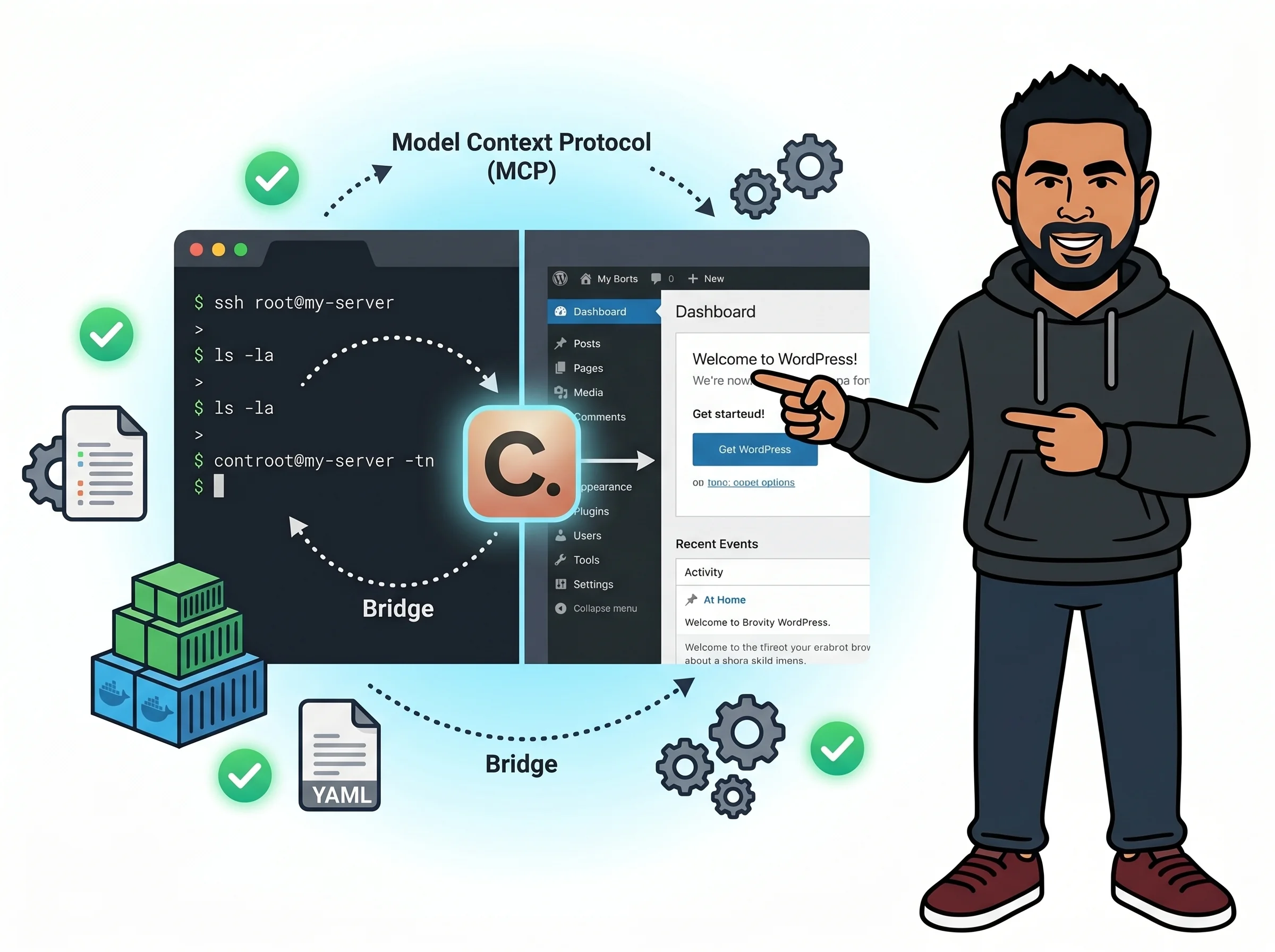
I never planned to build an MCP server. I just got tired of switching tabs.
Every time I wanted Claude to help me update a post, add a new page, or check my plugin list, I was copying and pasting. Text in. Text out. Then manually clicking through the WordPress dashboard to actually apply it.
There had to be a better way. And there was — it just took me a full weekend of broken Node.js paths and permission errors to find it.
What I Tried First — And Why It Didn’t Work
My first instinct was to use a REST API approach. WordPress has a built-in REST API, so I figured I’d just point Claude at it with an API key and call it a day.
Two problems showed up immediately.
First problem: Claude Code doesn’t natively “call” REST APIs on its own during a conversation — it needs a tool or server to bridge that connection. The REST API is great for building apps, but it isn’t a conversational interface.
Second problem: My WordPress site runs inside a Docker container on a Coolify VPS. It’s not publicly accessible via REST during dev work — I’d have to expose ports and deal with auth tokens just to test a simple post update. That felt like overkill for what I needed.
I also tried a plugin called “AI Power” which connects WordPress to OpenAI. Useful for content generation — but it doesn’t let Claude control WordPress. It just uses GPT inside the WordPress editor. That’s the opposite direction from what I wanted.
What I actually needed was an MCP server — a small Node.js process that exposes WordPress tools (create post, get posts, update page, list plugins) to Claude Code via the Model Context Protocol.
So I built one.
What Actually Fixed It — The MCP Server Setup
Here’s exactly how I set it up. My stack: Coolify VPS + Docker WordPress container + Node.js MCP server.
Step 1 — SSH into the VPS and set up a working directory
ssh coolify-vps
mkdir -p /home/coolify-service/wp-mcp
cd /home/coolify-service/wp-mcp
I created a dedicated folder outside the Docker container. The MCP server runs on the host — it communicates with WordPress via WP-CLI commands executed inside the container.
Step 2 — Install Node.js on the VPS host
curl -fsSL https://deb.nodesource.com/setup_20.x | sudo -E bash -
sudo apt-get install -y nodejs
node --version  # should show v20.x.x
If you’re on a minimal Coolify VPS like mine, Node.js won’t be pre-installed. Don’t skip this check.
Step 3 — Initialize the project and install the MCP SDK
cd /home/coolify-service/wp-mcp
npm init -y
npm install @modelcontextprotocol/sdk
The @modelcontextprotocol/sdk is the official Anthropic MCP package. It handles all the protocol handshake — you just define tools.
Step 4 — Write the server.js file
This is the core of the whole setup. Here’s a simplified version of what my server.js looks like:
import { Server } from "@modelcontextprotocol/sdk/server/index.js";
import { StdioServerTransport } from "@modelcontextprotocol/sdk/server/stdio.js";
import { CallToolRequestSchema, ListToolsRequestSchema } from "@modelcontextprotocol/sdk/types.js";
import { execSync } from "child_process";

const WP_CONTAINER = "wordpress-n0g4skoo8sgwgc848koog0ww";

function runWpCli(command) {
  const full = `docker exec ${WP_CONTAINER} wp --allow-root ${command}`;
  return execSync(full, { encoding: "utf8" });
}

const server = new Server(
  { name: "wordpress-mcp", version: "1.0.0" },
  { capabilities: { tools: {} } }
);

server.setRequestHandler(ListToolsRequestSchema, async () => ({
  tools: [
    {
      name: "wp_get_posts",
      description: "List recent WordPress posts",
      inputSchema: {
        type: "object",
        properties: {
          count: { type: "number", description: "Number of posts to retrieve" }
        }
      }
    },
    {
      name: "wp_create_post",
      description: "Create a new WordPress post",
      inputSchema: {
        type: "object",
        properties: {
          title: { type: "string" },
          content: { type: "string" },
          status: { type: "string", enum: ["draft", "publish"] }
        },
        required: ["title", "content"]
      }
    }
  ]
}));

server.setRequestHandler(CallToolRequestSchema, async (request) => {
  const { name, arguments: args } = request.params;

  if (name === "wp_get_posts") {
    const count = args.count || 5;
    const result = runWpCli(`post list --posts_per_page=${count} --fields=ID,post_title,post_status --format=json`);
    return { content: [{ type: "text", text: result }] };
  }

  if (name === "wp_create_post") {
    const { title, content, status = "draft" } = args;
    const result = runWpCli(`post create --post_title="${title}" --post_content="${content}" --post_status=${status}`);
    return { content: [{ type: "text", text: result }] };
  }

  throw new Error(`Unknown tool: ${name}`);
});

const transport = new StdioServerTransport();
await server.connect(transport);
The key insight here: every tool just runs a WP-CLI command inside the Docker container via docker exec. No REST API. No auth tokens. Direct shell access.
Step 5 — Add the MCP server to Claude Code config
On your local machine (not the VPS), open your Claude Code MCP config file. On Windows it’s at:
C:\Users\YourName\AppData\Roaming\Claude\claude_desktop_config.json
Add this block:
{
  "mcpServers": {
    "wordpress": {
      "command": "ssh",
      "args": [
        "coolify-vps",
        "node /home/coolify-service/wp-mcp/server.js"
      ]
    }
  }
}
This tells Claude Code: when you need WordPress tools, SSH into my VPS and run the Node.js server. The MCP protocol runs over stdio — so SSH becomes the transport pipe.
Step 6 — Test it
Restart Claude Code. In the chat, try:
List my last 5 WordPress posts
If it works, you’ll see Claude call the wp_get_posts tool and return your actual post titles. That moment — the first time Claude listed my real posts from ceeveeglobal.com without me touching the dashboard — genuinely felt like magic. 🎯
Quick Reference
# SSH into VPS
ssh coolify-vps

# Start MCP server manually (for testing)
node /home/coolify-service/wp-mcp/server.js

# Test WP-CLI directly (check connection works)
docker exec wordpress-n0g4skoo8sgwgc848koog0ww wp --allow-root post list

# Check Node.js version on VPS
node --version

# Reinstall SDK if something breaks
cd /home/coolify-service/wp-mcp && npm install
Claude Code config location (Windows):
%APPDATA%\Claude\claude_desktop_config.json
Claude Code config location (Mac):
~/Library/Application Support/Claude/claude_desktop_config.json
Frequently Asked Questions
Q: Do I need a special WordPress plugin for this to work?
No plugin needed. The MCP server communicates with WordPress through WP-CLI running inside the Docker container. As long as WP-CLI is installed in your container (it is by default in most WordPress Docker images), you’re good to go. No REST API, no extra plugins — just shell commands.
Q: Is this secure? I don’t want to expose my WordPress to the internet.
It’s actually more secure than the REST API approach. The MCP server runs on your VPS host and only accepts connections via SSH. Nothing is exposed publicly. Claude Code connects through your existing SSH key pair — same as if you logged in manually. Your WordPress dashboard URL stays private.
Q: What happens if the Docker container name changes after a Coolify update?
This caught me once. After a Coolify update, my container got recreated with a different ID. I store the container name as a constant at the top of server.js — so I just update that one line and restart. To find your current container name:
docker ps --filter "name=wordpress" --format "{{.Names}}"
Final Thoughts
This setup changed how I work with my WordPress sites. Instead of switching between Claude and the dashboard, I just describe what I want and it happens — new posts drafted, plugin lists checked, page content updated, all through conversation.
It’s not a product you can buy. It’s something you build, and that’s the point. If you want to go further — more tools, more sites, a shared MCP config — I’ve packaged some of these patterns into ready-to-use tools at aibuilttools.com.
Start with one tool. Get it working. Build from there.