
Replace Vercel, Sentry & Plausible for $5/Month (Real Setup)
I replaced four paid subscriptions ($152/mo) with one $5/mo self-hosted server: real deployment, a…
Here’s the thing most WordPress users don’t realize: wp-config.php is your site’s hidden control panel. It’s where you can troubleshoot critical errors, boost security, increase memory limits, and enable debugging — all without touching the WordPress dashboard.
But it’s also the file that scares people the most. One wrong edit, and your site can go completely blank.
That’s exactly why I wrote this guide. I’ll show you how to safely find, access, and edit the wp-config.php file — even if you’ve never touched code before. Plus, I’ll share the exact tweaks I use on every site I build.
Get free WordPress & AI tips
Join 500+ readers. No spam, unsubscribe anytime.
Let’s dive in.
The wp-config.php file is WordPress’s main configuration file. Think of it as the bridge between your WordPress software and your database.
Without this file, WordPress can’t:
Here’s what it controls:
The file gets created automatically when you install WordPress. But knowing how to edit it gives you total control over your site’s behaviour.
Note: I’ve edited wp-config.php hundreds of times over the years. It’s intimidating at first, but once you understand the basics, it becomes one of your most powerful troubleshooting tools. Just always — and I mean ALWAYS — backup first.
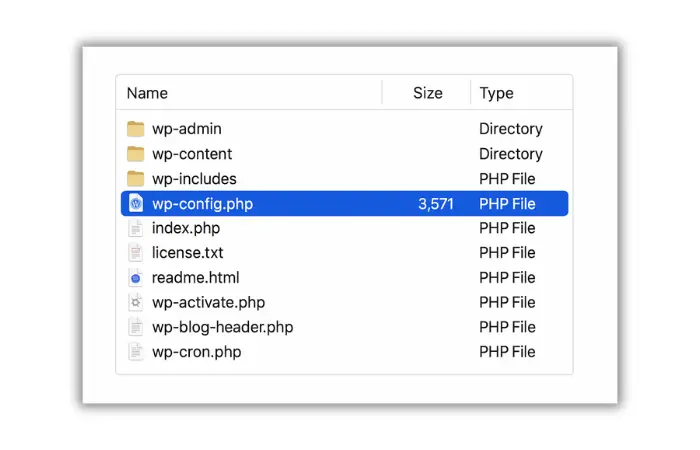
The wp-config.php file lives in your WordPress root directory. Depending on your hosting setup, this folder is usually called:
public_htmlwwwhtdocsexample.com)You can access this file three ways:
This is the easiest method if your host uses cPanel.
public_html folder (or your site’s root folder)wp-config.phpA warning will pop up about editing code. Click Edit again to proceed.
If you prefer FTP access or don’t have cPanel:
wp-config.php and select View/EditFileZilla will open the file in your default text editor. Make changes, save, and FileZilla will upload the updated file automatically.
For those comfortable with the command line:
cd /path/to/your/wordpress/
nano wp-config.php
Make your edits, then press Ctrl + X, then Y, then Enter to save.
Pro Tip: On localhost setups like XAMPP or Local by Flywheel, navigate to xampp/htdocs/your-site-folder or wherever your local WordPress installation lives.
Before you touch wp-config.php, create a backup. This isn’t optional.
If you make a mistake, your entire site can go down instantly. Here’s why:
How to back up wp-config.php:
Option 1: Download via FTP
wp-config-backup.phpOption 2: Duplicate via File Manager
wp-config.phpwp-config-backup.phpOption 3: Full Site Backup If your hosting has automatic backups (like Cloudways or WP Engine), create a manual backup before editing anything critical.
My Reality Check: I learned this lesson the hard way. A few years ago, I edited wp-config.php without backing up first. I mistyped one character, hit save, and the entire site went blank. Took me 2 hours to figure out what went wrong. Now I back up every single time — no exceptions.
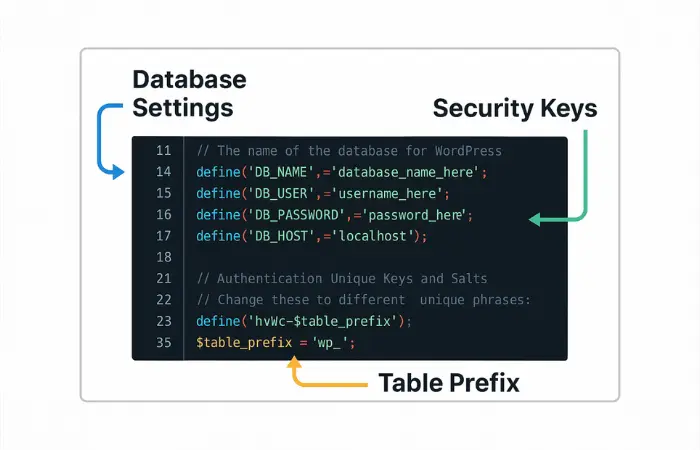
Let’s break down the main sections you’ll see when you open wp-config.php.
This section connects WordPress to your MySQL database:
// ** MySQL settings ** //
define( 'DB_NAME', 'your_database_name' );
define( 'DB_USER', 'your_database_username' );
define( 'DB_PASSWORD', 'your_database_password' );
define( 'DB_HOST', 'localhost' );
When you’d change this:
These are random strings that encrypt your login cookies:
define('AUTH_KEY',         'put your unique phrase here');
define('SECURE_AUTH_KEY',  'put your unique phrase here');
define('LOGGED_IN_KEY',    'put your unique phrase here');
define('NONCE_KEY',        'put your unique phrase here');
define('AUTH_SALT',        'put your unique phrase here');
define('SECURE_AUTH_SALT', 'put your unique phrase here');
define('LOGGED_IN_SALT',   'put your unique phrase here');
define('NONCE_SALT',       'put your unique phrase here');
When you’d change this:
How to generate new keys: Visit the WordPress.org Secret Key Generator and copy-paste the generated keys into your file.
$table_prefix = 'wp_';
The default is wp_, but you can change it to add a security layer:
$table_prefix = 'wp_a7x9_';
Warning: Only change this during initial setup. Changing it on an existing site requires updating your entire database structure.
define( 'WP_DEBUG', false );
This controls whether WordPress displays errors on your screen.
Now let’s get into the practical stuff. These are the most common edits I make on WordPress sites.
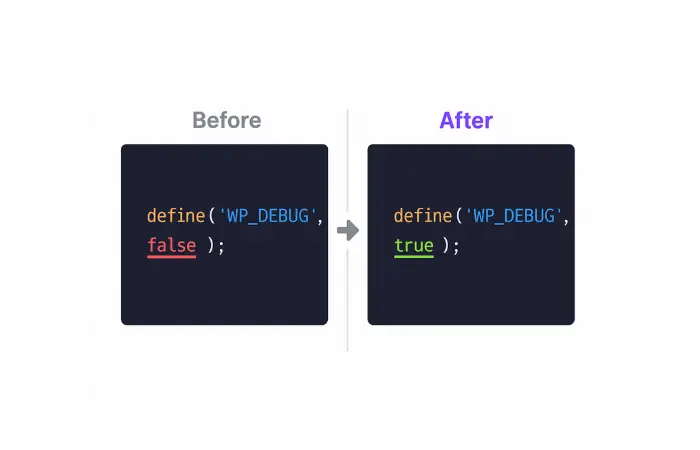
When something breaks on your site but you can’t see what’s wrong, enable debug mode.
Find this line:
define( 'WP_DEBUG', false );
Change it to:
define( 'WP_DEBUG', true );
What this does:
Save the file, then visit your site. You’ll now see error messages that were previously hidden.
Important: Turn debug mode OFF once you’ve fixed the issue. Leaving it on exposes sensitive information to visitors and slows down your site.
Bonus: Log Errors to a File Instead If you don’t want errors displayed publicly, log them to a file:
define( 'WP_DEBUG', true );
define( 'WP_DEBUG_LOG', true );
define( 'WP_DEBUG_DISPLAY', false );
@ini_set( 'display_errors', 0 );
This creates a debug.log file in /wp-content/ with all errors recorded privately.
My Tip: I always use the log file method on live sites. It lets me troubleshoot without exposing errors to visitors. Check the WordPress Enable Error Log guide for more details.
If you see errors like “Fatal error: Allowed memory size exhausted,” your site is running out of PHP memory.
Add this line before “That’s all, stop editing”:
define( 'WP_MEMORY_LIMIT', '256M' );
What this does:
You can try 128M first and increase if needed. Most shared hosting plans allow up to 256M or 512M.
Why this happens: Page builders, e-commerce plugins, and image-heavy sites consume lots of memory. This edit gives WordPress more room to work.
For more context on fixing memory issues, check out How to Fix WordPress Memory Size Exhausted.
Hackers know the default database prefix is wp_, making it easier to target your tables with SQL injection attacks.
During initial setup, change this:
$table_prefix = 'wp_';
To something random like:
$table_prefix = 'wp_secure2024_';
Only use letters, numbers, and underscores. No special characters.
CRITICAL WARNING: Do NOT change this on an existing site unless you also update every table name in your database via phpMyAdmin. One mistake will break your entire site.
If your site was hacked or you suspect unauthorized access, regenerate your security keys immediately.
Step 1: Visit WordPress.org Secret Key Generator
Step 2: Copy all 8 generated lines
Step 3: Find the authentication section in wp-config.php and replace the existing keys with the new ones:
define('AUTH_KEY',         'new-unique-key-here');
define('SECURE_AUTH_KEY',  'new-unique-key-here');
// ... (replace all 8 lines)
What this does:
Dimu’s Security Practice: I regenerate these keys every 6 months as preventive maintenance. Takes 2 minutes and significantly reduces security risks.
For more security hardening tips, see Understanding SSL, HTTP, and HTTPS.
WordPress auto-updates for security by default. But if you want manual control:
Add this line:
define( 'AUTOMATIC_UPDATER_DISABLED', true );
When you’d do this:
Important: Only disable this if you have a reliable update system in place. Security updates protect against known vulnerabilities.
These are more technical edits that solve specific problems.
WordPress saves every edit as a revision. On large sites, this bloats your database.
Disable completely:
define( 'WP_POST_REVISIONS', false );
Or limit to 5 revisions:
define( 'WP_POST_REVISIONS', 5 );
Default is 60 seconds. Increase to reduce server load:
define( 'AUTOSAVE_INTERVAL', 300 ); // 5 minutes
If you need to upload large files:
@ini_set( 'upload_max_size' , '64M' );
@ini_set( 'post_max_size', '64M');
@ini_set( 'max_execution_time', '300' );
define( 'FORCE_SSL_ADMIN', true );
This forces HTTPS for your WordPress admin login and dashboard. For full SSL setup, read Understanding SSL and HTTPS for WordPress.
Advanced users can move the wp-content folder to a custom location:
define( 'WP_CONTENT_DIR', '/path/to/new/wp-content' );
define( 'WP_CONTENT_URL', 'https://example.com/new-content' );
Cause: Wrong database credentials in wp-config.php
Fix:
DB_HOST from localhost to 127.0.0.1For a complete guide, see Resolving Database Connection Errors.
Cause: Syntax error in wp-config.php (missing semicolon, quote, etc.)
Fix:
Full troubleshooting guide: Fix WordPress White Screen of Death.
Cause: PHP syntax error or permission issue
Fix:
More details: Fixing HTTP Error 500 in WordPress.
After 15 years of working with WordPress, here’s what I’ve learned:
✅ DO:
❌ DON’T:
My Workflow:
wp-config-backup-[DATE].php on my computerShared Hosting (cPanel): public_html/wp-config.php
VPS/Dedicated Server: /var/www/html/wp-config.php /home/username/public_html/wp-config.php
Localhost (XAMPP): C:/xampp/htdocs/your-site/wp-config.php
Localhost (MAMP): /Applications/MAMP/htdocs/your-site/wp-config.php
Localhost (Local by Flywheel): ~/Local Sites/your-site/app/public/wp-config.php
The wp-config.php file is one of the most powerful files in WordPress. It’s your direct line to:
Key takeaways:
Dimu’s Final Tip: Bookmark this guide. You won’t edit wp-config.php often, but when you need to, having a trusted reference makes all the difference. I still reference my own notes before making changes — even after 15 years.
Need more help with WordPress errors? Check out:
Or try the WP Error Expert tool for AI-powered WordPress error analysis.
Have questions about editing wp-config.php? Drop a comment below. I personally respond to every question because I remember what it was like learning this stuff. We’re all in this together. 🎯
No. Deleting wp-config.php will completely break your WordPress site. WordPress needs this file to connect to the database. If it’s missing, you’ll see the WordPress installation screen instead of your site.
The wp-config.php file is in your WordPress root directory, usually public_html or www. Access it via FTP, File Manager (cPanel), or SSH terminal.
If you make a syntax error, your site will likely show a white screen, “Error Establishing Database Connection,” or 500 Internal Server Error. This is why backing up before editing is critical — you can restore the working version immediately.
Yes, as long as you follow best practices: backup first, use a plain text editor, avoid Microsoft Word or Google Docs, test on staging first, and document your changes. Thousands of WordPress developers edit this file daily without issues.
Open wp-config.php and change define( 'WP_DEBUG', false ); to define( 'WP_DEBUG', true );. This displays PHP errors on your site. Turn it off after troubleshooting by changing it back to false.
No. WordPress intentionally does not allow editing wp-config.php from the dashboard because one mistake could lock you out completely. You must access it via FTP, File Manager, or SSH.
Security keys and salts are random strings in wp-config.php that encrypt your login cookies. They protect against session hijacking and brute force attacks. Regenerate them regularly for better security using the WordPress.org key generator.
Add this line to wp-config.php before “That’s all, stop editing”: define( 'WP_MEMORY_LIMIT', '256M' );. This increases memory from 40MB to 256MB and prevents “memory exhausted” errors.
